

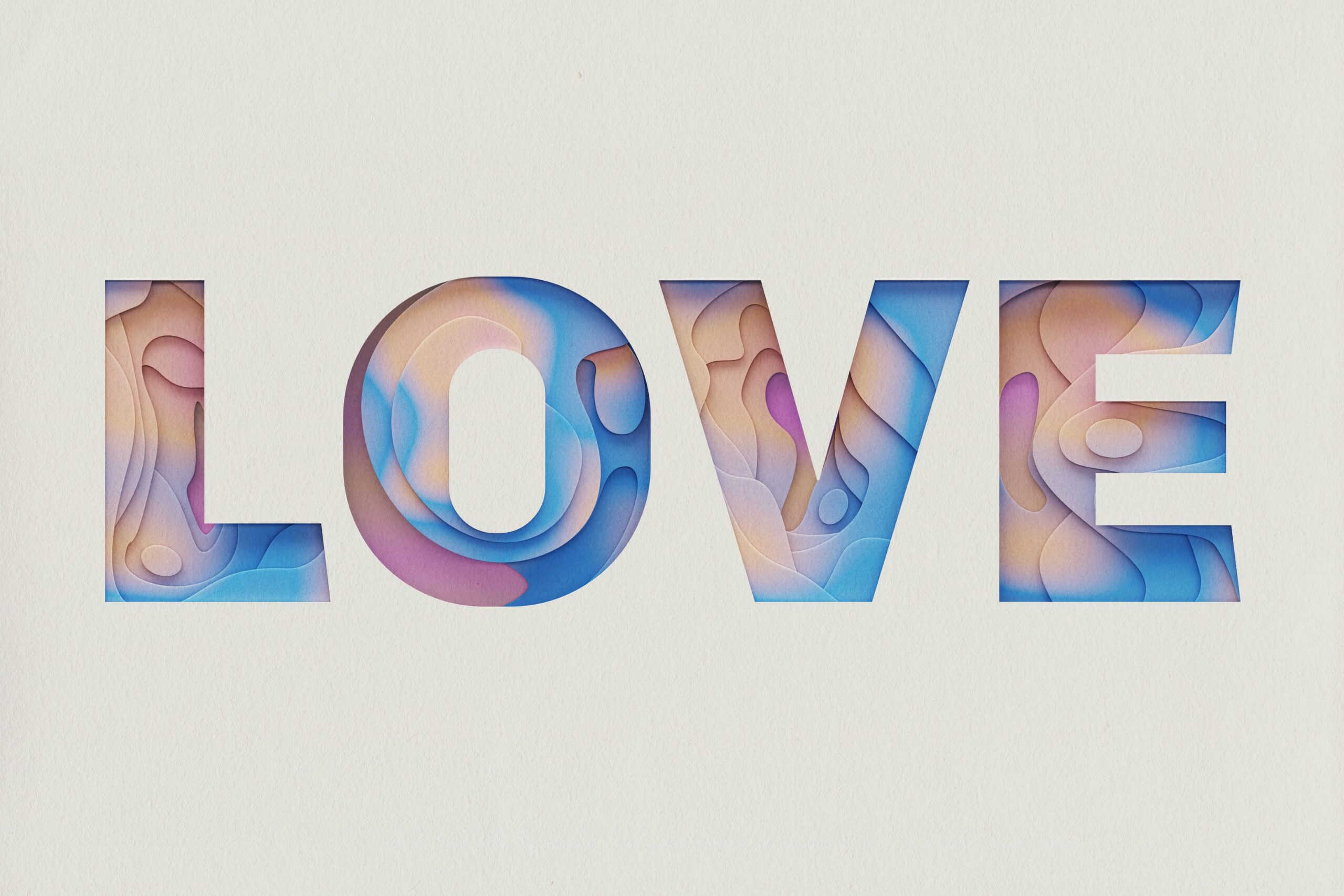
Text Wrap Tutorial – Adobe Illustrator
In this text wrap tutorial, we’ll be using Adobe Illustrator to show you how to create text wrap around objects. This can be a great way to add interest to your designs, and is perfect for creating things like labels, invitations, and more. Let’s get started!
Introduction: What is text wrap?
Text wrap is a feature in Adobe Illustrator that allows you to easily format text so that it flows around objects in your design. This can be helpful for creating flyers, posters, and other designs where you want the text to stand out.
To use text wrap, simply select the object you want to use as a text container and then type your text. The text will automatically flow around the object. You can also adjust the spacing between the object and the text by using the Text Wrap panel.
Text wrap is a great way to add some interest to your design. So experiment with it and see what you can create!
Text wrap in Illustrator: How to create it
Setting up text wrap in Illustrator is a fairly simple process. First, select the Type tool from the toolbar and click anywhere on the artboard to create a text box. Enter your text into the text box and then select the object you want to wrap the text around. With both the text box and object selected, go to Object > Text Wrap > Make. This will create a clipping mask around your object and allow the text to flow around it.
There are a few things to keep in mind when using this method. First, make sure that your object is above your text box in the layer order. If it’s not, simply select both objects and go to Object > Arrange > Bring To Front.
Tips for using text wrap
Assuming you want tips for text wrapping in Adobe Illustrator:
Text wrapping is a great way to make your text stand out and add interest to your designs. Here are some tips for using text wrap in Adobe Illustrator:
- To create a text wrap, first select the object you want to wrap around. Then go to Object > Text Wrap > Make.
- You can adjust the spacing between the wrapped object and the text by going to Object > Text Wrap > Options.
- If you want the text to flow around a complex object, you can create a clipping mask. First, draw a path around the object. Then select both the object and the path and go to Object > Clipping Mask > Make. The clipping mask will limit the text to areas that aren’t covered by the path.
- You can also create a clipping mask with no fill, so that only part of the object is visible through the text. First, select the object. Then choose Object >Clipping Mask>Make with No Fill [Alt-Shift-K].
- If you want to rotate an object that s been placed in a text frame, first select the object.
Graphic design tips for Adobe Illustrator
There are a few key things to keep in mind when working with text in Adobe Illustrator. First, you’ll want to make sure that your text is properly kerned. This means that the space between each letter is evenly distributed, and will help to create a more polished look. Secondly, be aware of the different text wrap options that are available to you. By default, Illustrator will wrap your text around the edge of the object it’s on, but you can also choose to have it flow inside or outside of the object.
Lastly, take advantage of the various typefaces and font styles that are available within Adobe Illustrator. Experimenting with different looks can help to give your design a unique feel.
The different types of fonts every designer should know
Most designers know about the different types of fonts available for use in design projects, but there are some specific fonts that every designer should be familiar with. Here are a few of the most popular and useful fonts for designers:
Sans-serif fonts are characterized by their lack of serifs, or small decorative lines, at the ends of strokes. Sans-serif fonts are generally considered to be more modern and clean-looking than serif fonts. Some popular sans-serif fonts include Arial, Helvetica, and Futura.
Serif fonts are characterised by the small decorative lines, or serifs, at the ends of strokes. Serif fonts are generally considered to be more traditional and elegant than sans-serif fonts. Some popular serif fonts include Times New Roman, Georgia, and Garamond.
7 Graphic design trends that will be big in 2023
With the world of graphic design always evolving, it can be hard to keep up with the latest trends. But don’t worry, we’ve got you covered. Here are 7 graphic design trends that will be big in 2023:
- Bold and Bright Colours
Graphic designers will be experimenting with bold and bright colours in 2023. This trend is all about making a statement and grabbing attention. So if you want your designs to stand out, start playing around with some brighter hues.
- Geometric Shapes
Geometric shapes will also be popular in 2023. This trend is perfect for creating clean and modern designs. So if you’re looking to update your style, start incorporating some geometric shapes into your work.
- Minimalism
Minimalism is a popular trend in graphic design. This style is all about using as few elements as possible to create a single bold statement. So if you want clean and modern designs, start working on minimalistic ideas for your next project.
- Hand-Drawn Elements
Hand-drawn elements are also very popular right now. This trend is all about creating hand-drawn illustrations and typography. So if you want to create a unique style, start incorporating some hand-drawn elements into your work.
- Grunge
Grunge is a popular trend in web design. This style is all about rough, distorted and noisy textures and colours. So if you want to create a grungy style, start working on grungy designs for your next project.
- Flat Design
Flat design is a popular trend in web design. This style is all about minimalistic elements and flat colours. So if you want to create a flat design, start working on flat designs for your next project.
- Minimalism
Minimalism is a popular trend in web design. This style is all about simple, clean and neat designs. So if you want to create a minimalistic style, start working on minimalistic designs for your next project.
How to use Adobe Illustrator for graphic design
Computers have changed the graphic design industry, and Adobe Illustrator is one of the most popular programmes used by professionals. This tutorial will show you how to use Adobe Illustrator for graphic design.
Adobe Illustrator is a vector drawing programme that can be used for creating logos, illustrations, and typography. It has a wide variety of tools and features that can be used to create almost any type of graphic design.
One of the most basic things you need to know in order to use Adobe Illustrator for graphic design is how to create text wrap. Text wrap is when you have a piece of text that wraps around another object, like an image.
In order to create text wrap in Adobe Illustrator, first select the object that you want the text to wrap around.
The history of typography and its impact on design
Typography is the art and technique of arranging type to make written language legible, readable, and appealing when displayed. The arrangement of type involves selecting typefaces, point size, line length, line-spacing (leading), letter-spacing (tracking), and adjusting the space within letters pairs (kerning). Typography is an ancient craft which has been developed over thousands of years.
The history of typography can be traced back to the first systematized form of written communication: cuneiform. This early form of writing was inscribed in wet clay using a sharpened reed. The Sumerians who created cuneiform are also thought to have invented the first typeface. From cuneiform, we see the development of hieroglyphics (Egyptian) and then logograms (Chinese). In the early days of typography, each block of text was hand-set into a form. This was a long and difficult process, with many inconsistencies.
The future of graphic design
Graphic design is an ever-evolving field. As new technologies and software are developed, graphic designers will have access to new tools and techniques. This means that the future of graphic design is always changing.
One trend that is currently affecting graphic design is the move towards more minimalistic designs. This trend is being driven by the popularity of flat design and the need for designs that can be easily viewed on mobile devices.
Another trend that is likely to continue into the future is the use of illustration in graphic design. Illustrations can add a unique touch to a design and help to tell a story. They can also be used to add personality to a brand.
As technology continues to develop, it is likely that we will see even more changes in the field of graphic design.
Defining Adobe Illustrator
Adobe Illustrator is a vector graphics editor developed and marketed by Adobe Inc. Originally designed for the Apple Macintosh, development of Adobe Illustrator began in 1985. Along with Creative Cloud (CC), Illustrator CC was released on June 17, 2013. It is the twenty-fifth anniversary release of Illustrator and includes new features such as: a completely redesigned interface, live shapes and paths, a touch-type tool, linked files and libraries, image trace, photoscopes, etc.
Adobe Illustrator is used by graphic designers to create vector illustrations for logos, illustrations, infographics, etc. Unlike Photoshop which uses pixels to create images, Adobe Illustrator uses mathematical equations to draw out your artwork. This means that when you scale up or down an image created in Adobe Illustrator, the image will not become blurry like a pixel based image would.
Adobe Illustrator is a vector drawing programme that allows users to create graphic designs and illustrations. The software provides users with the ability to create and edit vector graphics, as well as create and edit raster images. Adobe Illustrator also offers users a variety of tools for creating and manipulating text, including the ability to wrap text around objects.
Defining graphic design
Graphic design is the process of visual communication through the use of typography, iconography, and illustration. The field is considered a subset of visual communication and communication design, but sometimes the term “graphic design” is used interchangeably with these terms. Graphic designers create and combine symbols, images, and text to form visually appealing or interesting designs that convey a message.
Designers often work in advertising agencies, in-house creative departments, or as freelancers. With technology becoming more and more sophisticated, graphic designers are now able to create designs that are not only aesthetically pleasing, but also functional. This has led to an increase in demand for graphic designers in a variety of industries.
Defining typography
Typography is the art and technique of arranging type to make written language legible, readable, and appealing when displayed. The arrangement of type involves selecting typefaces, point size, line length, line-spacing (leading), letter-spacing (tracking), and adjusting the space within letters pairs (kerning).
Typefaces (or fonts) are the design of lettering that can include variations in thickness of the strokes making up the letters, how wide or narrow the letters are, how tall or short they are in relation to one another, and whether or not they have decorative embellishments. There are thousands of different typefaces available for use. Some are very similar to each other while others have drastic differences. When selecting a typeface for a project it’s important to keep in mind how you want your audience to perceive the text.
Adobe Illustrator: Tips for Graphic Designers
If you’re a graphic designer, chances are you’re well-versed in Adobe Illustrator. But even the most seasoned professionals can always use a few tips and tricks to help them work smarter, not harder. Here are a few Adobe Illustrator tips for graphic designers that will help you save time and create better designs:
- Use the Appearance panel to quickly change the look of your text.
- Use clipping masks to easily create complex shapes.
- Use the Pathfinder tool to merge overlapping shapes.
- Take advantage of live corners to createrounded corners without losing any detail.
- Create custom brushes to add unique details to your designs.
- Use the Pencil tool to easily draw freeform shapes.
Types of careers in graphic design with Adobe Illustrator
There are a variety of graphic design careers that rely heavily on Adobe Illustrator. Many designers use the software to create logos, illustrations, and web or app interfaces. Others use it for print design, such as creating ads, flyers, and posters.
Most graphic designers start their careers by completing a degree or certificate in graphic design. However, there are many ways to learn the software. Adobe offers certification in Illustrator, which can be helpful when seeking employment. There are also many online tutorials that can teach the basics of the software.
A career in graphic design can take many different forms. Some designers work in advertising agencies, creating advertising campaigns and designing print ads, while others work in-house for businesses, developing branding materials such as logos, product packaging, and website designs. There are also freelance designers who work on a contract basis with clients from all sorts of industries.
No matter what type of graphic design career you’re interested in pursuing, there are a few skills that all designers need to have. These include creativity, strong visual communication abilities, typographic knowledge, and an understanding of the latest design software programmes. With these skills in hand, you’ll be well on your way to a successful career in graphic design!
Graphic design tips: How to use Adobe Illustrator like a pro
Graphic design is all about creating visual interest. And one of the best ways to do that is with text wrap. Adobe Illustrator is a powerful tool that allows you to create amazing text effects. Here are some tips on how to use it like a pro:
- To create a basic text wrap, simply select the object you want to wrap around and then go to Object > Text Wrap > Make.
- You can also customize your text wrap by going to Object > Text Wrap > Options. This will bring up a dialog box where you can adjust the offset, wrapping mode, and more.
- If you want to get really creative with your text wraps, you can use the Type On A Path Tool. This tool allows you to type along any path, giving you lots of options for interesting text effects.
- With the Type On A Path Tool, you can also type along a closed path.
- Select the object and click on Object >Text Wrap>Make. Then click on the closed path to start typing!
Typography trends: The hottest looks for 2023
What’s hot in the world of typography? We took a look at some of the hottest looks for 2023 to give you some inspiration for your next project.
One of the hottest trends right now is using multiple fonts in a single design. This can create an interesting and eye-catching effect that is sure to grab attention. Another popular trend is using big, bold letters to make a statement. This is perfect for creating impactful designs that are sure to stand out.
If you’re looking for something a little different, why not try experimenting with hand-drawn or brushed lettering? This gives your design a unique and personal touch that is bound to impress. Whichever direction you choose to go in, make sure you have fun with it!
Tools of the trade: The best software for graphic designers
When it comes to the best software for graphic designers, Adobe Illustrator is hard to beat. With its easy-to-use text wrapping features, you can quickly and easily create amazing text effects that will make your designs stand out from the crowd.
If you’re looking for a more affordable option, Inkscape is a great alternative to Illustrator. It’s open source software that offers many of the same features as Illustrator, and it’s constantly being updated with new features and improvements.
For those who want even more control over their text effects, consider using Photoshop. With its powerful layer options and vast array of filters and plugins, you can create just about any text effect imaginable.
6 Reasons to use Adobe Illustrator for graphic design
Adobe Illustrator is a powerful graphic design software that allows you to create vector illustrations and images. Here are six reasons why you should use Adobe Illustrator for your next graphic design project:
- Adobe Illustrator has a wide range of features that make it ideal for creating vector illustrations and graphics.
- Adobe Illustrator is easy to use and has a user-friendly interface.
- Adobe Illustrator is compatible with other Adobe products, making it easy to create a complete design workflow.
- Adobe Illustrator integrates with Creative Cloud, allowing you to access your designs from anywhere.
- Adobe Illustrator offers powerful tools for creating sophisticated graphics.
- Adobe Illustrator is an industry-standard graphic design software, used by professional designers around the world.
5 Tips for better Typography in Adobe Illustrator
- Use the Text Wrap panel to manage your text wrapping options. The Text Wrap panel provides you with several presets for common text wrapping situations, or you can create your own custom text wrap.
- Create a new layer for your text. This will allow you to easily move the text around without affecting the rest of your design.
- Use the Type tool to create your text. You can use any font you like, but be sure to choose a legible one that will be easy to read at small sizes.
- Experiment with different fonts and font sizes to find the perfect combination for your design.
- Use tracking and kerning to fine-tune the spacing of your letters and words. This can make a big difference in the overall look of your design.
Creative opportunities with Adobe Illustrator
Adobe Illustrator is a powerful design tool that can be used to create stunning artwork, graphics, and illustrations. With its wide range of features and capabilities, Adobe Illustrator offers endless possibilities for creative exploration. Here are just a few of the many creative opportunities that can be explored with Adobe Illustrator:
- Create Complex Designs: With its vast array of tools and features, Adobe Illustrator can be used to create complex designs and illustrations. Whether you’re looking to create detailed graphics or intricate artwork, Adobe Illustrator has the tools you need to get the job done.
- Explore Different Art Styles: One of the great things about Adobe Illustrator is that it allows you to experiment with different art styles. Take your artwork in a completely different direction by changing the colours, fonts, and shapes.
- Create Vector Artwork: Adobe Illustrator allows you to create vector art.
There are a lot of creative opportunities that come with Adobe Illustrator. You can use the software to create textured graphics, illustrations, logos, and more. The software is very versatile and easy to use, which makes it a great tool for anyone who wants to get into graphic design.
5 Promising careers in graphic design
There are a number of promising careers in graphic design. Here are five of the most promising:
- UX Designer
A UX designer is responsible for creating user-friendly designs for websites and apps. They need to have a strong understanding of how users interact with technology, and be able to create designs that are both user-friendly and aesthetically pleasing.
- Interface Designer
An interface designer is responsible for designing the graphical user interface for websites and software applications. They need to have a strong understanding of usability principles, and be able to create intuitive and visually appealing interfaces.
- Motion Graphics Designer
A motion graphics designer creates animated graphics for use in TV, film, and digital media. They need to be creative and have strong skills in animation and graphic design.
- Web Designer
Web designers are responsible for both the visual and technical aspects of websites. They need to understand how to make attractive websites that load quickly and offer superior usability.
- User Experience (UX) Designer
User experience designers create software that is easy to use, intuitive, and enjoyable.
Tips and tricks for typography in Adobe Illustrator
As a vector-based programme, Adobe Illustrator is the perfect tool for creating clean and crisp text. Here are some tips and tricks for getting the most out of your typography in Illustrator:
- Use the Character panel to control your type attributes. This panel gives you control over things like font family, size, leading, tracking, and kerning.
- To create professional-looking text wrap, start by creating a clipping mask. Select the object you want to wrap around and then go to Object > Clipping Mask > Make (or use the shortcut Shift+Ctrl+7).
- Once you have your clipping mask set up, simply type out your text inside of it. The text will automatically wrap around the object!
- To add a nice, subtle shadow to your type, use the drop-down menu in the Character panel and select Drop Shadow.
- To change the colour of your shadow, click on the colourswatch that appears next to it.
Three tips for better Adobe Illustrator results
Adobe Illustrator is a widely used programme for creating vector graphics. Though it may seem daunting at first, with a little practice you can quickly get the hang of it. Here are three tips to help you get better results when using Adobe Illustrator.
- Use the Pathfinder tool to create complex shapes. The Pathfinder tool allows you to combine multiple shapes into one, which can be helpful for creating intricate designs.
- Experiment with different brushes. There are a variety of different brushes available in Adobe Illustrator, so don’t be afraid to experiment until you find ones that you like. Each brush has its own unique properties, so they can produce very different results.
- Use layers to organise your work. Layers can be extremely helpful when working on complex illustrations, as they allow you to keep track of different elements separately.
The future of typography
Typography has been around for centuries, and it doesn’t seem to be going anywhere anytime soon. With the advent of digital printing and design, the future of typography looks bright. Here are a few things to look forward to in the world of type:
- More experimentation with typefaces. As designers become more comfortable with digital tools, they are able to experiment more with different fonts and styles. This means that we can expect to see some truly unique and interesting typefaces in the years to come.
- Increased use of colour. With digital printing, there are no limits to the colours that can be used in typography. This opens up a whole new world of possibilities for designers, who can now create eye-catching and vibrant designs that really stand out.
- Greater flexibility in design. Innovations in digital printing means that designers are able to increase the flexibility of their designs. For example, designers can now create two-sided posters with different images on each side.
From pixel to print: How Adobe Illustrator can turn you into a Graphic Designer
If you’re interested in becoming a graphic designer, Adobe Illustrator is a great place to start. With its wide range of features and tools, Illustrator can help you create amazing graphics for both digital and print media. In this tutorial, we’ll show you how to use some of Illustrator’s basic text wrap features to create a simple yet effective design.
First, open up Adobe Illustrator and create a new document. Then, using the Type tool, add some text to your document. For this example, we’ll use the phrase “From pixel to print.” Next, select the text with the Selection tool and then go to Object > Text Wrap > Make.
This will bring up the Text Wrap Options dialog box. Here, you can choose how you want your text to wrap around your object. For this design, we’ll use the Wrap Around option. For a more complex design, you can create additional text boxes and then use the Object>Text Wrap>Make feature to wrap your text around multiple objects.
Tips for better typography in your designs
There are a few key things to keep in mind when it comes to typography in your designs. First, choose a font that is easy to read and legible. Second, make sure the colour of your text stands out against the background. Third, use spacing and line height to create hierarchy and visual interest. Finally, consider using hyphenation and justification to create a more polished look. By following these tips, you can create type-based designs that are both eye-catching and easy to read.
Typefaces that every Graphic Designer should know
There are a few typefaces that every graphic designer should know. These typefaces are classic and timeless, and they will serve you well in any design project.
The first typeface is Times New Roman. This typeface is classic and easy to read. It is perfect for body copy in any design project.
The second typeface is Arial. This typeface is sans-serif and modern. It works well for headlines and short blocks of text.
The third typeface is Helvetica. This typeface is also sans-serif and very versatile. It can be used for both headlines and body copy.
Types of Adobe Illustrator files you should know how to use
There are three types of Adobe Illustrator files that you should know how to use: AI, EPS, and PDF.
AI files are the native file format for Adobe Illustrator. They can only be opened in Adobe Illustrator and they contain all of the information from your document, including layers, artwork, and text.
EPS files are also vector-based files that can be opened in Adobe Illustrator, but they can also be opened in other vector editing programmes like Inkscape or CorelDRAW. EPS files usually have a smaller file size than AI files because they don’t contain as much information.
PDF files can be opened in Adobe Acrobat or any other PDF viewer. PDFs are usually used for printing because they keep the same quality no matter what printer or computer is used to open them.
Use Adobe Illustrator to take your graphic design skills to the next level
Adobe Illustrator is a powerful tool that can help take your graphic design skills to the next level. With its wide range of features and capabilities, you can create sophisticated designs and illustrations with ease.
One of the great things about Adobe Illustrator is its text wrapping feature. This allows you to easily wrap text around objects, which can be extremely helpful when creating complex designs. In this tutorial, we’ll show you how to use the text wrap feature in Adobe Illustrator to create a simple yet effective design.
First, open up Adobe Illustrator and create a new document. Then, using the Rectangle Tool (M), draw a rectangle that will serve as the background for your design. Next, using the Type Tool (T), add some text to your document. We’ll use the phrase “Wrap me up” for this example.
Join Blue Sky Graphics online school today to learn more about graphic design!









