

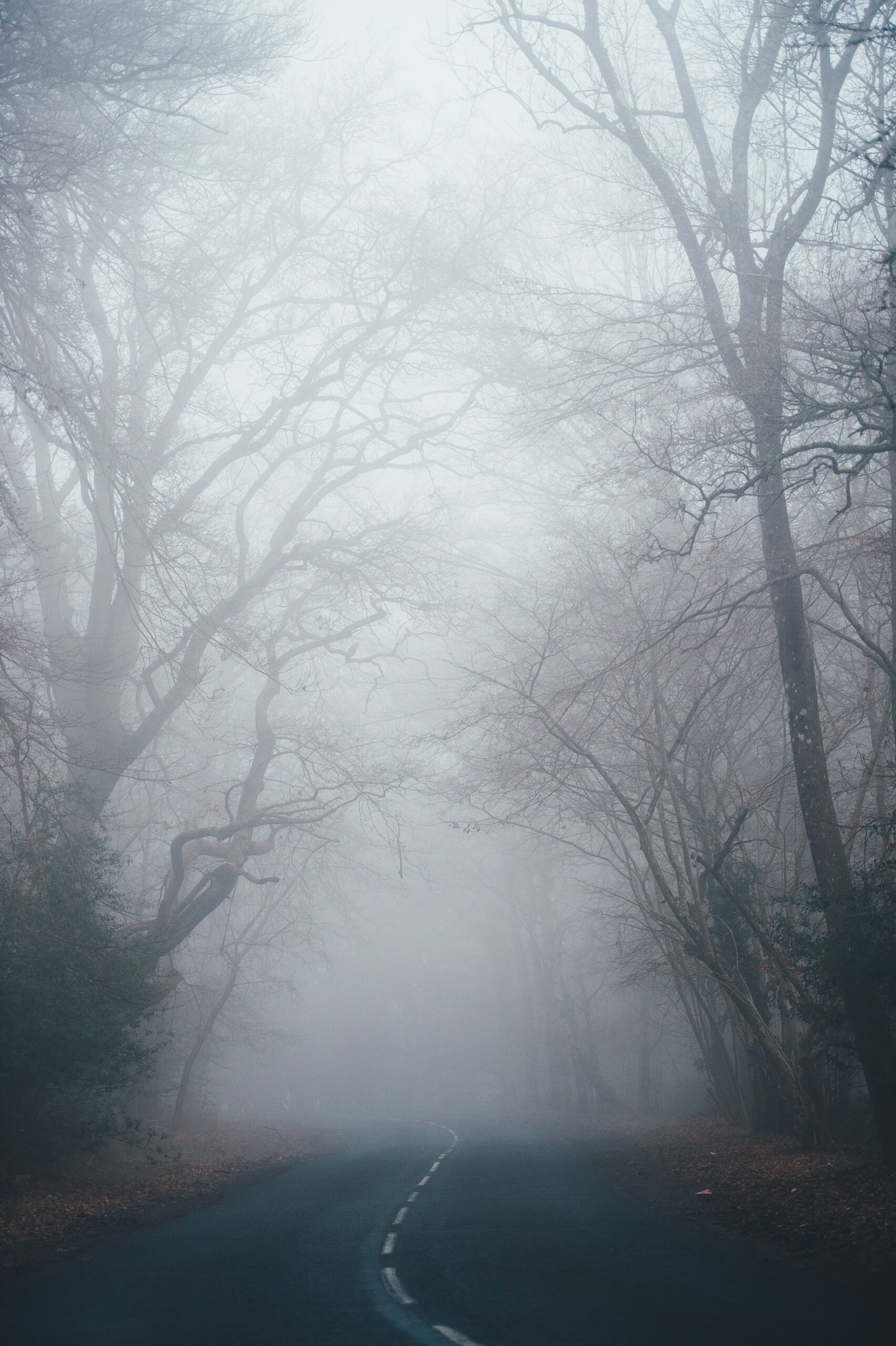
Realistic Fog Effect with Adobe Photoshop
Creating realistic fog effects with Adobe Photoshop is not as hard as it may seem. With the right tools and techniques, you can create a professional-looking fog effect in no time. This article will provide a step-by-step guide on how to use Adobe Photoshop to create a realistic fog effect. We will go over the various tools available in Photoshop that are necessary to achieve this effect and explain how they work together to form a unique foggy landscape or backdrop.
Adobe Photoshop is a powerful image editing software that can help you create a realistic fog effect with ease. This article will provide an in-depth guide on how to use Adobe Photoshop to produce a stunning foggy background for your photos or artwork. With the step-by-step instructions provided, anyone with basic knowledge of Adobe Photoshop should be able to create a realistic fog effect with no problem at all. Furthermore, this tutorial will discuss various techniques and tools available in the software which can be used to further enhance the realism of the fog effect.
Introduction: Fog effect with Photoshop
Adobe Photoshop is one of the most popular photo editing software programmes available today and it can be used to create a variety of realistic effects. One such effect is the fog effect, which can add an ambient, dream-like atmosphere to photographs. In this article we will discuss how to create a realistic fog effect in Adobe Photoshop. We’ll cover the necessary tools, techniques, and tips needed to illustrate how easy it is to recreate this effect on your own photos.
Creating a fog effect in Photoshop requires a few simple steps that involve selecting and adjusting different layers. The process begins by selecting a suitable backdrop for the image – preferably one with fewer colours or contrast – as well as creating various adjustment layers for colour correction and adding depth with shadows and highlights.
Creating a fog layer
Creating fog layers in Adobe Photoshop is a great way to introduce an element of mystery and atmosphere into your graphic designs. To create realistic looking fog, you’ll want to start by creating a New Layer for the fog effect. Using the Brush Tool, choose a soft round brush of white colour and reduce its opacity to about 10-20%. Then paint over the areas you would like your fog layer to appear.
By adjusting the Opacity of the new layer, you can make it look more subtle or dense depending on your preference. To add even more realism to your effect, try experimenting with different Blending Modes on this layer such as Multiply or Screen. You can also adjust other settings such as Noise and Grain Size until you achieve the desired results. Finally, use Curves or Levels adjustments to further refine the overall appearance of your fog layer.
Adjusting the colour
One of the most important steps in creating a realistic fog effect is adjusting the colour. Start by selecting a grey colour that looks appropriate for the fog you want to create. Try using various shades of grey and pick one that works best with your image; lighter shades will create a more subtle fog while darker hues are better suited for thicker fog effects.
Once you have selected your colour, adjust it as necessary using the hue/saturation sliders or any other tools available to you. It is important to keep in mind how much contrast you want in your image; if there are parts of your photo that look too bright, try adding some saturation or decreasing brightness levels for a more natural-looking effect. Additionally, tweaking the opacity settings can help make sure your fog looks consistent throughout the image.
Modifying the opacity
Many people use Adobe Photoshop to create realistic fog effects. One of the most popular techniques is modifying the opacity of various layers. To do this, simply select an area or image layer, and then reduce its opacity by sliding the opacity bar until it reaches your desired level. This will create a foggy effect by blurring out certain parts of the image or scene. Additionally, you can also select multiple layers and reduce their opacity together for more detailed effects.
The beauty of modifying the opacity is that it allows for endless creativity in how you want to present your images or scenes with fog effects. For example, if you are designing a spooky setting for a horror video game, reducing the opacity on certain layers could make them look ghostly and eerie – perfect for creating an atmosphere of suspense!
Enhancing the visuals
The visual elements of any image can be greatly enhanced with Adobe Photoshop. By using the Smudge Tool, users can create realistic fog effects that give their images a new dimension. This tool allows them to blend and manipulate pixels to create smoky or misty atmospheres in their images. To begin, select the Smudge Tool from the toolbar and set it to an appropriate strength for the desired effect.
To start creating the foggy look, zoom into an area of your image and drag the tool around in a circular motion over selected areas. Adjusting brush size helps add different levels of denseness and detail to your fog effect. Users are also able to control how opaque or transparent they want certain regions of the fog by adjusting opacity settings on the brush’s palette menu. Experimentation with brush hardness can also help achieve dynamic results when enhancing visuals with this technique.
Final touches
The fog effect can add a dreamy, mysterious atmosphere to any image. Now that you have created the basic effect, it’s time to add some finishing touches. The last step is to adjust the Hue/Saturation settings of the fog layer in order to give your image a more realistic look. Start by lowering the saturation slider until there is only a hint of colour in the fog. Then, bring up the Lightness slider until the fog has an even density throughout the image.
To further enhance your image, go back and adjust any additional effects added in step one like lens blur or depth of field. Use these adjustments sparingly as too much will distort your original composition. Finally, add selective colour adjustment layers for highlights and shadows on both your foreground and background elements to give them more depth and realism.
Photoshop plugins for graphic design
Photoshop plugins are a great way for graphic designers to expand the range of effects they can create, especially when it comes to creating realistic fog. Several excellent tools are available on the market that allow Photoshop users to quickly and easily add realistic fog effects to their images. This can be done by overlaying pre-made fog textures, adjusting opacity levels and blending modes, setting up lighting parameters, and simulating depth of field with depth maps.
The Fogmaker plugin from Filter Forge is a comprehensive tool that enables Photoshop users to choose how heavy or light they want the fog effect in their image. It also allows them to adjust parameters such as colour temperature, contrast level, luminosity and more.
Beginner tips to boost your graphic design skills
As a beginner graphic designer, it can be difficult to know how to best improve your skills and create stunning visuals. Here are some tips for boosting your design abilities:
First, practice often. Graphic design is a skill that you will continually develop and perfect over time, so be sure to carve out regular times in your schedule for exploring new techniques and refining existing ones. Designing every day or every week is a great way to stay motivated and hone your skills.
Second, look at other pieces of art for inspiration. Take the time to browse through forums, social media accounts and websites featuring beautiful designs or artworks – this is an excellent way to gather ideas that you can incorporate into your own work. Additionally, try reaching out to more experienced designers; they may be able to give you advice on certain projects or areas of improvement.
The creative power of colour in graphics
Colour is a powerful tool for creating eye-catching graphics and enhancing the realism of an image. In Adobe Photoshop, colour can be used to create a fog effect that looks incredibly realistic. Using different hues of blues and purples, this technique allows for subtle adjustments to the colour palette that will make your fog appear more natural in any environment. The soft blending of colours helps create a misty feel and blends seamlessly with the atmosphere you’re trying to create.
By using a combination of brighter and darker shades, you can add depth and dimension to your artwork while capturing the ethereal beauty of fog. In addition, various shapes and sizes can be used when adding these colours together to create an even more realistic effect.
Graphic design trends of 2023
The field of graphic design is constantly evolving and adapting to the aesthetic trends of the times. In 2023, designers will likely be utilising a variety of cutting-edge techniques to create visuals with impactful results. For example, 3D modelling has already been used for some time now, but in 2023 we can expect more creations that incorporate three dimensional elements into their designs. Additionally, abstract art is becoming increasingly popular; designers are combining shapes and colours to create unique and creative visuals that stand out from traditional designs.
Digital illustration is another area expected to have prominent growth over the next few years. With great advancements in technology, illustrators are able to produce stunningly realistic images without compromising on quality or detail. Furthermore, illustrators are beginning to experiment with different kinds of textures such as fog effects in order to evoke a certain feeling or atmosphere within an image.
Revolutionise graphic design with Adobe Photoshop
Adobe Photoshop is one of the most popular tools for graphic design, used by professionals and beginners alike. With its powerful set of features and ease-of-use, it can help revolutionize the way you create graphics. Adobe Photoshop makes it easy to manipulate images and add special effects that can make any graphic look professional. From adding a realistic fog effect to adjusting colour balance, Adobe Photoshop has all the tools necessary to create stunning designs.
Adobe Photoshop also enables users to quickly experiment with different looks without having to start from scratch every time they want something new. With the ability to use multiple layers and masking options, users can easily create complex compositions without worrying about ruining their work if they make a mistake. This level of flexibility allows users to have more control over their composition and try out different ideas until they achieve their desired result.
Creative possibilities with Photoshop
Adobe Photoshop is a powerful digital image manipulation tool that allows for an endless array of creative possibilities. Photoshop can be used for photo retouching and editing, graphic design, web and app design, special effects creation and so much more. The application also provides users with a wide range of filters, brushes and tools to help bring their ideas to life.
For example, the popular application can be used to create realistic fog effect images. With the right combination of adjustment layers, brush work and filters you can give your photos an ethereal moody atmosphere in just minutes. You can add simple touches like subtle haze or take it further by adding misty mountains or rolling clouds in the background – all created digitally with Photoshop’s vast array of tools at your disposal!
Transform your imagination into reality with Photoshop
Adobe Photoshop has become a powerful tool for creatives around the world. This amazing software allows users to take their imagination and transform it into reality. With its wide range of functions and features, Photoshop enables users to create stunning works of art with ease.
Using Photoshop’s layer styles, gradients, and filters, you can easily create realistic fog effects that will bring your image to life. The brush tools allow you to blend colours together and create subtle transitions giving your image a unique look. You can also use Adobe Lightroom’s adjustments like ‘Colour Temperature’, ‘Tint’, or ‘Vibrance’ for even more creative control over the outcome of your design.
Photoshop is an incredible tool for anyone who wants to unleash their creative side and turn their dreams into reality.
Benefits of using Photoshop for graphic design
Adobe Photoshop is a powerful and versatile programme that has become the industry standard for creating digital art. With its wide range of tools, it can be used to create everything from simple sketches to complex graphics. For graphic designers, Photoshop offers a host of benefits, making it one of the most popular programmes for creating professional-looking artwork.
Photoshop provides an extensive library of effects and filters to add texture and dimension to work. This makes it easy to simulate natural elements like fog or create unique designs with more intricate details. It also has a wide selection of brushes that can be used to adjust colour, shape, and size which allows you to achieve realistic results with minimal effort. Additionally, Photoshop’s non-destructive editing capabilities keep original images intact while allowing you to make corrections without losing quality or detail.
Essential tools and techniques for graphic designers
Graphic design is an art form that requires the use of a variety of tools and techniques in order to produce amazing results. There are many essential tools and techniques that graphic designers use, ranging from software programmes such as Adobe Photoshop, which can be used to create realistic fog effects, to traditional drawing materials such as pencils and paper. In order to create professional-looking designs, it’s important for graphic designers to have the right set of tools at their disposal.
Adobe Photoshop is one of the most popular software programmes for graphic design projects because it can be used for a wide range of tasks. When creating a realistic fog effect using Photoshop, designers should utilise features like layer masks and blending modes in order to achieve optimal results. Additionally, learning how to work with adjustment layers will help ensure that colours remain consistent across multiple elements within a design project.
Creative ideas to explore with Photoshop
Photoshop is one of the most powerful and versatile software applications available for digital editing, and it offers a variety of creative tools you can use to explore your imagination. Here are some ideas for how to take advantage of Photoshop’s features to create interesting visual effects:
Create layers of textured patterns by combining different brushes and textures with the layer masking feature. This will allow you to mix colours, shapes, and lines in unique ways that can be used as backgrounds or decorative elements. You can also experiment with blending modes like Multiply or Screen – these blend two images together based on their brightness levels for a more surreal look.
You can also use Photoshop’s warp tool to manipulate shapes and colours into intricate designs.
Adobe Photoshop: Special effects & filters
Publishing & sharing designs
Publishing and sharing designs created with Adobe Photoshop is an easy process. After the design is complete, users can click on “File” and scroll down to “Export” to begin the publishing process. From there, users will be presented with a few options: users can save the file as a JPEG, GIF, PNG or other popular formats that are easily recognizable by most devices. When exporting in any of these formats, users should be aware of how much quality they want sacrificed for smaller files sizes; higher quality images tend to have larger file sizes.
Once exported into an appropriate format, designers can choose to share their work online via various social media platforms (i.e., Twitter or Facebook) or through websites dedicated to showcasing artwork (i.e., DeviantArt).
Unleash your creativity
Creativity is a powerful tool in all aspects of life, and it can be particularly useful when working with Adobe Photoshop. Creating realistic fog effects with the software can open up a world of creative possibilities for any project.
To achieve the desired effects, you’ll need to customise several layers to get just the right look. Start by creating a new layer, adding a gradient layer effect and setting its blend mode to “screen”. Then add some noise using the Filter Gallery – this will create an irregular texture that looks like real fog. Adjust the opacity levels as needed until you get your desired effect. Finally, use adjustment layers and brushes to further customise your fog effect by adding shadows or highlights where needed.
With these tools at your disposal, you can create any type of realistic fog effect quickly and easily in Adobe Photoshop!
Tips for creating visual masterpieces with Adobe Photoshop
Adobe Photoshop is one of the most popular and powerful tools available to graphic designers and photographers. It offers a wide array of options for editing photos, creating graphics, and more. With such an extensive selection of features, it can be challenging to know where to start when creating visual masterpieces with Adobe Photoshop. Here are a few tips for using this amazing software:
First, take advantage of the various filters available in Adobe Photoshop. These filters can help you create unique effects that will make your images stand out from traditional photographs. Additionally, the Blur and Sharpen tools are great for adding realistic fog or mist-like effects to your work without much effort.
Second, experiment with layer styles such as drop shadows or glows to enhance certain elements or draw attention to specific areas in your composition. Remember, the more layers you add to your Photoshop document, the longer it will take to render. After a certain point, adding additional layers will only slow down your work.
Thirdly, be sure to use the right colours and hues for your images. Colour is a powerful tool in photography and can be used to create moods or evoke emotions. Pay close attention to your image’s colour palette, as it can make the difference between an amateurish looking photo and one that appears professional.
Check out Blue Sky Graphics online graphic design courses to learn more about graphic design.









