

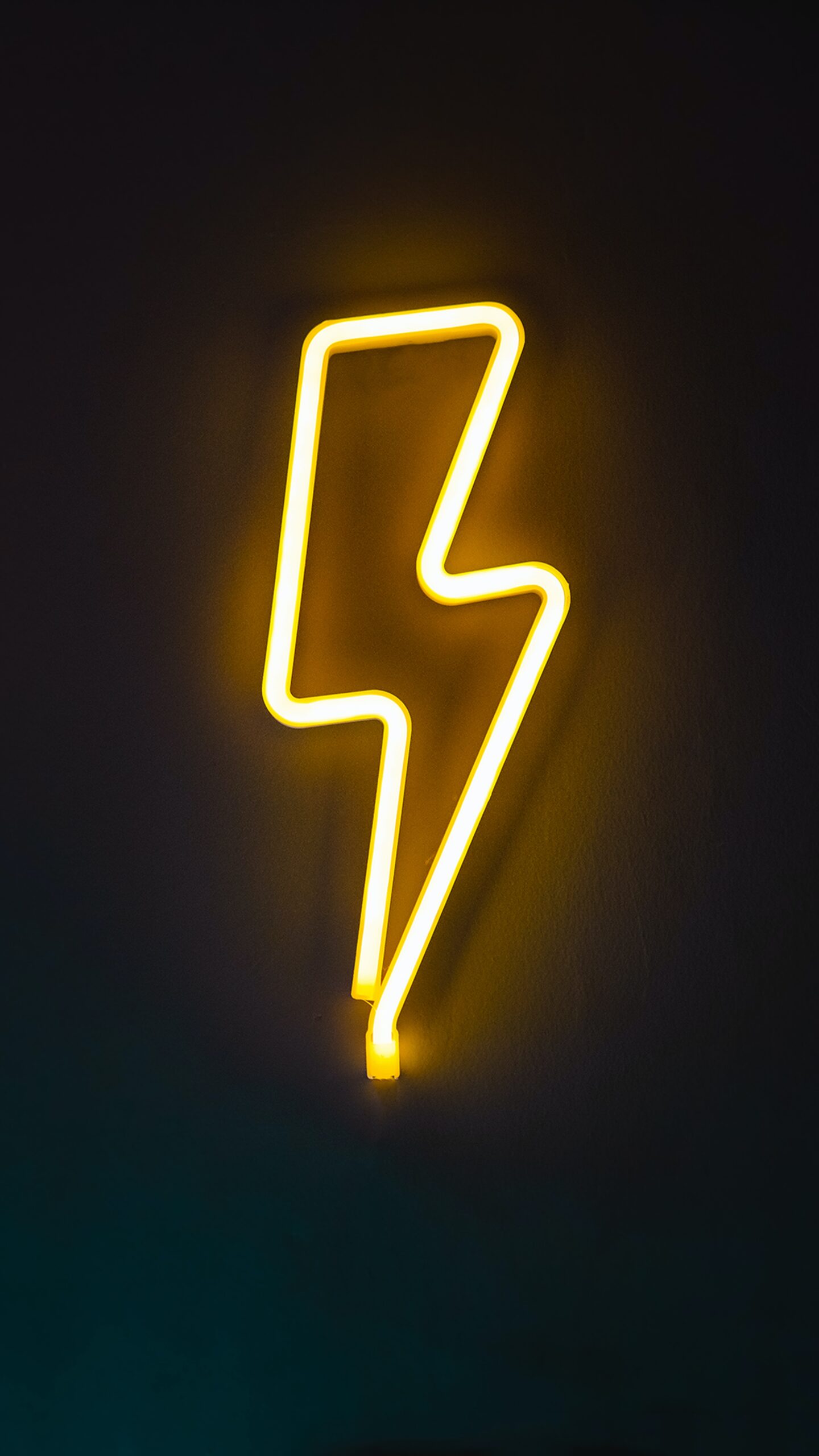
Neon Light Effect with Adobe Photoshop
Neon lights are a great way to create an exciting and vibrant atmosphere. They can be used to draw attention to certain areas or add a distinctive look to any design project. With Adobe Photoshop, creating your own neon light effect is easier than ever before. In this article, you’ll learn how to use simple techniques in Photoshop to create stunning neon light effects with ease. You’ll also discover some creative ways to use the effect for various projects, such as poster designs, logo designs, and more.
Introduction: Adobe Photoshop
Adobe Photoshop is an image editing software that has been used by professional photographers and graphic designers for decades. This powerful programme offers a wide range of features, such as layer-based editing tools, selection capabilities, colour correction and enhancement tools, and the ability to create stunning special effects. In this article, we will focus on using Adobe Photoshop to create a stunning neon light effect.
Photoshop’s Layers panel allows you to easily add multiple elements to your image, which can be manipulated separately. The blending modes also allow for more creative control over how these layers interact with each other. With the help of adjustment layers, brushes and filters you can easily enhance or change any element in your artwork without altering the original layer. By combining these tools with some creativity you can achieve amazing results!
Setup: Preparing for the effect
When setting up for a Neon Light Effect with Adobe Photoshop, it is important to ensure you have the right tools. Start by opening your image in Adobe Photoshop and creating a duplicate layer. Next, use the Magic Wand Tool and select the area of your image that you would like to apply the effect too. To create a soft edge for your selection, go to Select > Modify > Feather and set it to 10px. This will give an even smoother look when adding the neon light effect.
To add more colour contrast and enhance brightness, use Curves Adjustment or Levels Adjustment Layers. Here you can play around with different adjustments until you achieve desired results. You may also want to experiment using blending modes such as Hard Light or Overlay which can bring out details in your image while adding more contrast between light and dark areas.
Create shapes: Begin designing
Creating shapes is a key part of designing a neon light effect with Adobe Photoshop. First, start by selecting the shape tool and pick a geometric shape that you would like to create, such as a circle or square. You can also click and drag on the canvas to draw your own custom shape. To make it look more realistic, choose one of the three Stroke options located in the Options bar at the top of your workspace.
Once you have created your initial shape, you can then customise it further. Use the Warp Tool to distort your selection into different forms and angles, or use Distort or Perspective Transform options for even more customisation options. With these tools you can adjust curves and angles to make it look just how you want it. Finally, add colour using various layer effects like Outer Glow or Inner Glow to bring out those vibrant colours associated with neon lights.
Adjust glow strength: Refining result
The neon light effect in Adobe Photoshop can be easily achieved with a few simple steps. Once the effect is applied, it is important to adjust the glow strength and refine the result. This will help to create a realistic neon look that stands out from other images.
To adjust the glow strength, double click on the inner glow layer style box and move the slider until you get your desired intensity of light. When adjusting this setting, make sure to set the source to “centre” so that it radiates outward from its centre point evenly. You can also change other settings such as spread, size, colour and noise in order to further refine your result. After applying these changes, you should have an even more realistic looking neon light effect!
Layer styles: Further effects
Layer styles are a powerful tool in Adobe Photoshop for creating unique and eye-catching neon light effects. With layer styles, not only can you adjust the colour of your neon lights, but also add additional depth and texture to create even more realistic lighting.
Further effects can be achieved by playing around with gradients, blending modes, and outer glow settings. Gradients provide a smooth transition between colours while blending modes allow you to mix two or more layers together for interesting results. Outer glow settings enable users to make an object appear illuminated from within its edges. Combined, these techniques give you complete control over the style and intensity of your neon lights.
Additionally adding blur effect can further refine your artwork as well as noise which adds a grainy texture akin to that of real-world lighting fixtures.
Flatten image: Final touches
Once you have applied the neon light effect to your image, it is time for some final touches. The most important touch is to make sure that the image is flat – this means that there are no areas of excess brightness or darkness in any particular area of the image. To flatten your image, you can use the Levels adjustment layer. This will allow you to control how light and dark each colour channel is, as well as the overall brightness and contrast.
With this tool, you can bring out more detail in parts of your image if needed and make subtle changes that will help bring out the best in your neon effect. Once you are happy with how everything looks, it’s time to save your work as a separate file so that all of your hard work doesn’t get lost!
Automated Photo editing
Neon light effects are a popular way to add impact to photos. With automated photo editing tools such as Adobe Photoshop, creating eye-catching neon light effects is easier than ever.
Adobe Photoshop provides users with several helpful automation features that make neon light effect creation simpler and quicker. The “Content Aware” feature allows users to easily select the area of the image they want to alter without having to manually trace an outline or use complicated masking techniques. Photoshop also offers various preset styles and filters that allow even novice editors to quickly apply stunning neon lighting effects in just a few clicks of the mouse. Additionally, the colour balance and contrast settings can be adjusted for more precise control over the look of your edited photo.
Creative uses for Photoshop
Photoshop is a powerful image editing programme used by professionals and hobbyists alike. It offers a range of tools that can be used to create stunning visuals and designs. One creative use for Photoshop is creating neon light effects. With the right guidance, users can learn how to adjust brightness, hue, saturation, and other settings to achieve an impressive result.
In addition to producing neon lighting effects, Photoshop can also be used for a variety of other projects such as photo manipulation, digital painting, graphic design elements creation and logo making. There are numerous tutorials on the internet to help users get started with these tasks. It’s important to remember that even if you’re a beginner in Photoshop there are plenty of resources available online so you can learn the basics before attempting more complex techniques like creating neon light effects.
Amazing photo effects with Photoshop
Adobe Photoshop is a powerful tool for creating stunning visual effects. With its vast array of image manipulation tools, it can be used to create amazing photo effects that will make your images stand out from the crowd. One great example of this is the Neon Light Effect, which uses a combination of filters and adjustments to achieve an eye-catching look.
The Neon Light Effect starts with selecting the foreground colour you want to use for your neon lights. This could be any colour from bright green or pink to more subtle colours such as light blue or yellow. Once you have chosen your desired colour, you then need to adjust various features in order to give it a glowing effect. You can control how intense the glow should be by adjusting the opacity and blending options. Additionally, other features such as Curves, Levels and colour Balance can also be adjusted in order to fine tune the overall effect.
Create professional-looking designs with Photoshop
Photoshop is a great tool for creating professional-looking designs. It has a variety of features that make it perfect for graphic design professionals, including layers, filters and effects. With Photoshop, you can easily create eye-catching and unique neon light effects.
To start, open up your image in Adobe Photoshop and create a new layer by going to the ‘Layers’ panel on the right side of Photoshop. Next, select the Rectangle Tool from the left toolbar and draw a rectangle shape onto your canvas. Now use the Brush Tool to fill in your rectangle with a bright colour such as pink or yellow. Finally, go to Filter > Render > Lighting Effects and apply a neon light effect to enhance your design even further! You can adjust the brightness and intensity until you achieve your desired result.
Creative photoshop techniques
Photoshop is a powerful programme for digital image manipulation, allowing for an infinite number of creative possibilities. It can be used to create a variety of effects, from realistic lighting and shadows to abstract shapes and textures. One particularly striking effect is the neon light effect, which can be achieved using various Photoshop techniques.
The first step in achieving a convincing neon light effect is to select the areas that you would like to highlight. This can be done by using the lasso or polygonal lasso tool, or by creating masks with channels. Next, apply a gradient overlay layer style to these areas by selecting “create new fill or adjustment layer” from the layers palette and choosing “gradient overlay” from the options.
The type, angle and opacity of this gradient will determine how intense your neon light looks. Next, create a new layer on top of your image and fill it with white. Use the brush tool to paint over the areas that you wish to illuminate. Fill the brush with black using the bucket tool and paint over the areas that you wish to darken.
Tips for Photoshopping professionally
Adobe Photoshop is the go-to software for professional photographers, graphic designers, and image editors. It offers a wide range of tools to help you create stunning images, including the Neon Light Effect. Here are some tips to help you master this effect:
First, it’s important to select an image that has bright colours and good contrast. Choose one with elements that have a lot of black and white, such as a skyline or cityscape shot at night. This will enhance your ability to create the neon look.
Next, use curves (adjustment layers) to give the image more depth and definition by adding shadows and highlights where appropriate. You can also adjust hue/saturation levels to make certain colours stand out more than others for added impact. Finally, you can use the Neon Light effect itself to add a bright glow around the image. This gives your photo that extra “pop” and really makes it stand out.
Photoshop tricks and hacks
Photoshop is a powerful image editing programme that can be used to create any type of effect. With its wide array of tools and features, Photoshop is capable of creating stunning effects like the popular neon light effect. This tutorial will explain some basic techniques to make this effect easier to achieve.
One important trick when working with the neon light effect is to use layers. Start by duplicating the background layer, then apply a filter such as Gaussian blur or motion blur on the duplicate layer. This will soften the colours and give it a more luminous look. Next, adjust the colour balance and tweak other settings for better results. Finally, use blending modes like “Lighten” or “Screen” for an even more vivid result.
Creative photo effects explained
Creative photo effects can help photographers and digital artists to craft unique images with a distinct style. Adobe Photoshop is one of the most popular programmes for creating these effects, as it offers tools that allow users to manipulate photos in almost any way imaginable. The neon light effect is a particularly interesting effect that adds an electrifying touch to your photos.
To create this effect, you’ll first need to select the area of the image you’d like the neon light to appear on. Next, use Photoshop’s “Layer Mask” tool and set its blending mode to “colour Dodge” – this will make sure that only the areas selected are affected by the neon light effect. Then choose either a brush or the Pencil Tool and set its opacity to 5%, then start painting over the selected area of your image.
Mastering layer masks in Photoshop
Mastering layer masks in Photoshop is essential for creating a neon light effect. Layer masks allow you to selectively control which parts of an image are visible and which are not, making them a perfect tool for achieving the desired effect.
To start, create a new layer above your background and select the brush tool. Choose white as your foreground colour and paint over any part of your photo that you want to be lit up with neon light. Go back to the layers panel and click on the layer mask icon at the bottom right corner. This will add a white mask next to your layer thumbnail, allowing you to hide or show certain areas of your image without affecting any underlying layers. Once applied, you can use different blend modes and adjustment layers to adjust how much neon light is visible in each area.
Conclusion: Final product
The neon light effect in Adobe Photoshop is a great tool for any photographer or graphic designer who wants to add a unique, eye-catching effect to their images. With the use of layers, filters and some creative editing techniques, anyone can create stunning neon light effects with little effort. By following the steps outlined in this article, users can quickly create a professional looking neon light effect that will give their images an extra boost of visual appeal.
Finally, it’s important to remember that experimentation is key when creating any type of special effect. By playing around with various settings and experimenting with different tools available in Photoshop until you achieve the desired result. With enough practice and imagination, users can create truly stunning results from the neon light effect in Adobe Photoshop worth showing off!
If this article has piqued your interest in graphic design then get in touch with Blue Sky Graphics online design school today!









