

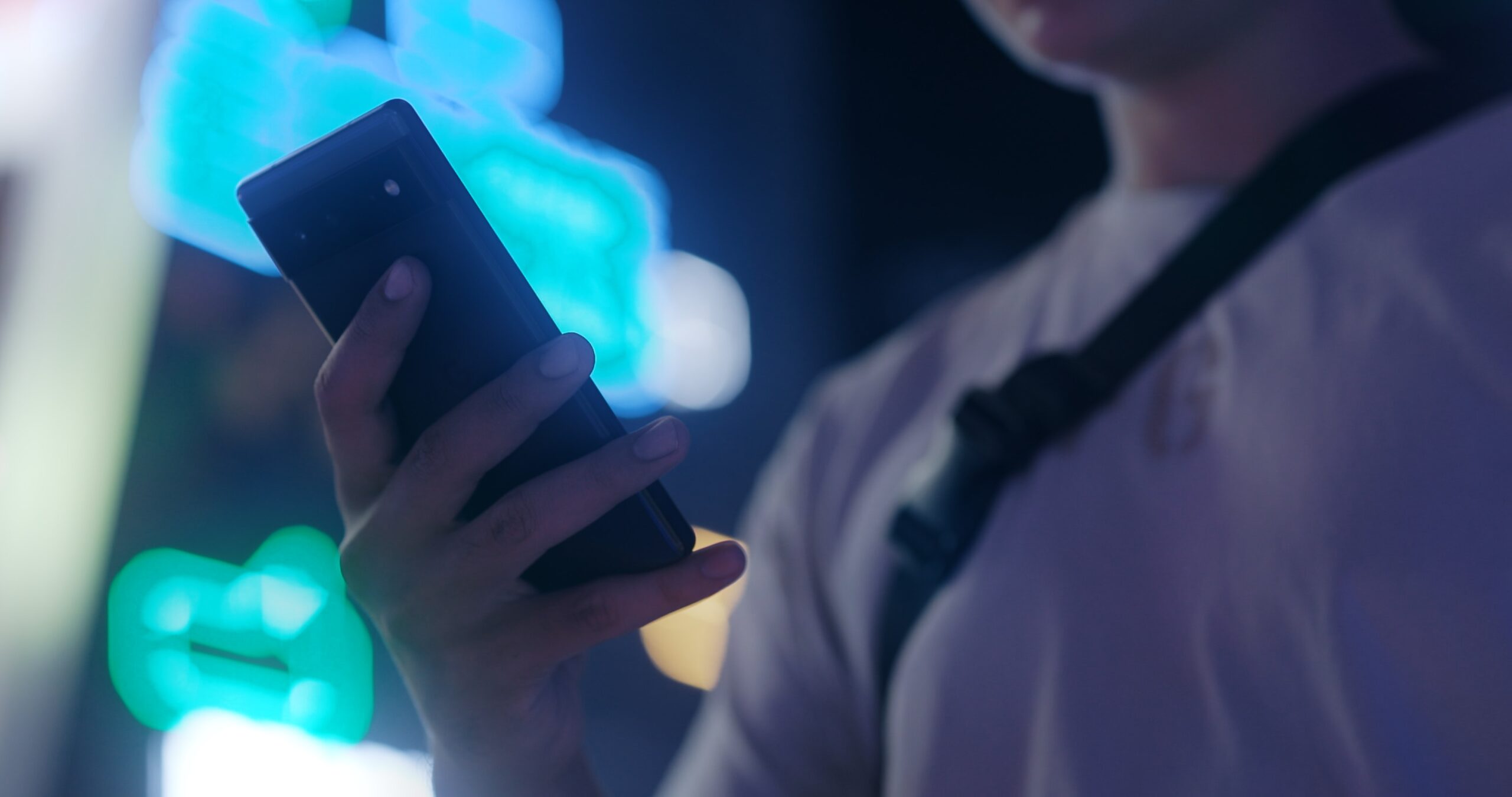
Movement Blur Effect on Adobe Photoshop
The movement blur effect is quickly becoming one of the most popular effects used in Adobe Photoshop. It’s a highly sought-after technique by photographers, graphic designers, and motion graphics professionals alike due to its ability to add a sense of motion to any still image. If you’re unfamiliar with this effect, don’t worry – you’ll be able to master it in no time at all! In this article, we’ll be exploring how the movement blur effect works in Adobe Photoshop, as well as some tips on how to use it effectively.
Introduction: Movement blur effect
The movement blur effect is a powerful and versatile tool for enhancing any image. It can be used to add motion and depth to an otherwise static scene, or to focus attention on a particular detail. This tutorial will explain how to use the movement blur effect in Adobe Photoshop.
Using the Movement Blur effect is quite easy. In Photoshop, select the layer you wish to apply the movement blur effect on and open up the “Filter” menu. Under the filter menu select “Blur”, then pick “Motion Blur”. You can adjust different parameters such as angle, distance, and strength of your desired motion blur effect. Additionally, you can choose whether you want it applied directly onto your layer or if you would like it applied indirectly through a mask layer that affects only certain parts of your layer. Once you’re satisfied with its look, hit OK to apply it!
Steps for creating the movement blur in Photoshop
Creating the movement blur effect on Adobe Photoshop is a great way to add motion to an image. This effect gives the impression of speed and energy, and can be used to create dramatic visuals. The following steps will help you achieve this look in no time:
First, open the image that you want to apply the effect on in Adobe Photoshop. Next, select the area where you would like to add motion blur. Duplicate this layer and make sure that it is selected. Now go to ‘Filter’ > ‘Blur’ > ‘Motion Blur’, which will bring up the Motion Blur dialog box. In this box, adjust the angle of direction of your movement blur as well as its distance by dragging across your image with your mouse cursor until you are satisfied with how it looks.
Now, select the original layer, and go to Edit > Fade Layer , which will bring up the Fade dialog box. In this box, adjust the opacity of your layer by dragging across it with your mouse cursor until you see the desired results.
Adjust the spacing of the movement blur
Photoshop offers a wide range of tools to adjust the movement blur effect. By modifying the settings, you can create precise and realistic results.
To make changes to your blur, use the Blur Options section in the Properties panel. Here you’ll find options for adjusting the direction, angle, and distance of your blur. You can also modify how soft or intense it looks by adjusting its size, shape and intensity.
Additionally, you can control how spread out or concentrated your blurring is with controls for spacing as well as noise level and zoom amount. This allows for greater precision when creating your desired look for your image’s motion blur effect.
Finally, when you are happy with the adjustments made to your motion blur effect, be sure to save it as an Action so that it can be applied quickly and easily in future projects!
Add custom colours to the movement blur
Creating a movement blur effect with Adobe Photoshop can help add dynamism to an image. Adjusting the colour of the motion blur allows you to further customise the look of your project and make it truly unique.
The first step is to open an image in Photoshop, then select Filter > Blur Gallery > Motion Blur from the menu. This will bring up options for setting the direction, distance and shape of your motion blur. Once you’ve configured these settings to your liking, click on “Colour” in the Dialogue box and pick any colour from the Colour Picker window or create a new one by entering RGB or HEX values. You can also choose between blending modes such as Multiply, Screen or Overlay if desired.
Layer mask for focusing on subject
Layer masking is an essential tool for creating a movement blur effect on Adobe Photoshop. Layer masks are used to create a transparent layer that allows one layer of an image to be visible while the other layers are covered or partially visible. This way, the user can focus on the subject of the image, while blurring out any unnecessary elements in the surrounding area.
When creating a movement blur effect with layer masking, it is important to ensure that all necessary elements are included in each layer. For example, if you want to focus on a certain element in your image, it is important to make sure that everything else around it is blurred out so that the element stands out more clearly.
Adding a glow to the movement blur
Adding a glow to the movement blur effect is an important step to adding a more realistic and eye-catching look to your project. The glow will give it a life-like quality, drawing attention and leaving viewers in awe of what can be done with Adobe Photoshop. To achieve this look, there are two different methods that can be used.
The first method is via the Glow Layer Style panel in Adobe Photoshop. When using this method, you can choose from dozens of different presets for the intensity, colour, and size of the glow effect. This method allows for users to quickly experiment with different options until they find one that suits their project best. Additionally, most people will also adjust the opacity setting in order to control how much or how little of the glow effect they want to use on their image or video clip.
4 Creative ways to use Photoshop
Photoshop is one of the world’s most versatile graphic design programmes. It has a wide range of features that can help users create truly stunning visuals. Here are four creative ways to take advantage of Photoshop’s tools and enhance your own designs:
- Create movement blur effects: This type of effect helps give static images a sense of motion, making them look dynamic and alive. On Adobe Photoshop, users can easily add movement blur effects by using the Radial or Motion Blur filters in the Filter Gallery. With this feature, you can control the size and direction of the blur for a more natural look.
- Add colour grading: Colour grading is an important step in post-processing for many photographers and graphic designers because it helps bring out certain tones or colours in an image to make it stand out from other photos or designs. When working with Adobe Photoshop, users can add colour grading effects by using the Adjustment Layers feature. With this tool, you can add a colour tint or adjust the saturation of different colours in an image.
- Layer blending modes: Layer blending modes are used to control the way layers interact with each other. Different modes let you lighten, darken, or swap colours between different layers. There are many different blending modes available in Photoshop, and each one can be used to create a different effect.
- Layer masks: Layer masks are used to control the transparency of layers by hiding parts of the layer that you don’t want visible.
Mastering layer editing with Photoshop
Using layers to create a movement blur effect in Adobe Photoshop is a great way to add realism and motion to your photos. Layers are one of the main tools used by professionals to edit images in Photoshop, so mastering them is essential for anyone trying to create effective visuals.
When it comes to layer editing, there are several key points you should keep in mind. Firstly, it’s important that each layer has its own purpose within the overall composition and that they’re properly organised. Secondly, you should be aware of how layering affects opacity settings and colour blending modes, as this can drastically alter the look of your final image. Finally, experimenting with different effects and filters is often necessary when working with layers – these can help transform an otherwise mundane image into something extraordinary!
6 Best Photoshop tips
Adobe Photoshop is an incredibly powerful tool for creating and editing photos, but a few tips can go a long way in helping you get the most out of this complex programme. Here we discuss some of the best Photoshop tips to help take your photo editing skills to the next level:
- Use adjustment layers. Adjustment layers are great tools that allow you to apply adjustments non-destructively so that you can always go back and tweak them later.
- Experiment with layer blending modes. Different blending modes allow you to mix colours, texture, and shape in creative ways, giving your images a unique look and feel.
- Create custom brushes & shapes. Photoshop has a ton of built-in brushes and shapes that are great for adding texture to your images, but you can also create your own.
- Use the pen tool. The pen tool is one of the most powerful tools in Photoshop. It allows you to create complex shapes and paths from scratch, making it great for creating logos and other design elements.
- Use adjustment layers as layer masks. Adjustment layers allow you to make changes to your image based on colours or tonal values. With them, you can brighten or darken certain areas of your image without affecting other areas.
- Use the crop tool to do more than crop images. The crop tool is often used to crop images, but it can also be used to create interesting visual effects.
Get creative with Photoshop masks
Photoshop masks are a powerful tool that can be used to create unique and creative effects. Masks allow you to easily control what parts of an image you want to show or hide, giving you the power to make any image truly your own. With Photoshop masks, you can selectively choose which areas of a photograph or artwork are visible, giving it a whole new look and feel.
Creating movement blur with Photoshop masks is fairly straightforward – all you need is an existing mask layer on top of your photo or artwork that defines the area that will be blurred. Then use the Blur Tool in the Tools Panel to apply a radial blur effect around the edges of your mask layer. This will soften those edges and give your image a sense of motion, making it appear as though it was taken while moving quickly through time and space.
Defining Photoshop
Photoshop is a graphics editing programme developed by Adobe Systems and widely used among photographers, designers, illustrators and other creative professionals. It’s capable of creating high-quality digital artwork, as well as manipulating existing images to create interesting effects. With its versatile tools and customizable features, Photoshop allows artists to explore the boundaries of their creativity.
Photoshop has several basic categories of tools: selection tools allow you to select an area in an image; painting tools such as pencils and brushes allow you to draw on an image; colour adjustment tools let you adjust the brightness, contrast or hue of an image; retouching tools help remove unwanted elements from an image; filters can be applied to give your images different looks; and layer-based editing lets you combine multiple layers for complex compositions.
What are some of the best features of Photoshop?
Adobe Photoshop is one of the best and most popular photo editing software programmes on the market. It offers many features that make it a great choice for photographers, graphic designers, and all those who want to edit or manipulate images. Here are some of the best features of Photoshop:
One of its most beneficial features is the selection tools it provides. With these tools, you can easily select certain parts or elements of an image to be manipulated while leaving other parts untouched. This makes editing complex images far easier than ever before.
Photoshop also offers a wide range of filters and effects that allow users to add unique touches to their pictures. These effects can give your photos a more polished look without having to spend time manually creating them yourself.
Defining graphic design
Graphic design is an important and influential field in the world of digital art. It involves creating visual elements to communicate ideas, messages, or concepts. Graphic designers are responsible for envisioning, designing and creating visuals that can accurately convey these ideas. These visuals can appear in print or online media including magazines, websites, newspapers, and other advertising materials.
In the digital realm, graphic design combines art with technology to create visually appealing images such as logos, illustrations, photo manipulations and 3D models. It often utilises software like Adobe Photoshop to manipulate photos and create innovative compositions from multiple layers of imagery. With features like filters and layer masks found in most modern image editing programmes – including Adobe Photoshop – it’s easier than ever for designers to incorporate movement blur effects into their designs for a more dynamic look.
What are the different types of graphic design?
Graphic design is a visual communication form that combines images, text and illustrations to create a cohesive message. It has become an integral part of modern marketing, advertising and branding efforts across many industries. There are several types of graphic design that can be used to create effective visuals for digital or print-based projects.
The first type of graphic design is logo design, which is used to create logos for businesses or products. Logos are typically simple yet recognizable designs that capture the essence of the brand in just one glance. They often use colour, shape and font to convey the desired message and evoke an emotional response from viewers.
Another popular type of graphic design is typography design which involves creating unique font combinations and layouts for various projects such as brochures, posters and websites. The final type of graphic design is web design, which is used to create websites. Web designers use HTML (hypertext markup language) and CSS (cascading style sheets) to create a layout for a website that is easy for viewers to navigate.
What is a vector graphic?
A vector graphic is a computer image created using mathematical equations. It is composed of paths, rather than individual pixels, allowing for the image to be resized and transformed without losing any of its detail or quality. Unlike raster graphics, which are made up of individual pixels that become distorted when enlarged, vectors can be scaled infinitely without distortion.
This makes them ideal for creating logos, icons and other artwork with crisp edges and fluid curves that look great at any size. Vector graphics also have smaller file sizes compared to raster images, making them easier to manipulate and share online. As such, they are widely used in animation software such as Adobe Photoshop to create motion blur effects with ease.
Discover creative ways to master Photoshop
Having a mastery of Photoshop is essential for photographers and graphic designers alike. But mastering the software can seem daunting if you’re just starting out. Luckily, there are many creative ways to get familiar with Photoshop that don’t require advanced knowledge.
One of the best ways to build your skills is by experimenting with different effects and techniques. For example, try creating a movement blur effect like in this article. Start by selecting an image with movement, such as a sunset or racing car – then adjust the shutter speed accordingly in camera settings or inside Adobe Camera Raw. When you’re ready to apply the effect in Photoshop, use different tools such as Gaussian Blur and Motion Blur until you find the right combination that creates the desired effect on your image.
Transform your digital artistry with graphics and Photoshop
Digital artistry is a great way to express your creativity and create beautiful visuals. With the help of graphics and Adobe Photoshop, you can take your digital artwork to the next level by adding movement blur effects.
The motion blur effect is commonly used in photography, but it can also be used in digital art as well. By adjusting the settings of a filter or layer style, you can add a blurring effect that gives the illusion of movement within an image. This will make your artwork appear more dynamic and enhance its visual appeal. To create this effect in Adobe Photoshop, you’ll need to select the Motion Blur filter from the Filter menu. Then simply adjust the angle and distance sliders on the filter’s dialog box until you’ve achieved your desired look. Experiment with different settings until you find something that works best for your piece of art!
How to create eye-catching visuals with Photoshop
Creating eye-catching visuals with Adobe Photoshop can be a great way to add some flair and excitement to your photos. To create this effect, you’ll need to use the “Create Motion Blur” filter. This tool will allow you to blur parts of the image in order to give it a sense of motion and energy.
To begin, open the photo in Adobe Photoshop and select the “Filter” option from the menu bar. Once you’ve selected it, choose “Blur” followed by “Motion Blur” from the drop-down list of options. You’ll then be able to adjust various parameters such as distance, angle, and strength before finally clicking OK when you’re satisfied with your changes.
Once you apply this filter, you’ll see that your photo has gained an extra layer of dynamism and visual appeal.
Most important elements of graphic design
Graphic design is an important part of any visual project, from a logo for a company to a website. A good graphic designer will use several elements to create visually appealing designs that are appropriate for the purpose of the project. Here are some of the most important elements of graphic design:
colours are one of the most important elements in graphic design. colour plays a major role in how viewers interpret and respond to visuals. For example, bright, vivid colours draw attention and can be used to emphasize certain aspects, while more muted colours can be used for calming effects or making text easier to read.
Typography is another essential element when it comes to graphic design since it affects both legibility and aesthetics. The typeface should match the message being conveyed and must also be easy enough to read quickly at different sizes and resolutions.
Get in touch with Blue Sky Graphics online design school to learn more about graphic design and Adobe Photoshop
Blue Sky Graphics online design school is a great resource for anyone looking to learn more about the creative and technical aspects of graphic design. The school has an extensive selection of courses that cover Adobe Photoshop, Illustrator and other popular programmes used in the industry. Students can also choose from a wide range of topics including typography, web design, branding and animation. Through their hands-on learning approach, students gain an understanding of how to use Adobe products to create visually stunning designs.
The curriculum at Blue Sky Graphics covers everything from basic techniques such as the movement blur effect featured in this article, to advanced concepts like creating digital artwork with 3D elements. Students benefit from one-on-one sessions with experienced instructors who provide personalised guidance tailored to each student’s needs.









