

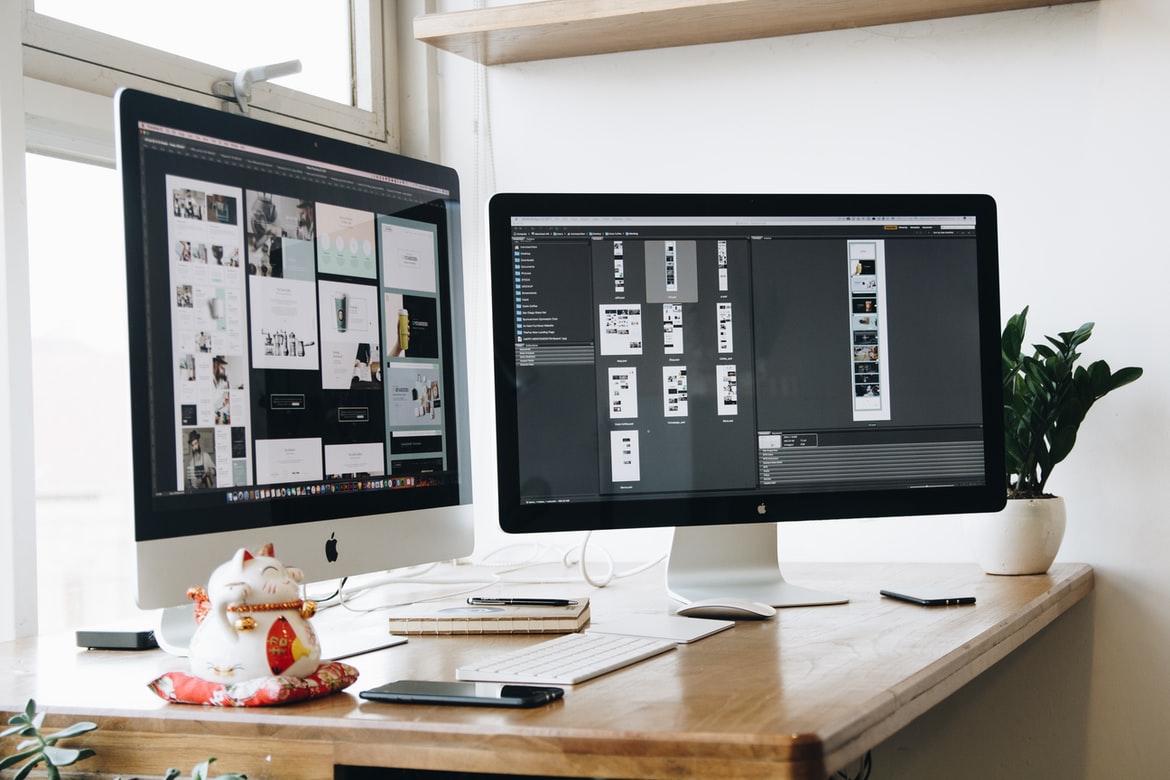
How to Change the Banner Print Size in Photoshop
A well-designed banner might have a significant influence on your bottom line. A banner with pixelated visuals and text? Not at all. However, if you don’t set up your design file appropriately, you can end up with a less-than-ideal outcome. Before you submit your design file, double-check that you’ve generated it properly. Here’s a brief tutorial on how to set up and export your image in Photoshop to achieve the highest quality for your personalised banner.
How to Create a Design File
If your file dimensions match your intended output, we suggest saving at least at 150 PPI when exporting a print-ready file. For instance, if you want a 2×4 foot banner, you should configure your Photoshop file as follows: At 150 pixels per inch, 24 inches high by 48 inches wide (aka 150 PPI).
How Do I Export?
When your design is finished, you may export it by navigating to File / Export / Export As… and selecting 1x as your size. Your design file will be sent at full quality, or 150 PPI for a 2×4 foot banner. Isn’t it nice and simple?
It’s also OK if you didn’t develop your design file at full resolution. You may export your file at 300 PPI as long as your file size is set to at least half the resolution of your desired banner size. For example, if your file is 12 inches high by 24 inches wide, go to File / Export / Export As… and choose 2x as your size. This will export your half-size file with twice the number of pixels per inch, providing enough resolution for a 2×4 foot banner.
It’s usually a good idea to consider how and where your banner will be displayed. If your banner is intended to be seen from a distance (for example, outside), you may have a bit more discretion with the resolution. However, if people will be standing within a few feet of your banner, not employing the correct PPI may leave a negative impression. If you want your visuals to be razor crisp, you may consider putting up your design file at 300 PPI. You also don’t have to bother about PPI if you have a vector file for your artwork.
Create a Business Roll Up Banner
As you can see, we will be designing the design below. After you’ve set up and created your project, you may modify the colours and see it in the mockup for your customers to see.
In Photoshop, create a Business Roll Up Banner.
1. Create a document 3070 inches wide, 300 PPI, and CMYK colour mode, since this is the most common size for a corporate roll up banner. There are also other sizes available, which you may locate on Google. After you’ve completed the primary design, you may offer alternative colours.
Pop Up Banner Stands for Business Roll Up Banner
2. Unlock and pick the backdrop layer, then choose to View > New Guides From Shape to add the guideline to the document’s edge. Because Photoshop CS6 and later lack this functionality, you should use the Rulers to create guidelines.
Setup Instructions for a Business Roll Up Banner
3. After you’ve inserted the guidelines, go to Image > Canvas size (Alt+Ctrl+C), and canvas the document 1 inch. Bleeds are the additional places that we put to the document.
Photoshop Canvas Dimensions for a Business Roll-up Banner
4. Using this colour code #, choose the Ellipse tool and create an ellipse on the upper side of the page (16ade4). Ctrl+A selects all, then choose the Move tool (V) and select Align Horizontal Centre from the Options bar.
Design of a Stand-Up Banner
5. Now, insert an image (File > Place Embedded/Place) and use the Clipping Mask (Alt+Ctrl+G) to clip the picture to the ellipse we generated. Clipping Mask may be found in the Layer menu, or by right-clicking on the layer thumbnail.
Outdoor Banners Design Instructions
6. Duplicate the first ellipse you generated and set it underneath all layers, then Ctrl+T to scale it down somewhat. It should resemble the frame shown below.
Banner Design for Pop-Up Stands
7. Draw a Rectangle and then use the Ellipse tool to remove a portion of it. Select the Subtract Front Shape option from the Option Bar before subtracting.
Outdoor Banners Design Instructions
8. After subtracting the rectangle, duplicate it, use Ctrl+T, and then flip it vertically. To the right, move the copied rectangle. Your finished design should like the one shown below.
Banner Pop Up Stands
9. Create two rectangles at the bottom for contact information; include the phone number, website, and address line. Then, like I did below, add the text bits of information, and you’re done.
Final Business Roll Up Banner in Photoshop
When your design process is over, attempt to organise and group the layers, grouping all design components in one group and texts in another. That’s all we’ve got. We hope you like it and learn something. Please remember to share it with your friends. Enrol at Blue Sky Graphics online graphic design course to learn graphic design software like Adobe Photoshop, Illustrator and InDesign to create customised banners of your own!
What is the best way to save a file for a printed banner?
Please make outlines for all of your text and type before saving your banner artwork. It is critical to establish outlines on all files, even when exporting them as PDFs. You may submit artwork in the following formats: Adobe Illustrator, Adobe Photoshop, Jpeg, Jpg, and EPS. All Microsoft apps, as well as PNG and SVG files, are not accepted. Make sure your document is set to CMYK and that any pictures are embedded before saving them.
Make effective use of images (and only when you need it)
Choose images and photographs that complement your messaging and are closely connected to your goods. There are no abstract ideas here.
Are you unable to afford professional photography or supermodels? Purchase a low-cost stock picture licence. There are millions of high-quality examples available. Even better, choose unique pictures or graphics developed by a designer.
Remember that including graphics in your banner advertising isn’t always essential. Killer writing and beautiful typography may both provide equally effective effects.









