

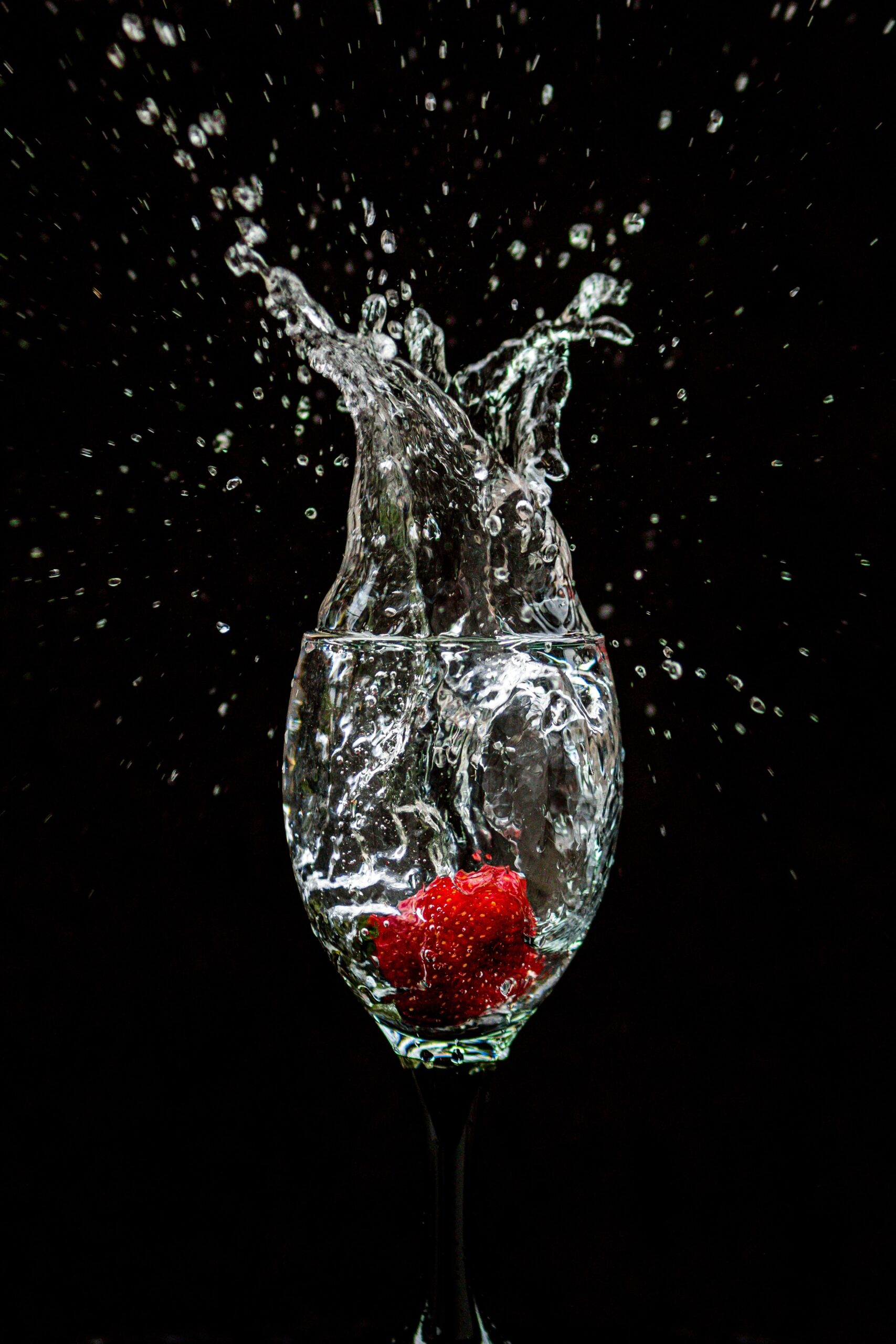
Fruit Splash Effect Tutorial With Adobe Photoshop
Creating stunning visuals with Adobe Photoshop is a breeze, and this tutorial is here to help you do just that! With the right techniques and tools, it’s easy to make eye-catching designs with Photoshop. In this article, we’ll provide step-by-step instructions on how to recreate the Fruit Splash Effect using the various features of Adobe Photoshop. We’ll show you how to perfectly blend colours and adjust lighting to create a vibrant, dynamic effect that will leave your viewers in awe.
What is the fruit splash effect?
The fruit splash effect is a popular photo editing technique used to make images stand out. It involves creating the illusion that various fruits, such as strawberries or blueberries, are splashing in a liquid surface. The effect is often used in advertisements for beverages or food products to enhance their appeal.
To achieve the fruit splash effect, Adobe Photoshop software is commonly used. This tutorial requires basic knowledge of the software and some familiarity with its tools and functions. The technique involves several steps, including selecting an appropriate image of fruits and liquid, isolating the fruits from their background using selection tools like lasso or magic wand, creating layer masks for each fruit to blend it into the scene seamlessly.
Overall, mastering this technique requires patience and practice but can benefit photographers or designers who want to add some creativity to their work. With enough skill in Adobe Photoshop, you can create stunning visuals that look almost too good to be true – even if they’re just stills on your screen!
Preparation: Gather your materials
Before we dive into creating a fruit splash effect with Adobe Photoshop, it’s essential to gather all the necessary materials. Firstly, you need the image of a fruit that you want to create a splash effect on. Make sure that the image has high resolution and is clear enough for editing purposes. You can either capture an image yourself or download one from reliable sources such as Shutterstock or Unsplash.
Secondly, ensure that you have Adobe Photoshop installed on your computer. This software is essential in creating complex graphic designs and editing images. You can opt for any version of this software, depending on your preference and budget.
Lastly, find tutorials or guides on how to create fruit splash effects using Adobe Photoshop. There are various online resources available that offer step-by-step instructions with accompanying images to make the process easier for beginners.
In conclusion, gathering all the necessary materials before starting your project will save you time and ensure that everything runs smoothly during the design process. With these materials at hand, you’ll be ready to start creating breath-taking fruit splash effects like a pro!
Step 1: Create a background
The first step in creating a fruit splash effect in Adobe Photoshop is to create a suitable background. The background should be simple and minimalistic, as the focus of the image will be on the fruit splashing into water. A good technique to use for the background is to create a gradient from light blue at the top to darker blue at the bottom, representing the surface of water.
To create this gradient, open up a new document in Adobe Photoshop with dimensions suitable for your desired output size. Then select “Gradient Tool” from the toolbar on the left-hand side of your screen and choose “Foreground to Background” preset from its options bar. Select light blue as your foreground colour and dark blue as your background colour, then drag your cursor downwards while holding down Shift key until you reach halfway through your canvas.
Once you have created this gradient, you can add some texture or noise effects if desired using filters like “Add Noise” or “Clouds”. However, keep in mind that these effects should not overpower the main subject matter of fruit splashes. With an appropriate backdrop set up for our project now we move onto Step 2: Adding Fruit Elements.
Step 2: Add fruits
Adding fruits is an essential step in creating a fruit splash effect with Adobe Photoshop. The type of fruit chosen can affect the overall look and feel of the image. For example, using bright and colourful fruits like strawberries, oranges, or blueberries can create a vibrant and energetic effect. Conversely, using darker fruits like blackberries or raspberries can create a more muted and dramatic effect.
When adding fruits to the image, it’s important to keep in mind their placement and size relative to each other. Clustering too many fruits together can make the image appear cluttered and overwhelming, while spacing them out too much can make it seem sparse and unbalanced. Experimenting with different arrangements until finding one that works best for the desired outcome is crucial.
Additionally, adjusting the opacity levels of each fruit layer can help blend them seamlessly into the overall image. This step helps ensure that the individual elements work together harmoniously instead of appearing disjointed from one another. Using these techniques will result in a visually stunning fruit splash effect that captures attention and creates impact on viewers.
Step 3: Blend colours
To achieve the perfect fruit splash effect, it’s important to blend colours seamlessly. Start by selecting a brush tool and choosing a colour that matches the fruit you want to create a splash for. Use light strokes to create splatters around the fruit, making sure they are of different sizes and directions.
Next, select a gradient tool and choose two or more colours that complement each other. Apply the gradient on top of the splatters you made earlier by dragging your cursor from one end to another. This will give your image depth and dimensionality.
Finally, use layer masks to refine your work by erasing any unwanted areas or blending rough edges together. Remember that blending colours is all about trial and error – don’t be afraid to experiment with different techniques until you get the desired result!
Step 4: Apply finishing touches
Now that you’ve completed the bulk of the work in creating a stunning fruit splash effect using Adobe Photoshop, it’s time to apply those finishing touches. This is where you can really make your creation stand out and shine.
Firstly, consider adding some colour adjustments to enhance the overall look of your image. You can play around with brightness, contrast, saturation, and hue until you find the perfect combination for your project. Additionally, consider adjusting the levels or curves to make any necessary changes to shadows and highlights.
Next up is sharpening. Sharpening adds crispness and clarity to an image by emphasizing edges and fine details. But be careful not to over-sharpen as this can lead to unnatural-looking images.
Finally, take some time to review your entire project once more before saving it as a final version. Make sure all text is spelled correctly and placed appropriately on the image. At this stage of the process, it’s also beneficial to have someone else review it as well for a fresh perspective before sharing it with others or using it in whatever capacity you intended.
Design tips with Adobe Photoshop
To make an eye-catching fruit splash effect, start by selecting the image of the fruit you want to use. Use a lasso tool or pen tool to carefully outline the fruit and remove it from its background. Next, create a new layer and fill it with a solid colour that contrasts with your chosen fruit. Place the fruit image on top of this colour-filled layer.
To create the splash effect, use a brush tool to paint splashes around the fruit in various sizes and shapes. Adjust each splash layer’s opacity levels to give each splash more depth and dimensionality. You can also add shadows beneath each splash using Photoshop’s drop shadow tool.
Lastly, adjust brightness and contrast levels as needed and add any finishing touches like text overlays or additional effects. This process may take some practice but with these tips in mind, you’ll be creating stunning fruit splash effects in no time!
Stunning graphics for your projects
Have you ever wanted to add a pop of colour to your projects? Look no further than the fruit splash effect tutorial with Adobe Photoshop. This tutorial will guide you through creating stunning graphics that will grab your audience’s attention.
The first step involves selecting an image of your desired fruit and isolating it from the background using the pen tool. Next, create a new layer and fill it with a solid colour. Using the brush tool, paint over the fruit in white to create a mask. Then, use the liquify filter to manipulate the shape of the fruit and create a splashing effect.
Finally, adjust the opacity and blend mode of each layer until you achieve your desired effect. With this tutorial as your guide, you can easily elevate your projects with eye-catching graphics that are sure to impress.
Photoshop hacks to create professional designs
Photoshop is a powerful tool for creating professional designs, and there are many hacks that can help you take your work to the next level. One useful tip is to use layer masks to create intricate effects like the fruit splash effect. By using a combination of layer masks and different blending modes, you can achieve realistic and eye-catching designs that will grab the attention of your audience.
To create the fruit splash effect in Photoshop, begin by selecting an image of your desired fruit on a white background. Use the magic wand tool to select only the fruit and copy it onto a new layer. Then, create a new layer beneath it and fill it with watercolour or paintbrush strokes in shades of blue, green or purple.
Next, add some blur effects to the background layer to give more depth and realism to your design. Finally, use a layer mask on each element so that they blend seamlessly together. With these simple hacks, you can easily create stunning designs that will impress any client or colleague!
Effective logo design process with graphic design
First, it is essential to conduct thorough research on the business or organisation’s brand personality and target audience. This includes understanding their values, mission statement, and industry competitors. Based on this information, the graphic designer can create a mood board that sets the tone for the logo design.
Next, brainstorming ideas and creating sketches allows for exploration of various design concepts. Once several options have been created, it is crucial to narrow down to a final concept through feedback from stakeholders and consideration of factors such as scalability and simplicity.
Finally, bringing the chosen design concept to life through Adobe Photoshop involves selecting appropriate colours, typography, and other visual elements while ensuring consistency with the brand’s overall aesthetic. The result should be an effective logo that communicates the brand’s message clearly and resonates with its target audience.
Creative text effects with graphic design
Graphic design can be used to create stunning visual effects on text. One of the most popular and creative text effects is the fruit splash effect. This effect involves adding a realistic splash of fruit juice or pulp to a text element, giving it an eye-catching and refreshing look.
To achieve this effect, graphic designers can use Adobe Photoshop’s powerful tools such as layer masks, blending modes, and brushes. The process involves first creating the desired text element and then adding various layers of fruit splashes in different colours to create a dynamic mix of textures.
The final result is a colourful and playful design that can be used for various purposes such as social media posts, website banners, or print advertisements. By using these creative text effects with graphic design techniques, designers can elevate their designs to stand out from the crowd while also delivering an engaging message to their audience.
Essential tools in Photoshop for graphic designers
When creating visually appealing graphics, having the right tools can make all the difference. For graphic designers using Photoshop, there are several essential tools that can enhance their design process and produce stunning results. One of these is the brush tool, which allows designers to add depth and texture to their artwork through various brush sizes and shapes. Additionally, the pen tool enables precise path creation for creating shapes or outlines.
Another indispensable feature in Photoshop for graphic designers is layers. Layers allow them to work on specific elements of a design without affecting other parts of it, making it easier to modify each layer until they achieve the desired effect. In this Fruit Splash Effect tutorial with Adobe Photoshop, utilising these essential tools will help create a realistic splash effect that adds depth and texture to the image.
Overall, knowing how to utilise these essential tools in Photoshop can help graphic designers create professional-quality graphics quickly and efficiently. With practice and experimentation with different brushes or layers settings, they can unlock even more creative potential in their designs.
Tips for creating professional-looking graphics with Photoshop
- Use high-resolution images: The quality of the graphics will depend on the quality of the images used to create them. Always ensure that you use high-resolution images, preferably taken with a professional camera, for your graphics. This will help to ensure that your final product looks crisp and professional.
- Learn how to use layers effectively: Layers are an essential tool in Photoshop, and they allow you to create complex designs with ease. Take some time to learn how layers work, and how you can use them effectively in your designs. With layers, you can easily move elements around on your design without affecting other elements.
- Experiment with effects: Photoshop has many built-in effects that you can apply to your designs such as filters, gradients or masks among others. Experimenting with these effects can help you create unique designs that stand out from the crowd.
- Practice makes perfect: Creating professional-looking graphics takes practice like any other skill set; therefore don’t be discouraged if your first few attempts don’t look great at first glance! Keep experimenting with different techniques until you find what works best for you.
5- Bonus tip – Watch tutorials online: YouTube is a fantastic resource for learning new Photoshop techniques as well as exploring creative ideas for graphic design projects! Additionally, Adobe offers tutorials for all skill levels so there’s no excuse not to keep practising until those pro-level skills become second nature!
Best practices for working with images in Photoshop
When it comes to working with images in Photoshop, there are certain best practices that can help you achieve the desired results. Firstly, it’s important to use high-quality images that have a resolution of at least 300dpi. This ensures that the final output is crisp and clear.
Another important aspect is to work non-destructively by using adjustment layers instead of making permanent changes to the original image. This allows for flexibility and easy undoing of any changes made.
When creating an effect like the fruit splash effect tutorial, it’s essential to pay attention to colour balance and contrast. Make sure that all elements in the image blend seamlessly together and that there are no harsh edges or jarring colours.
Finally, always save your work in a layered format so you can easily go back and edit if needed. Following these best practices will help you create stunning images in Photoshop every time.
The top benefits of Adobe Photoshop for graphic design
One of the top benefits of Adobe Photoshop for graphic design is the ability to create stunning, high-quality graphics. With its advanced image editing tools and features, designers can manipulate and enhance images in a way that was once impossible. This includes everything from colour correction and sharpening to removing unwanted elements and adding special effects.
Another benefit of using Adobe Photoshop is the flexibility it offers designers. The software allows them to work with a wide range of file formats, including RAW files, vector graphics, and even 3D models. This means they can easily incorporate different types of media into their designs without having to switch between multiple programmes.
Finally, Adobe Photoshop also offers a wealth of resources for graphic designers. From tutorials and online courses to extensive community forums and user groups, there are plenty of opportunities for designers to learn new skills or get help when they need it. Overall, Adobe Photoshop remains one of the most versatile and powerful tools available for graphic design professionals today.
How to use Adobe Photoshop for graphic design
Using Adobe Photoshop for graphic design can open up a world of possibilities for creating stunning visuals. In this tutorial, we’ll be exploring how to create a fruit splash effect using Photoshop’s powerful tools and features.
To start, we’ll need to select the fruits we want to use in our design and cut them out using the selection tool. Next, we’ll create a new document with the desired dimensions and add a background colour or image. We can then place our fruit selections on top of the background layer and adjust their size and position as needed.
Using Photoshop’s masking feature, we can remove any unwanted areas around our fruit selections and blend them seamlessly into our background. Finally, by experimenting with different blending modes and filters, we can add depth and texture to our design while bringing it all together into one cohesive visual masterpiece. With these techniques in mind, anyone can use Adobe Photoshop to take their graphic design skills to new heights!
Common features of Adobe Photoshop
One of the most common features of Adobe Photoshop is the ability to layer images and graphics. This feature allows users to add multiple elements to a project and manipulate them independently. In the fruit splash effect tutorial, layers are used extensively to create the illusion of splashing liquid.
Another key feature of Photoshop is its wide range of filters and effects. These can be applied to individual layers or entire projects, adding texture, colour, and other visual enhancements. The tutorial uses filters like Gaussian Blur and Motion Blur to create a realistic-looking splash effect.
Finally, Adobe Photoshop’s selection tools allow users to isolate parts of an image for manipulation or removal. In this tutorial, selections are used to remove unwanted portions of the fruit images and cut out individual splashes for layering on top of each other. Overall, these three features- layering, filters/effects, and selection tools- are just a few examples of what makes Adobe Photoshop such a powerful tool in creating stunning visuals like the fruit splash effect.
Join Blue Sky Graphics online school to learn more about graphic design.









