

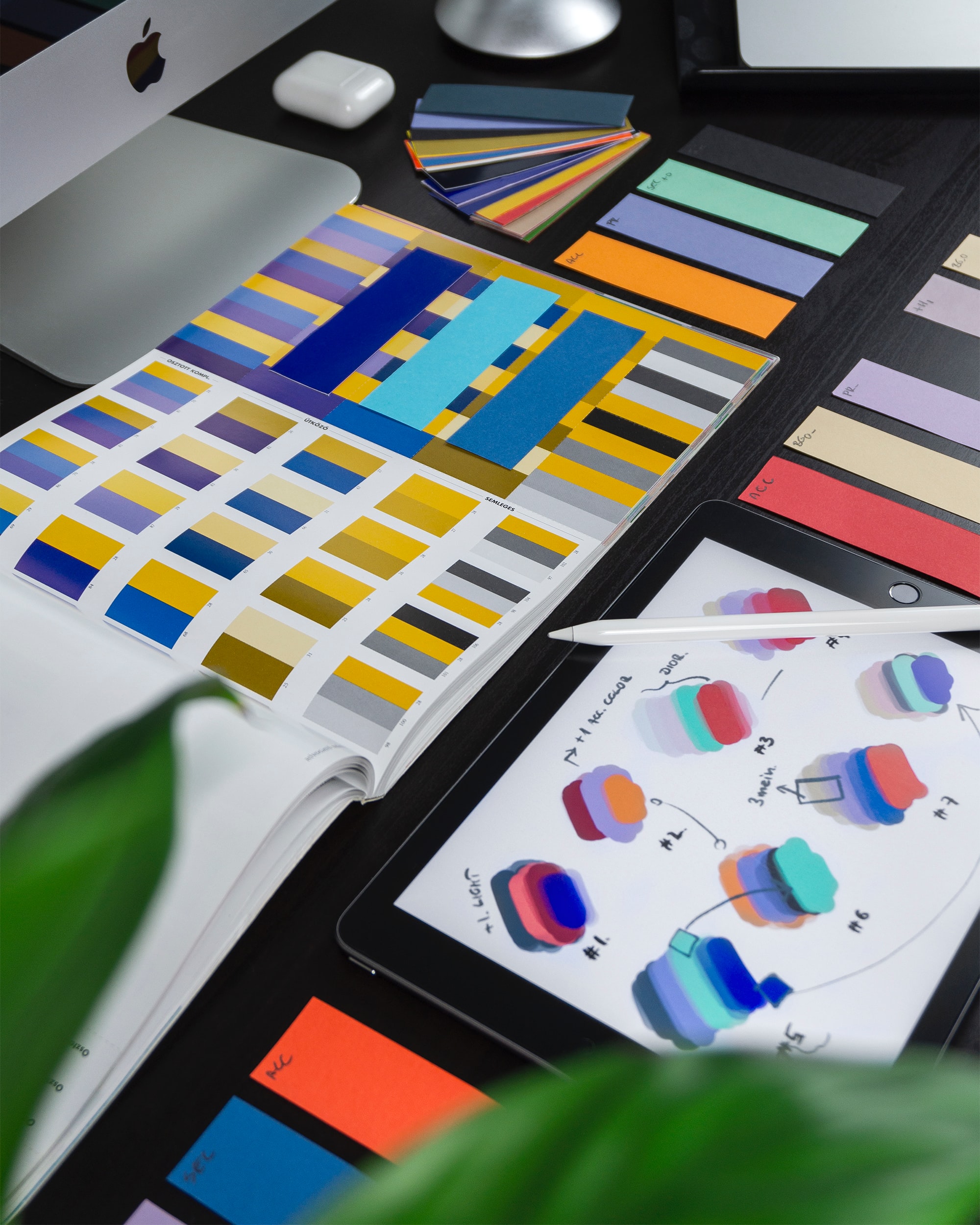
Abstract Pattern Tutorial – Adobe Photoshop
In this tutorial, you will learn how to create an abstract pattern in Adobe Photoshop. This is a great way to add some interest and personality to your photos. By following the steps in this tutorial, you will be able to create your own unique abstract patterns that you can use in your photography.
Introduction: What is an abstract pattern?
An abstract pattern is a design that consists of geometric shapes and colours. The term “abstract” refers to the fact that the patterns are not based on any specific object or image. Abstract patterns can be used for a variety of purposes, including decoration, web design, and illustrations.
Abstract patterns can be created using a variety of software programmes, but Adobe Photoshop is one of the most popular choices. When creating an abstract pattern in Photoshop, you will need to use the “Create new fill or adjustment layer” tool. This tool allows you to create a new layer that contains your pattern.
Once you have created your new layer, you will need to select the “Pattern” option from the drop-down menu. This will open a library of pre-made patterns that you can choose from.
Step by step tutorial:
Step 1: Choose a Background
Step 2: Duplicate the Background Layer
Step 3: Apply a Filter
Step 4: Adjust the colours
Step 5: Add a Mask
How to create an abstract pattern on Adobe Photoshop?
Assuming you have a basic understanding of Photoshop and its tools, let’s get started with creating an abstract pattern.
- Open a new file in Photoshop (Cmd+N) and set the width and height to whatever size you like. For the purposes of this tutorial, we’ll be using a width of 1000px and a height of 1000px.
- Set the background colour to black (press D on your keyboard to reset the colours to black and white, then press X to swap them).
- Choose the Rectangle Tool (U) from the Tools palette, or press Shift+U until you cycle through all the shape tools until you get to it. Then click and drag out a rectangle somewhere in the centreof your document. It doesn’t have to be perfect, we’ll be distorting it soon anyway.
3 Steps to better Adobe Photoshop graphics
- Start by creating a new Photoshop document and fill it with a solid colour. In this example, we’ll use black.
- Next, create a new layer and fill it with a gradient. To do this, choose the Gradient Tool from the Toolbox, and then click and drag on the layer to create the gradient.
- Finally, add some noise to the layer by going to Filter > Noise > Add Noise. In the Add Noise dialog box, choose an amount of noise that you like and click OK.
Now that you have your three layers, you can start to create your abstract pattern. To do this, simply click and drag on each layer to move them around until you’re happy with the results.
4 benefits of using Adobe Photoshop
Adobe Photoshop is a widely used programme for crafting digital images. The software offers a variety of features and benefits that allow users to create high-quality, professional-looking images.
Some of the key benefits of using Adobe Photoshop include:
- A wide range of editing tools – Adobe Photoshop provides users with a wide range of powerful editing tools that can be used to create sophisticated images. These tools can be used to make subtle changes or completely transform an image.
- Layer support – One of the most useful features of Adobe Photoshop is the ability to work with layers. This allows users to experiment with different effects and make changes to an image without impacting the underlying image data.
- Precision control – Adobe Photoshop offers users fine-grained control over their images, allowing them to make precise adjustments and achieve the exact look they desire.
- Comprehensive tools – Adobe Photoshop is a very powerful tool. It offers users a wide range of editing tools that can be used to enhance images using the same basic set of tools. With these tools, you can change an image’s contrast, brightness, colourbalance, and much more.
5 possibilities for amazing Adobe Photoshop tool results
When it comes to creating abstract patterns in Adobe Photoshop, the possibilities are endless. With a little bit of creativity and imagination, you can create some truly amazing results. Here are five possibilities for amazing Adobe Photoshop tool results:
- Create a unique pattern by combining different shapes and colours.
- Use layers to create a complex and detailed pattern.
- Use the brush tool to create a custom pattern.
- Experiment with different blending modes to create an interesting effect.
- Add texture to your pattern by using the noise or grain filter.
3 Benefits of Adobe Photoshop for graphic designers
Adobe Photoshop is one of the most popular graphic design software programmes available. Here are three benefits of using Photoshop for your next project:
- Photoshop offers a variety of features and tools that can be used to create unique and eye-catching designs.
- Photoshop is relatively easy to use, even for beginners. There are plenty of online tutorials and resources available to help you get started.
- Photoshop provides high-quality output, making it ideal for professional designers or those who want to create print-ready designs.
The endless possibilities of Adobe Photoshop
Adobe Photoshop is one of the most popular photo editing software programmes available. It offers users an endless array of possibilities when it comes to manipulating and enhancing digital images.
With Photoshop, you can crop and rotate images, adjust brightness and contrast levels, add special effects, and much more. The possibilities are truly endless. Whether you’re a professional photographer or just a casual user, Adobe Photoshop is sure to meet your needs.
What is Adobe Photoshop?
Adobe Photoshop is one of the most popular image editing software programmes in the world. It is used by professional photographers and graphic designers to edit photos and create digital artwork. Photoshop has many features and tools that allow users to manipulate images in a variety of ways.
Photoshop can be used to improve the quality of an image, add special effects, or change the overall look of an image. Photoshop can also be used to create new images from scratch. The possibilities are endless when it comes to what you can do with Adobe Photoshop.
What are the possibilities with Adobe Photoshop?
Adobe Photoshop is a powerful programme that allows users to create stunning graphics and images. The possibilities with Photoshop are endless, and the programme provides users with a wide variety of tools and features to help them create beautiful artwork. With Photoshop, users can create anything from simple graphics and images to complex designs and illustrations. The sky is the limit when it comes to what you can create with Adobe Photoshop.
Adobe Photoshop: The ultimate guide to mastering the tool
Adobe Photoshop is a powerful design tool that can be used to create amazing patterns. In this guide, we will show you how to master the tool and create beautiful patterns of your own.
First, let’s take a look at the basics of Photoshop. The programme has a lot of different features and tools, but don’t let that intimidate you. We will only be using a few of them for this tutorial.
Next, open up a new document in Photoshop. You can set the dimensions and resolution to whatever you like. For this tutorial, we will be using a resolution of 300 dpi and dimensions of 1000×1000 pixels.
Now, we are ready to start creating our pattern. First, create a new layer by clicking on the ‘Create New Layer’ icon at the bottom of the Layers panel.
What is Photoshop good for?
Adobe Photoshop is a widely used programme for digital image editing and creation. Many people use it for personal projects, such as creating scrapbooks or photo collages. Photoshop can also be used for more advanced image manipulation, such as removing objects from a photo or changing the colours of an image.
Some people might not know all of the things that Photoshop can do. For example, you can use Photoshop to create website layouts, edit videos, and even animate graphics. If you’re interested in pursuing a career in graphic design, learning how to use Photoshop is essential.
Whether you’re a beginner or a seasoned pro, there’s always something new to learn about Photoshop. So why not try your hand at creating some abstract patterns? With this tutorial, you’ll be able to create your own unique patterns in no time!
5 Tips to improve your graphic design with Adobe Photoshop
In this tutorial, we’re going to explore some tips on how you can use Adobe Photoshop to improve your graphic design skills. We’ll cover a range of topics such as working with layers, creating abstract patterns, and using adjustment layers. By the end of this tutorial, you’ll have learned some essential techniques that will help you take your designs to the next level.
- Create custom brushes: One great way to add unique elements to your designs is to create custom brushes. Photoshop comes with a variety of default brushes, but you can also create your own. To do this, simply select the brush tool, then click on the “Edit” menu and choose “New Brush.” This will open up the brush options panel where you can adjust the settings to create a brush that’s perfect for your needs.
- Use patterns Another great way to add unique elements to your designs is to use patterns. Patterns can be found in the “Pattern” panel located at the very bottom of your layers panel. To open this panel, go up to the “Window” menu and choose “Patterns.
- Use adjustment layers Another great way to add unique elements to your designs is to use adjustment layers. Adjustment layers are located below the regular layer in your layers panel. To reach this panel, simply click on the “New Adjustment Layer” button in the bottom left corner of your layers panel.
- Use type layers Type layers are located below the regular layer in your layers panel. To reach this panel, simply click on the “New Layer” button in the bottom left corner of your layers panel and choose “Type”.
- To use type layers, simply click on the “Type” layer in your layers panel and start typing! You can also change the colourof your text by clicking on the “T” icon in your toolbar to open the font properties menu.
3 Benefits of using Adobe Photoshop for your business
Adobe Photoshop is a widely used programme for crafting digital images. The software offers a variety of features and benefits that can be advantageous for businesses.
Photoshop can help businesses to improve the quality of their product images. By editing and enhancing images, businesses can make their products more appealing to customers and stand out from the competition. Additionally, Photoshop can be used to create marketing materials such as banners, flyers, and social media posts.
Another benefit of using Adobe Photoshop for businesses is that it can help to save time and money. With Photoshop, businesses can avoid the need to hire professional photographers or graphic designers for simple tasks. Additionally, businesses can use Photoshop to edit existing photos rather than spending money on new ones.
Finally, Adobe Photoshop is a powerful tool that can help businesses to achieve their desired results.
3 graphic design tips for Adobe Photoshop novices
There are many things to consider when it comes to graphic design, but Adobe Photoshop novices can get a leg up by following these three tips:
- When creating an abstract pattern, start with a basic shape. Using the pen tool, create a simple shape like a square or circle. Then, duplicate the layer and rotate it slightly. Repeat this process until you have a nice variety of shapes.
- To add interest to your pattern, experiment with different colours and textures. Use the layer styles menu to add gradient overlays, patterns, or even strokes.
- Once you’re happy with your design, don’t forget to save it as a .PAT file so you can use it again in the future!
The terrific trio- Adobe Photoshop, Illustrator, and InDesign
Adobe Photoshop, Illustrator, and InDesign are three powerful design tools that every graphic designer should know how to use. Each programme has its own unique functions and benefits that can be used to create amazing designs.
Adobe Photoshop is a great programme for creating stunning visual effects and graphics. With Photoshop, you can easily manipulate photos and create complex images. Photoshop is also a great tool for retouching photos and preparing them for print.
Adobe Illustrator is a vector-based design programme that is perfect for creating logos, illustrations, and infographics. With Illustrator, you can create scalable designs that will look great on any size screen or printout.
InDesign is a desktop publishing programme that is ideal for creating high-quality documents such as newsletters, magazines, and books.
How to get the most out of Adobe Photoshop
Adobe Photoshop is a complex and comprehensive programme, but with a little practice, anyone can learn the basics of this popular software. Here are some tips on how to get the most out of Adobe Photoshop:
- Start by familiarising yourself with the workspace. Spend some time exploring the various panels and tools and become comfortable with where everything is located.
- Next, start experimenting with the different features and options. Don’t be afraid to try new things and see what results you can achieve.
- One of the best ways to learn Photoshop is to find tutorials online or in books and follow along step-by-step. This will help you understand how to use the various tools and features to create specific effects.
- Finally, practice, practice, practice! The more you use Photoshop, the more proficient you will become at using it.
Learn the basics of Adobe Photoshop
Adobe Photoshop is a complex programme with a lot of features, but it can be used to create simple images, too. In this tutorial, we’ll cover the basics of using Photoshop so you can get started creating your own images.
If you’re new to Photoshop, the first thing you need to do is open the programme and familiarise yourself with the interface. The main window is divided into several sections: the toolbar on the left, the image area in the middle, and the layers panel on the right. Take some time to explore each of these areas and become familiar with their functions.
Next, let’s learn how to create a new document. Go to File > New and a new window will open. Here, you can specify the width and height of your document, as well as its resolution.
Graphic design tips to improve your skills
There is no one definitive way to become a great graphic designer. However, there are certain skills and techniques that can help you to improve your craft. Here are some tips to get you started:
- Experiment with different design programmes. While Adobe Photoshop is perhaps the most popular programmeamong professionals, there are many other software options out there. Find one that suits your needs and preferences and explore its capabilities.
- Practice, practice, practice! The more you work on honing your skills, the better you will become at graphic design. Experiment with different techniques and styles to find what works best for you.
- Stay up-to-date on trends. Keeping abreast of current trends will not only make your work more visually appealing, but it will also show potential clients that you are keeping up with the latest industry standards.
4 Graphic design trends to try in 2023
The world of graphic design is always changing and evolving. As we move into 2023, there are a few new trends that you should definitely try out in your own designs.
- Geometric shapes and patterns – This trend has been around for a few years now but it shows no signs of slowing down. Incorporating geometric shapes and patterns into your designs can give them a modern and stylish look.
- Bright and bold colours – If you’re looking to make a statement with your design, then using bright and bold colours is the way to go. This trend is perfect for those who want to stand out from the crowd.
- Minimalism – Less is definitely more when it comes to minimalism. This trend focuses on simplicity and clean lines to create a sleek and elegant look.
- Simple, Black and White Designs- This trend is perfect for those who are looking to create something simple and elegant. The use of black and white can help to make your designs stand out from the crowd.
Create a double exposure in Photoshop
Adding a second image to a photo can create an interesting effect called a double exposure. This technique is easy to do in Photoshop with the help of layer masks.
First, open the two images you want to use in Photoshop and drag one of them into the other document. The images can be of anything, but it usually works best if they have some sort of contrast, like a portrait and a landscape.
Next, add a layer mask to the top layer by going to Layer > Layer Mask > Reveal All. Then, use a black brush to paint over the areas of the image that you want to keep visible. You can experiment with different brush sizes and opacity levels to get the desired effect.
Finally, change the blending mode of the top layer to Screen or Lighten depending on what looks best. And that’s it!
Create custom graphics in Photoshop
When it comes to creating custom graphics, Photoshop is a powerhouse. With its wide array of tools and features, you can create just about anything you can imagine. In this tutorial, we’ll walk you through the process of creating a simple abstract pattern.
First, open up a new document in Photoshop. We’ll be working with a square canvas for this tutorial, so set the width and height to 500px each. Next, create a new layer and fill it with your desired colour. We’ll be using a light blue for our example.
With the colour layer selected, go to Filter > Render > Clouds. This will add some random noise to your layer which we’ll use to create our pattern. Next, go to Edit > Define Pattern. Give your pattern a name and hit OK.
Join Blue Sky Graphics online design course to learn more about graphic design!









