

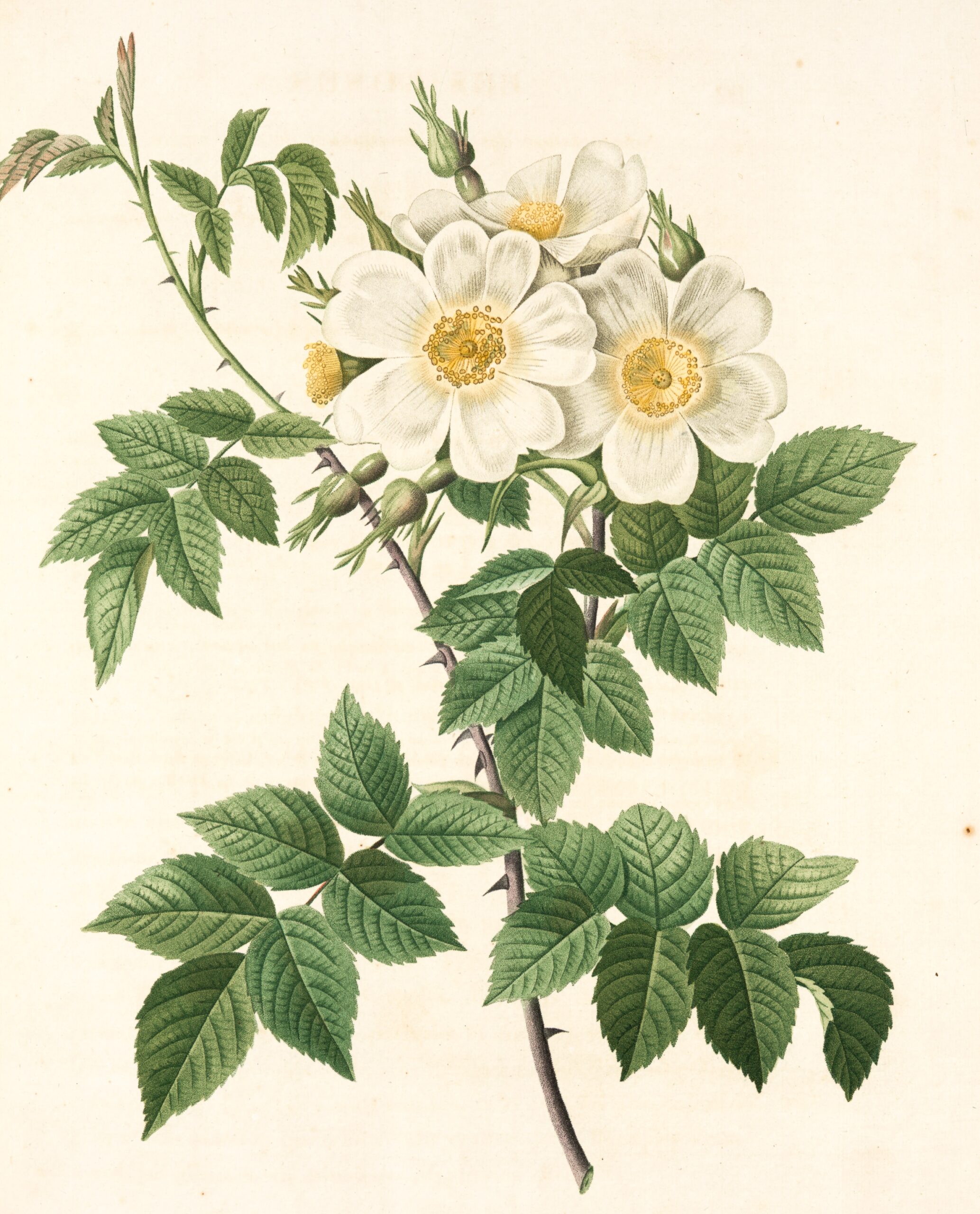
Quick flower design – Adobe Illustrator
Are you ready to elevate your digital design skills and create stunning floral artwork with just a few clicks? If so, then get ready to delve into the captivating world of quick flower design using Adobe Illustrator. Whether you’re a seasoned graphic designer or an aspiring artist, mastering the art of creating intricate floral designs in Illustrator can add a touch of elegance and beauty to your projects. In this article, we will explore the power and versatility of Adobe Illustrator as we take you on a journey through the process of effortlessly crafting beautiful flower designs that can be used for anything from greeting cards to website backgrounds.
Picture this: You have a project deadline looming, and you need to incorporate eye-catching floral elements into your design. Instead of spending hours sketching and refining hand-drawn flowers, imagine being able to whip up intricate floral patterns in mere minutes using Adobe Illustrator’s powerful tools. The ability to quickly create stunning flower designs not only saves time but also allows for endless experimentation and creativity. From delicate roses to vibrant sunflowers, the possibilities are endless when it comes to crafting custom floral illustrations that will captivate your audience. So grab your digital canvas and let’s embark on an exciting journey into the world of quick flower design with Adobe Illustrator!
Introduction: Exploring flower design in Adobe Illustrator
Welcome to the world of flower design in Adobe Illustrator! This versatile software offers endless possibilities for creating stunning floral designs with ease and precision. Whether you’re a seasoned designer or just starting out, exploring flower design in Adobe Illustrator can be both fun and rewarding.
With its powerful tools and capabilities, Adobe Illustrator provides the perfect platform for unleashing your creativity and bringing beautiful flowers to life on your digital canvas. From delicate petals to intricate patterns, the flexibility of Illustrator allows you to experiment with various shapes, colours, and textures to create unique and captivating floral artwork. Join us as we delve into the exciting journey of quick flower design in Adobe Illustrator, where we’ll explore techniques, tips, and tricks to help you master the art of digital floral creation. So grab your virtual bouquet of brushes and let’s embark on this colourful adventure together!
Tools and materials: Required software and resources
When it comes to creating quick flower designs in Adobe Illustrator, having the right tools and materials at your disposal is essential. The required software for this project includes Adobe Illustrator, which provides a robust platform for creating intricate and detailed vector graphics. Alongside the software, it’s important to have access to high-quality resource materials such as floral reference images, colour palettes, and design inspiration. Utilizing these resources will allow you to bring authenticity and creativity into your flower designs.
In addition to software and visual resources, having a good understanding of basic design principles can significantly enhance your flower design process. Familiarising yourself with concepts such as balance, proportion, and symmetry can elevate the quality of your creations. Moreover, exploring different brush tools within Adobe Illustrator can add depth and texture to your floral elements, ultimately enhancing the overall visual impact of your designs. By leveraging these tools and resources effectively, you’ll be well-equipped to craft stunning flower designs that captivate and inspire.
Basic shapes technique: Creating petals and leaves
In the world of digital art, mastering the technique of creating petals and leaves using basic shapes in Adobe Illustrator is essential for crafting stunning floral designs. By leveraging simple geometric forms such as circles, ellipses, and triangles, artists can effortlessly recreate intricate petal and leaf structures with precision and ease. This approach not only streamlines the design process but also empowers creators to experiment with various shapes and sizes to achieve unique visual effects.
When working with petals, consider utilising the Ellipse Tool to craft soft, rounded shapes that emulate the delicate curves found in nature. Experiment with adjusting anchor points and manipulating paths to create organic variations within each petal. For leaves, leverage the versatility of triangles to form sharp edges or use overlapping circles to achieve a more fluid silhouette. Embracing this fundamental shape-based approach enables artists to unlock a new level of creativity while maintaining a simplified workflow for floral illustration in Adobe Illustrator.
By embracing the concept of simplifying complex forms into basic shapes, designers can infuse their floral creations with an element of balance and harmony. This method not only enhances efficiency but also encourages an innovative exploration of form and structure when constructing petals and leaves in digital art. Through thoughtful manipulation of fundamental shapes, artists can elevate their flower designs by infusing them with a captivating blend of realism and stylised flair within Adobe Illustrator’s versatile environment.
Colour and texture: Adding realistic details to flowers
Adding realistic details to flowers in Adobe Illustrator involves paying close attention to colour and texture. To create lifelike petals, consider using a combination of subtle gradients and detailed texturing techniques. Experiment with layering different shades within each petal to mimic the natural transitions of light and shadow found in real flowers. Additionally, incorporating intricate patterns and imperfections, such as tiny veins or speckles, can further enhance the authenticity of your flower design.
When it comes to texture, don’t be afraid to mix digital brushes and effects to achieve a truly realistic look. utilise tools like the scatter brush function to add delicate fuzz or grains to the surface of petals, emulating the tactile feel of actual flower petals. Furthermore, adjusting transparency levels for individual elements can create an illusion of depth within your design, bringing an added dimensionality that captures the essence of real flowers. By focusing on these nuanced aspects of colour and texture, you can elevate your flower illustrations from flat representations to immersive visual experiences.
Advanced techniques: Complex flower patterns and arrangements
Advanced techniques in creating complex flower patterns and arrangements in Adobe Illustrator can truly elevate your designs to the next level. By utilising intricate shapes, gradients, and layered effects, you can seamlessly blend various elements to achieve stunning floral compositions with depth and dimension. Experimenting with advanced tools such as the Shape Builder tool and custom brushes allows for endless possibilities in crafting unique petal designs and organic forms.
When delving into complex flower patterns, consider exploring symmetrical designs that radiate from a central point or creating asymmetrical arrangements for a more dynamic visual impact. Incorporating subtle details like delicate veins on petals or adding realistic textures using the gradient mesh tool can add a touch of realism to your floral illustrations. Additionally, layering different elements with varying opacities and blending modes can create a sense of depth within your designs, providing an immersive experience for the viewer.
As you dive deeper into mastering complex flower patterns and arrangements in Adobe Illustrator, don’t be afraid to push the boundaries of creativity by experimenting with unconventional colour combinations or integrating geometric shapes into your florals for a modern twist. Embracing these advanced techniques opens up endless opportunities to create breathtaking floral compositions that captivate and inspire.
Tips for quick designs: Time-saving tricks and shortcuts
When it comes to creating quick flower designs in Adobe Illustrator, time-saving tricks and shortcuts can be game-changers. One effective tip is to make use of the Pattern Tool to create intricate floral patterns with just a few clicks. By utilising this feature, you can save time on individually designing each petal or leaf, and instead focus on customising the overall pattern to fit your project’s needs.
Another valuable shortcut is to master keyboard shortcuts for common actions such as duplicating elements, changing brush sizes, and manipulating anchor points. Familiarising yourself with these shortcuts can significantly reduce the time spent navigating through menus and panels, allowing you to work more efficiently on your floral design. Additionally, taking advantage of pre-made vector assets or drawing templates can speed up the initial stages of your design process, freeing up more time for refining details and adding personal touches. These time-saving tricks are indispensable for designers looking to produce high-quality flower designs within tight deadlines without compromising on creativity or precision.
Conclusion: Emphasizing the versatility of Adobe Illustrator
In conclusion, Adobe Illustrator has proven to be an incredibly versatile tool for creating stunning designs, as demonstrated in the quick flower design project. Its robust features and intuitive interface make it suitable for a wide range of creative tasks, from logo design to intricate illustrations. The ability to work with vector graphics means that designs can be scaled up or down without losing quality, making it an ideal choice for both digital and print projects.
Furthermore, the diverse range of tools available within Illustrator allows for endless possibilities when it comes to creativity. Whether it’s experimenting with different brushes and effects or utilising the powerful pen tool for precise vector drawing, there is no limit to what can be achieved with this software. In addition, Adobe Illustrator seamlessly integrates with other Adobe Creative Cloud applications such as Photoshop and InDesign, further enhancing its versatility and making it an essential tool for any designer or illustrator looking to bring their ideas to life.
6 Essential tools and features in Adobe Illustrator for beginners
Adobe Illustrator is a powerful tool for beginners looking to create stunning designs, and it comes equipped with essential tools and features to make the process easier. The Pen Tool is one of the most important tools for beginners as it allows precise control over drawing paths and creating custom shapes. The Shape Builder Tool simplifies the process of combining shapes, making it easy to create complex illustrations with ease.
In addition, the Pathfinder Tool provides a range of options for combining, dividing, and merging objects, allowing beginners to experiment with different design ideas. The Appearance Panel enables users to add multiple strokes and fills to objects, offering creative flexibility in creating unique textures and effects. Moreover, the Type Tool is essential for adding text elements while also providing various options for formatting and styling text within illustrations. Lastly, the Layers Panel helps in organising elements within a design, making it easier for beginners to manage complex compositions effectively. Overall, these essential tools enable beginners to embark on their creative journey in Adobe Illustrator with confidence and efficiency.
Pen tool: Mastering the basics
Mastering the pen tool is essential for creating intricate and precise designs in Adobe Illustrator. Its versatility allows designers to draw custom shapes, paths, and curves with unparalleled precision. By mastering the basics of the pen tool, you gain the ability to create fluid lines and sharp angles, giving your artwork a polished and professional look.
Understanding anchor points and Bezier handles is fundamental to harnessing the full potential of the pen tool. Take time to practice manipulating these elements to achieve smooth curves and crisp corners. Once you have a strong grasp of how these tools work together, you’ll find yourself seamlessly creating complex flower petals or delicate foliage with ease.
Beyond its technical aspects, mastering the pen tool empowers creators to bring their floral visions to life in exquisite detail. The finesse required in using this tool opens up a world of creative possibilities for crafting stunning botanical designs that captivate and inspire viewers. Sharpening your skills with the pen tool lays a solid foundation for effortlessly translating natural beauty into digital art.
Understanding the appearance panel: Tips and tricks
The Appearance panel in Adobe Illustrator is a powerful tool that often goes unnoticed, but for those who understand its functionalities, it can be a game-changer in the world of design. One key tip is to utilise the New Fill and New Stroke options to add multiple strokes and fills to any object, allowing for complex and intricate designs without needing to create additional shapes. Moreover, using the Opacity option within the Appearance panel provides control over transparency at both the object level and individual fill/stroke level, unlocking endless possibilities for creating depth and dimension in flower designs.
Another nifty trick is harnessing the power of Effects within the Appearance panel. By applying effects such as Gaussian Blur, Drop Shadow, or Inner Glow, designers can easily enhance their floral creations with realistic textures and visual interest. Furthermore, saving appearance attributes as graphic styles allows for quick application across various elements within a design, streamlining workflow and maintaining consistency. Understanding these tips and tricks empowers designers to push creative boundaries and achieve stunning results when bringing flower designs to life in Adobe Illustrator.
Creating custom brushes: A step-by-step guide
Creating custom brushes can elevate your design work to a whole new level, especially when it comes to creating intricate floral designs in Adobe Illustrator. By following a few simple steps, you can craft bespoke brushes that perfectly suit your artistic vision. Start by selecting a shape or pattern that you want to turn into a brush, then carefully define its settings such as size, spacing, and angle. Experiment with different options to see how the brush behaves and make adjustments until it aligns with your desired outcome.
The ability to create custom brushes opens up endless possibilities for adding depth and detail to your flower designs. Whether you’re aiming for a realistic look or something more abstract, custom brushes allow you to infuse your creations with personal flair and uniqueness. With this step-by-step guide at hand, take the opportunity to explore the art of brush creation and unleash your creativity on every petal and leaf in your digital garden.
Incorporating custom brushes into your workflow not only streamlines the design process but also empowers you to venture beyond conventional techniques. As you delve deeper into custom brush creation, consider harnessing elements from nature or experimenting with unusual shapes to push the boundaries of traditional floral design. Embrace this guide as an invitation to break free from limitations and forge distinctive paths in the realm of digital artistry.
Utilising the pathfinder tool for complex shapes
The pathfinder tool in Adobe Illustrator can be a game-changer when it comes to creating complex shapes, especially for quick flower designs. By utilizing the pathfinder tool, you can easily combine and merge various shapes to form intricate petal patterns and unique floral designs. This allows for greater creative freedom and the ability to experiment with different arrangements and compositions.
One of the key benefits of using the pathfinder tool for complex flower shapes is the ability to maintain scalability without losing quality. Whether you’re creating a small icon or a large illustration, the pathfinder tool ensures that your intricate floral design retains its sharpness and detail at any size. Additionally, by mastering this tool, designers can effortlessly create symmetrical designs with precise alignment, resulting in visually striking flower compositions that capture attention.
Moreover, the versatility of the pathfinder tool enables designers to manipulate shapes seamlessly, allowing for endless possibilities in crafting quick yet visually stunning flower designs. By experimenting with different combinations and applications of the pathfinder operations such as unite, minus front, intersect, or exclude – designers can achieve intricate petal formations and elaborate floral motifs that elevate their design projects to new heights.
Working with live paint: Techniques for colourful illustrations
Working with live paint in Adobe Illustrator opens up a world of possibilities for creating vibrant and dynamic illustrations. One key technique for colourful illustrations is using the live paint bucket tool to quickly fill areas with solid colours, gradients, or patterns. This allows for more artistic freedom and experimentation when it comes to adding colour to your designs.
Another great technique is utilising the live paint selection tool to easily modify and adjust colours within your illustration. This enables you to fine-tune the hues, saturation, and brightness of different elements, giving you precise control over the overall colour scheme. By working with live paint in Illustrator, you can create stunning and eye-catching illustrations that are rich in colour and depth.
Additionally, combining different blending modes with live paint can add an extra layer of complexity and visual interest to your artwork. Experimenting with these modes allows you to achieve unique effects that enhance the vibrancy and liveliness of your illustrations. Overall, mastering these techniques will elevate your ability to create colourful floral designs and bring them to life in Adobe Illustrator.
Harnessing the power of layers: Organising your projects
In the world of design, harnessing the power of layers is a game-changer when it comes to organising your projects. By strategically using layers in Adobe Illustrator, you can gain better control over your design elements and streamline your workflow. Each layer acts as a virtual sheet of transparency, allowing you to add, edit, or remove objects without affecting the rest of your project.
One fresh insight is to use naming conventions for your layers that make sense to you. This simple practice can significantly enhance your productivity by making it easier to locate and manipulate specific elements within complex designs. Another perspective worth considering is the concept of grouping related layers together. This technique can help you stay organised and maintain a clear overview of your project’s structure, ultimately saving time and reducing frustration.
Embracing the power of layers in Adobe Illustrator not only brings order to chaos but also opens up endless opportunities for creativity. So, next time you embark on a quick flower design or any other project, remember that mastering layer organisation is key to unleashing your full potential as a designer.









