

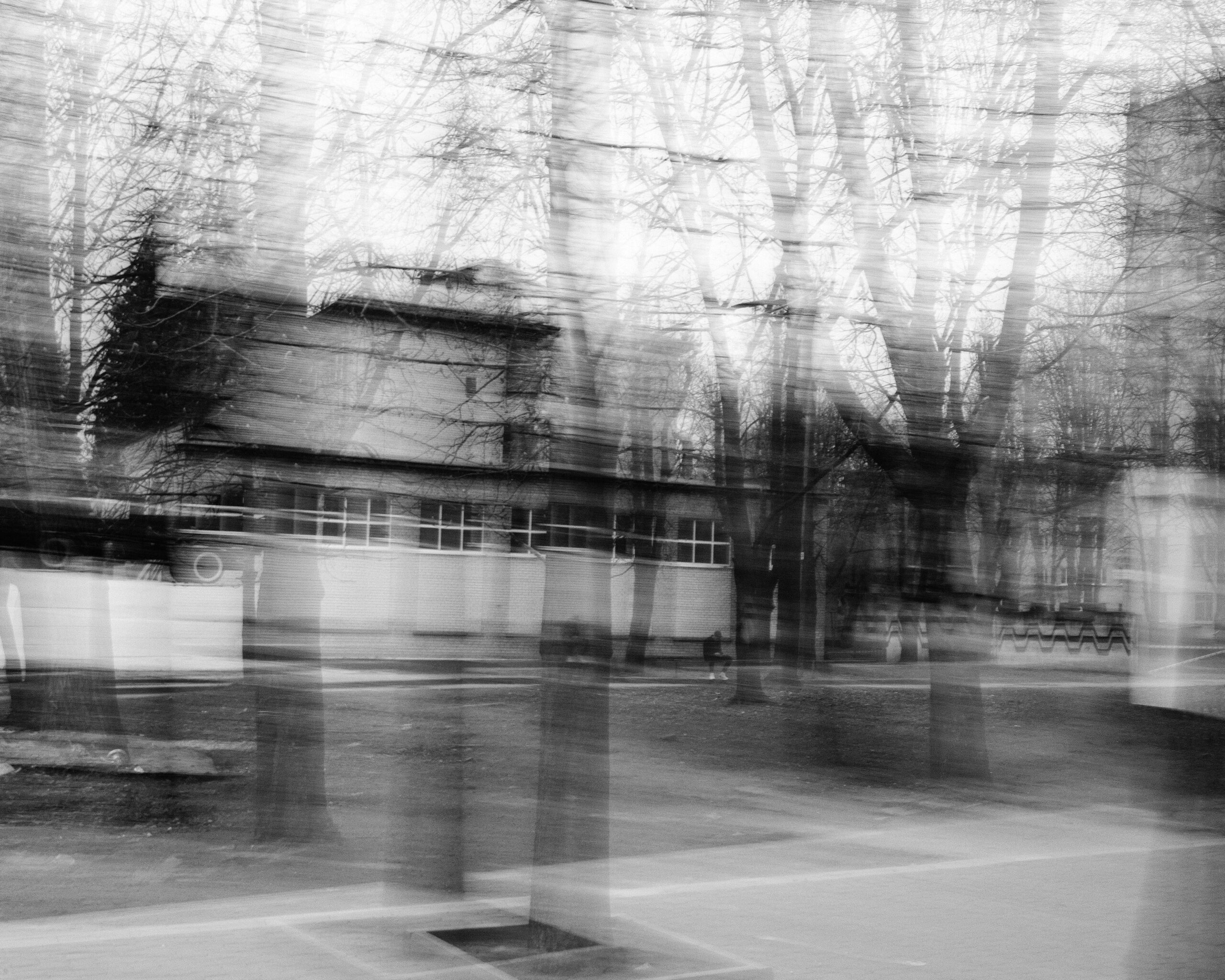
Advanced Motion Effect With Adobe Photoshop
Adobe Photoshop is one of the industry’s leading software packages for creating and manipulating digital images. Its powerful tools allow users to create professional-looking images with precise control over a variety of effects. One of these effects is the advanced motion effect, which can add a sense of movement and excitement to any image. With this effect, users can add blur, zoom, panning, and other dynamic elements to their photos.
Photoshop motion effects
If you are looking forward to creating stunning and advanced motion effects with Adobe Photoshop, there are numerous tools and features available that can help you achieve your goals. One of the most popular ways of adding motion effects in Photoshop is by using the Animation panel. With this feature, you can create animated GIFs, videos, or even interactive animations.
Another useful tool for creating motion effects in Photoshop is the Timeline panel. This tool allows you to create more complex animations by adding multiple layers and adjusting their timing and position. You can also add various effects such as blurs, distortions, or colour adjustments to enhance your animation.
Finally, it is worth mentioning that plugins and extensions can also be a great asset when it comes to achieving advanced motion effects with Adobe Photoshop.
Basics: What you need to know
When it comes to creating motion effects in Adobe Photoshop, there are a few basics that you need to keep in mind. First and foremost, you need to have a clear understanding of what kind of effect you want to create. Do you want your image to appear as if it’s moving from side-to-side? Or perhaps you want the image to zoom in or out?
Once you know what kind of effect you’re going for, the next step is to select the appropriate tool(s) within Photoshop. For example, if you want to create a panning effect where the image appears to be sliding from side-to-side, then the “Motion Blur” filter may be useful.
Another important consideration when creating motion effects is timing. You’ll need to decide how long each individual frame should be displayed before transitioning into the next one. This can be accomplished using various tools within Photoshop such as keyframes and tweening. By keeping these basics in mind, you’ll be well on your way towards creating advanced motion effects with Adobe Photoshop.
Designing custom styles
Custom styles are a great way to elevate your designs and add unique flair. One way to achieve this is by using advanced motion effects with Adobe Photoshop. By utilising motion blur, you can create dynamic movement in your designs that will capture the attention of viewers.
Another option for custom styles is to experiment with gradients and layer masks. Gradients can bring depth and dimension to your designs, while layer masks allow for precise control over which areas of an image show through. By combining these techniques, you can create truly stunning visuals that stand out from the crowd.
Finally, don’t be afraid to play around with different textures and patterns when designing custom styles. Whether it’s adding a subtle grain effect or incorporating bold geometric shapes, there are endless possibilities for creating eye-catching designs that reflect your unique style and vision. With Adobe Photoshop at your fingertips, the sky’s the limit when it comes to designing custom styles that make a lasting impression.
Combining effects
Combining effects in Adobe Photoshop may seem daunting at first, but it can produce incredible results. One way to do this is by using the motion effect tool, which allows you to add movement and animation to your images. By combining different motion effects such as panning, zooming, and rotation, you can create dynamic and engaging visuals that are sure to capture your audience’s attention.
To get started with combining motion effects in Photoshop, select the layer you want to apply the effect to and go to the “Window” menu. From there, click on “Timeline” and choose “Create Video Timeline.” Next, select the layer again and press the small stopwatch icon next to “Position” under “Transform.” This will activate keyframes that allow you to animate your image’s position over time.
Once you have set up your first motion effect, experiment with adding more effects such as rotation or scaling. You can adjust each effect’s timing by dragging their corresponding keyframes around on the timeline. With practice and experimentation, combining various motion effects makes creating eye-catching visuals a breeze in Adobe Photoshop.
Animating layers
Animating layers is an essential component of advanced motion effects in Adobe Photoshop. Once you have created a design and added layers to it, animating them can bring your creation to life. With Photoshop’s timeline feature, adding animation effects has never been easier. You can even add multiple animations to a single layer.
To start animating layers, you need to begin by opening the timeline window. From there, select the layer or group that you want to animate and click on the “create frame animation” button at the bottom of the timeline window. This will create a new frame for each movement you make in your animation.
Once you have created your frames, it’s time to add keyframes to your timeline. Keyframes are points where changes occur in your animation, such as when an object moves from one position to another or when its size changes. By setting these keyframes at specific intervals along your timeline, you can control how quickly or slowly objects move and change within your animation.
With these steps and more practice with Adobe Photoshop’s tools for animating layers, creating visually stunning motion effects will be at reach!
Creating text animations
When it comes to creating text animations, Adobe Photoshop is one of the best tools out there. With its advanced motion effects, you can make your text come to life and stand out on any platform. One of the most popular techniques for creating text animations in Photoshop is using keyframes.
Keyframes allow you to set specific points in time where certain changes will happen to your text. For example, you can have your text start off small and gradually grow larger as it moves across the screen. You can also add other effects such as colour changes or opacity adjustments for even more dynamic results.
Another useful feature in Photoshop for creating text animations is layer styles. By applying different layer styles such as drop shadows or strokes, you can give your text a unique look that stands out from the rest. Layer styles can also be animated using keyframes to make them appear and disappear at specific times during your animation.
Overall, with a little bit of practice and experimentation, anyone can create stunning text animations using Adobe Photoshop’s advanced motion effect tools. So why not try it out for yourself and see what kind of amazing results you can achieve?
Creative possibilities
One of the most creative possibilities in Adobe Photoshop is the advanced motion effect. This feature allows you to create dynamic, eye-catching images that are sure to grab your audience’s attention. To achieve this effect, you can use a combination of tools and techniques, such as layer masks, gradients, and filters.
One way to use the advanced motion effect is to create a sense of movement or action within your image. For example, you might add blur effects or distortions that give the impression of speed or motion. Alternatively, you might layer multiple images together and apply different effects to each one to create a collage-like look.
Another possibility with the advanced motion effect is to experiment with colour and lighting. You can use gradients and filters to enhance certain colours or create contrasting tones that draw attention to specific parts of your image. Additionally, you might try experimenting with lighting effects such as shadows or highlights to give your image more depth and dimensionality. With so many creative possibilities available in Adobe Photoshop’s advanced motion effect feature, there’s no limit to what kind of stunning imagery you can create!
Introducing Adobe Photoshop
Adobe Photoshop is a versatile software that allows users to create stunning visual content for both print and digital media. One of the features that sets it apart from other image editing software is its ability to add advanced motion effects to still images, such as creating a cinemagraph or animating text. With Adobe Photoshop’s timeline feature, users can easily adjust the duration and timing of their motion effects.
To create a cinemagraph in Adobe Photoshop, users can start by selecting an image with a clear focal point and minimal movement. They can then use the timeline feature to mask certain areas of the image that they want to remain stationary while adding motion to other parts. This technique creates a mesmerising effect where only certain elements in the image are moving, drawing attention to specific details.
Another way to enhance visual impact using Adobe Photoshop is by animating text overlays onto images or videos. By using keyframes on the timeline feature, users can easily control when and how their text appears on screen, giving them complete creative control over their final output. Animating text adds depth and context to an otherwise static image, making it perfect for social media posts or marketing materials.
Graphic design best practices
Using motion effects in graphic design can greatly enhance the visual appeal of your designs. Adobe Photoshop offers a range of advanced tools and techniques that can help you achieve stunning motion effects. One way to create dynamic motion effects is by using the timeline feature in Photoshop.
To get started, open an image or create a new one in Photoshop. Then, go to Window > Timeline to open the timeline panel. From here, you can add frames and animation layers to your design. You can also adjust various settings such as opacity, position, rotation, and scale for each frame.
Another effective technique is using blur filters to create a sense of movement in your designs. You can apply blur filters to specific areas of your design or use them on entire layers for a more subtle effect. The Motion Blur filter is particularly useful for creating realistic motion effects such as blurring moving objects or simulating camera movement.
Overall, these best practices will help you take your graphic design skills to the next level while creating eye-catching designs with advanced motion effects!
Tips for enhancing artwork in Photoshop
- Utilise layer styles: Layer styles are a set of effects that can be applied to a layer in Photoshop, such as shadows, glows, and overlays. These styles allow you to quickly enhance your artwork by adding depth and dimension without having to create these effects from scratch.
- Use adjustment layers: Adjustment layers allow you to make non-destructive changes to your artwork’s colour, brightness, contrast, and more. These layers can help bring out the best in your artwork by allowing you to fine-tune its colours or add special effects.
- Experiment with filters: Filters are pre-built image effects that can be applied to an entire layer or selection in Photoshop. They’re perfect for enhancing artwork because they can drastically change the look and feel of your work with just a few clicks. Try experimenting with filters like Blur, Sharpen, and Distort until you find the perfect effect for your project.
Overall, enhancing artwork in Photoshop requires a combination of creativity and technical know-how. By utilising layer styles, adjustment layers, and filters effectively – you can take your art to new heights!
Creative uses of Photoshop
Are you getting bored with the same old static images? Do you want to add a little bit of movement and excitement to your pictures? Well, look no further than Adobe Photoshop! With this powerful tool, you can create advanced motion effects that will bring your images to life.
One way to do this is by using the “motion blur” filter in Photoshop. By applying this filter selectively on certain parts of an image, you can create the illusion of motion. Another technique is by using the “warp” tool which allows you to manipulate specific areas within an image, giving it a dynamic look. Additionally, creating cinemagraphs – which are still photos with subtle motions like moving clouds or rippling water – can be done easily with Photoshop’s timeline function.
Overall, there are many creative uses of Photoshop when it comes to adding motion effects to your images. Experimenting with different tools and techniques can help elevate your designs and catch your audience’s attention in new ways!
Impossible designs made possible with graphics
With the help of advanced motion effect tools available in Adobe Photoshop, designers are now able to create impossible designs that were once deemed impossible. One such design is the illusion of a floating object. By adding shadows and highlights with the use of gradients, designers can make an object appear as if it’s levitating above a surface.
Another design made possible through graphics is the creation of an optical illusion using multiple layers. With proper layering techniques, designers can make objects appear as if they’re moving or even disappearing altogether. This technique has been used in advertisements and promotional materials to catch people’s attention and leave a lasting impression.
Lastly, graphic designers can also create stunning 3D designs with Adobe Photoshop’s 3D capabilities. By manipulating shapes and textures, they can bring ideas to life in ways that were previously impossible without more complex software or extensive knowledge in 3D modelling. Overall, advanced motion effects and graphic techniques have allowed for incredible designs that push boundaries and captivate audiences.
Tips and tricks for working with Adobe Photoshop
Creating advanced motion effects with Adobe Photoshop is a great way to add an extra level of depth and interest to your designs. To achieve this, you’ll need to use a combination of different tools and techniques. One useful tool is the Timeline panel, which allows you to create animations by adding multiple frames and adjusting their properties.
Another important technique for creating motion effects is using masks. This allows you to isolate specific parts of an image and manipulate them separately from the rest of the design. You can also use blending modes to add texture or colour overlays that can enhance the movement effect.
Lastly, it’s essential to experiment with different settings like frame rate and animation duration until you get your desired result. Don’t be afraid to try different things out and see what works best for your design! With these tips and tricks in mind, you’ll be able to create dynamic visuals that capture attention and bring your ideas to life.
Creative effects in Adobe Photoshop
Adobe Photoshop is not just a tool for editing photos. It also allows users to create advanced motion effects, such as the parallax effect, which creates an illusion of depth and movement by having different layers move at different speeds. This technique can be used to add dynamic elements to static images or even create entire animations.
Another creative effect that can be achieved in Adobe Photoshop is the cinemagraph. A cinemagraph is a still image with subtle, repeated movements that give it a sense of life and motion. This effect can be created by isolating specific areas of an image and animating them while keeping the rest of the image still.
In addition to these effects, Adobe Photoshop offers many other tools for creating visually stunning graphics and animations. With its wide range of brushes, filters, and masks, users have endless possibilities for enhancing their designs and bringing them to life with motion effects that capture viewers’ attention.
Best practices for working with Adobe Photoshop
- Start with a clear plan: Before you begin working on your project, take some time to map out what you want to achieve. Determine the scope of the work, gather all necessary assets and establish timelines.
- Use layers: Layers are essential in Photoshop as they allow you to work on different elements of your project independently, without affecting other areas. Organise your layers in a logical order for easy navigation.
- Master keyboard shortcuts: Keyboard shortcuts save time and can help streamline your workflow when working with Photoshop. Learn commonly used shortcuts such as Crtl+C (copy) and Ctrl+V (paste).
- Save frequently: Save your work regularly during the design process to avoid losing important edits or progress due to unexpected crashes or power outages.
- Utilise plugins and extensions: There are numerous plugins and extensions available that can enhance the functionality of Adobe Photoshop beyond its core features.
- Optimise images for web: When saving images for use online, it is important to optimise them by reducing file size without sacrificing quality using tools like “Save for Web”.
By following these best practices, you can ensure that your projects will be efficient, organised, and optimised for success in Adobe Photoshop!
Advantages of Photoshop
Photoshop is a powerful tool that has revolutionized the way we edit and manipulate images. One of the biggest advantages of Photoshop is its ability to create advanced motion effects. With this feature, users can add animations and visual effects to their photos, making them more dynamic and engaging.
Another advantage of Photoshop is its versatility. The software allows users to work with a wide range of file formats, including JPEG, GIF, PNG, and PDF. This means that designers can easily create graphics for web pages, social media platforms or print media like flyers and posters.
Finally, Photoshop offers an intuitive user interface that makes it easy for beginners to get started with photo editing. The software provides a variety of tools such as brushes, filters and layer masks that help users achieve professional-level results in no time at all. In addition to these benefits, there are countless other advantages that make Adobe Photoshop an essential tool for any graphic designer or photo editor looking to take their work to the next level.
Conclusion
In conclusion, Adobe Photoshop provides a variety of advanced motion effects that can enhance the visual appeal of your images. These effects include the zoom blur, radial blur, and motion blur filters, which create dynamic and exciting images that grab the viewer’s attention. Additionally, you can use the timeline feature to animate specific elements in your image.
When using these motion effects, it is important to consider the context and purpose of your image. While these effects may be visually stunning, they may not be appropriate for all types of content. For example, a professional headshot or product photo may not benefit from excessive motion effects.
Overall, incorporating advanced motion effects in Adobe Photoshop can add an extra layer of creativity and interest to your work. With practice and experimentation, you can master these techniques and take your design skills to new heights.
If you would like to better understand graphic design then get in touch with Blue Sky Graphics school of design today!









