

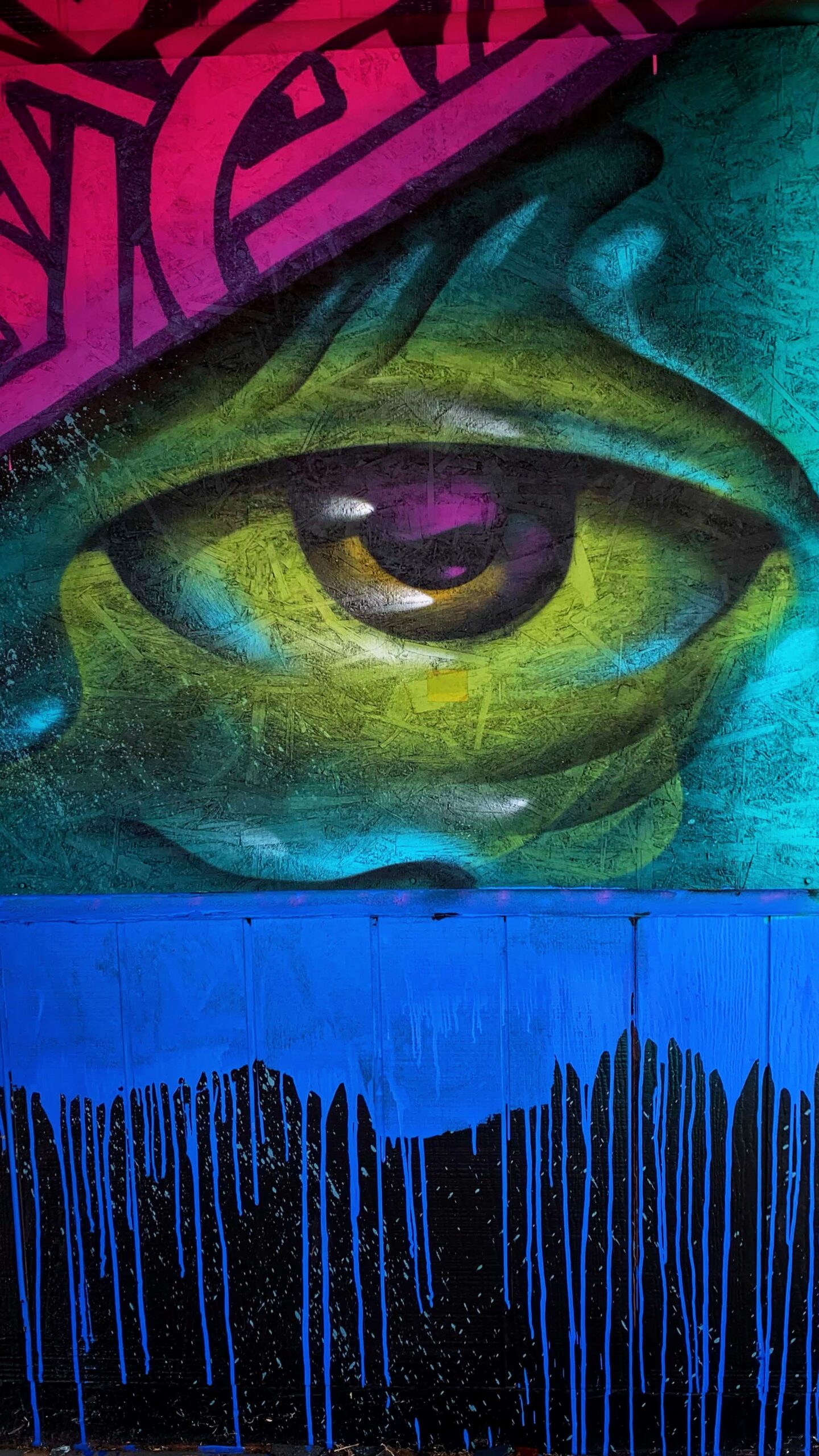
Paint Drip Effect with Adobe Photoshop
The paint drip effect is a popular artistic technique used to create an eye-catching, unique piece of artwork. If you’re looking to add a creative spin to your digital art, Adobe Photoshop is the perfect tool for creating this captivating effect. In this article, you will learn how to use Photoshop’s various features and tools to create an astonishingly realistic paint drip effect that will have viewers in awe of your work.
Photoshop is one of the most popular image-editing software programmes used by visual artists and designers alike, and it’s no surprise why. With its vast array of features, Adobe Photoshop allows users to transform their images in a variety of creative ways – including creating a paint drip effect! The paint drip effect can be used to add realism or surrealism to an image, depending on how you manipulate it. In this article, we will explore the methods for transforming your artwork into a stunning masterpiece with the paint drip effect in Adobe Photoshop.
Introduction: Adobe Photoshop
Adobe Photoshop is a powerful and versatile digital image editing software application. It is used by professional photographers, graphic designers, web designers, animators, and many other creative professionals. The programme has been around for more than two decades and continues to be an industry standard for digital workflows. Photoshop allows users to create stunning visuals with its powerful tools and features. In this article, we will explore how to create a paint drip effect in Adobe Photoshop using simple techniques and tools available in the programme.
Photoshop’s user-friendly interface makes it easy for anyone to learn how to use the programme effectively. With its sophisticated brushes, layers, masking options and filters, you can quickly transform your images into works of art with just a few clicks of the mouse.
History: Origins of Photoshop
Adobe Photoshop has been a staple in the graphic design world for many years. Its origins trace back to the late 1980s when it was created by brothers John and Thomas Knoll, who wanted to develop an image-editing software that would be used in Hollywood films. The first version of Photoshop, which was called “Display”, was released in 1988 but was only available on Macintosh computers.
After its initial release, Adobe purchased the rights to Photoshop and renamed it “Photoshop 1.0”. This version included features such as paint tools, colour selection tools, layers support, filters and more. Over the years Photoshop has continued to evolve with each new release adding new features like automated action commands and 3D manipulation capabilities.
Benefits: Advantages of using Photoshop
Adobe Photoshop is an industry-standard graphic design tool used by professionals for a variety of creative tasks. The software offers a wealth of features, tools, and options that make it easy to create eye-catching images and designs. Using Photoshop can provide several benefits and advantages to users who are looking to create stunning works of art.
First, Photoshop’s wide range of customisable brushes makes it incredibly simple to achieve different effects on images or artwork. With the help of these brushes, users can easily add depth and texture to their work or subtly blend colours with ease. This allows artists to produce breathtaking pieces in no time at all.
Second, Adobe Photoshop also provides extensive editing capabilities that allow users to manipulate photographs in a number of ways.
Uses: How to use it for creating visuals
The paint drip effect is a great way to add texture, depth, and dimension to any project. It can be used in a variety of ways to create stunning visuals. The key to successfully utilising this effect lies in the application process and understanding how it works.
The first step when using the paint drip effect is to select an image that you want to modify with this technique. To get the most out of the look, it’s important to choose an image that has either a lot of contrast or an interesting subject matter as these will add more drama and interest when combined with the dripping paint. Once you have your selected image open in Adobe Photoshop, all you need is some brushwork, effects settings or filters, blending modes and colour adjustments for creating dramatic visuals with dripping paint.
Step 1: Establishing background
Before we begin, it’s important to understand how to create a paint drip effect in Adobe Photoshop. The first step is establishing the background. This will act as the canvas for your design and provide a base layer for your paint effects.
To begin, open a new document in Adobe Photoshop with the desired canvas size. You can use any image or colour gradient you like as the background layer. It is also recommended that you set up layers so that each one of them can be edited separately and still maintain the same original look. Once your background has been established, you are ready to move onto Step 2 where you will add dynamic effects such as adding textures or manipulating colours on different layers. With this foundation set up, all of your creative ideas can now be implemented into your artwork for more interesting results!
Step 2: Adding texture
The second step for creating a paint drip effect with Adobe Photoshop is adding texture. Texturing adds depth and dimension, making the painting appear more realistic. To add texture, open the Layer Styles window by double clicking on the layer in your Layers tab. From this window you can adjust settings such as Pattern Overlay and Bevel & Emboss to add texture to your painting. The Pattern Overlay option allows you to choose from a range of patterns or load your own custom pattern if desired.
The Bevel & Emboss option will give your paint drips more dimension through shadowing and highlighting techniques. Adjust these settings to find the desired look for your image; keep an eye on opacity levels so that they don’t become too drastic or overwhelming on screen. Once satisfied with these textures, save the changes and move onto next steps for completing this project!
Step 3: Blending colours
Creating a paint drip effect requires blending several different colours together. Step 3 of this project focuses on the process of blending these colours.
Start by selecting the “Gradient Tool” from the toolbox. Select a gradient style that works best for your painting, such as linear, radial, or diamond. Make sure to adjust the opacity and flow settings in order to achieve desired results. Use your mouse to drag over overlapping areas of blended colour until you get an even blend between each hue. You can also use the eraser tool to remove parts of the gradient if needed or use a brush on low opacity to add additional detail in certain areas.
Additionally, you can adjust the hues and saturations for each colour layer in order to create unique blends and effects with your paint drip design. Experiment with different combinations until you are satisfied with your final product!
Step 4: Creating a drip effect
Creating a drip effect in Adobe Photoshop can be an exciting and rewarding experience. To get started, you’ll need to create a new layer. In this layer, use the paint bucket tool to fill it with a colour of your choosing. Once that is done, choose the marquee tool and select part of the image that you want to add the drip effect to. Then, select Filter > Blur > Motion Blur in order to make the area more blurry and give it a dripping-like appearance.
The blur amount should be adjusted depending on how much distortion you would like for your drip effect; higher values will create more texture while lower settings will preserve clarity. You can also experiment with different colours by using adjustment layers such as Hue/Saturation or Colour Balance before or after applying motion blur filter.
Step 5: Final touches
Once all the paint effects have been applied to the image, it’s time for the final touches. This is where you can really make your artwork stand out and create a unique look.
The first step is to adjust the levels of each layer in order to create a better balance between highlights and shadows. You can do this by using the Levels or Curves tool in Photoshop. It’s important that you take your time here and make sure that each layer looks natural and balanced with the rest of the composition before moving on.
Next, you can add some finishing touches such as adding textures or brushes to give your image more depth and interest. You can also apply colour correction to bring out certain colours in your image or make them appear more vibrant. Finally, you can add a vignette effect around your painting if desired.
Top Adobe effects
Adobe Photoshop has long been a favourite of graphic designers, photographers, and other digital artists for its many powerful effects. In the world of Adobe effects, there are some that stand out from the crowd for their versatility and ease of use. Here are some of the top Adobe Photoshop effects to help you create stunning digital artwork:
The Paint Drip Effect is one of Adobe’s most beloved effects, allowing users to recreate a dripping paint effect with just a few simple clicks. By creating layers and using different brush sizes or textures, you can customise the look to fit any project or piece of artwork.
The Liquify Tool is another popular choice among digital artists as it offers an easy way to warp shapes and images without having to redraw them by hand. This tool allows users to adjust curves in an image while still preserving the original design elements.
Redesign your photos in Photoshop
Photoshop is an incredibly powerful photo editing tool, allowing you to completely redesign your photos. With a few simple steps, you can make significant changes to any image. Whether you want to apply artistic effects or enhance the lighting and colour of your photos, Photoshop quickly and easily helps you achieve the desired results.
One way to give your photos a unique look is by applying the paint drip effect. The process involves creating a blank layer and then adding various shapes that interact with elements in the original image – such as lines, circles, or other abstract patterns – before finishing with a brush stroke of vibrant colours.
Graphic designers’ secrets for creativity
Graphic designers know that creativity is key to success in the design industry. When it comes to creating meaningful and visually appealing designs, there are certain secrets that experienced graphic designers rely on for inspiration. Here are some tips from the pros on how to get inspired and unleash your creative potential:
First, look beyond the obvious – be open minded when brainstorming ideas and don’t limit yourself. By exploring a variety of sources from different industries or cultures, you can develop unexpected solutions or create unique styles for your project. Additionally, research trends in graphic design as well as colour palettes and typography styles so you stay current with evolving visual language.
Second, take a break – sometimes taking a step back is necessary to gain perspective. When your brain is stuck, try taking a break, listening to some music, or getting some exercise. The answer will often come to you when you are doing something totally unrelated to design.
Advanced Photoshop effects
Advanced Photoshop effects can add an extra level of creativity to projects. Adobe Photoshop is a powerful tool for creating impressive digital art and design, and with access to the right resources, users can create stunning photo manipulations. One of the more exciting advanced Photoshop effects involves creating a paint drip effect. This effect gives artwork an interesting texture and vibrant colours that make it stand out from other designs.
To create this effect, users start by selecting their base image in Photoshop and then adding layers of colour on top. These layers are set to blend with each other, creating the desired dripping effect once all layers are complete. To finish off their project, users can add additional elements like drips or splashes to further customise their work and give it a unique look.
Transform your graphics into art
One way to take your graphics to the next level is by transforming them into art. Adobe Photoshop provides a variety of tools and techniques that can be used to create stunning visuals with ease. For example, the paint drip effect is an artistic technique that can be achieved in just a few simple steps.
To start, select the image you want to transform and then select the paintbrush tool from the toolbar. Adjust the brush size and hardness until it’s suited for your desired effect. Next, click on an area of your graphic where you’d like the paint drip effect to appear, hold down your left mouse button, and drag downwards. You’ll begin to see a realistic-looking dripped pattern form as you move across your graphic.
Push your design capabilities further with Photoshop graphics
Photoshop is an incredibly powerful tool for creating amazing graphics. With its wide range of features, it’s easy to take your designs to the next level. Whether you’re a graphic designer, photographer, or illustrator, Photoshop can help you transform your work into something truly unique and eye-catching.
One way to push your design capabilities further with Photoshop is by mastering the paint drip effect. This effect takes ordinary artwork and transforms it into stunning works of art that look like they were dripped in paint. The process requires patience and practice but once you have the technique down pat, you’ll be able to create striking visuals quickly and easily.
Exploring the main features of Photoshop effects
Adobe Photoshop is a powerful image-editing tool used by photographers and graphic designers alike. The Paint Drip Effect is just one of the many effects users can access in Photoshop to add creative flair and style to their artwork. This effect applies a splattering of paint onto an image, adding texture and depth without compromising the integrity of the original photo.
The main features of this effect include its ability to customise the size and colour of each paint drip, allowing users to create unique designs that fit their individual preferences. With its interactive nature, users can manipulate how much or little paint they want added, creating subtle looks or making bold statements with eye-catching visuals.
Additionally, Photoshop’s user-friendly interface makes it easy for anyone to adjust brush settings such as blend mode, opacity, flow, and airbrush pressure for even more control over the final look.
Creative graphic design with Photoshop
Creative graphic design with Adobe Photoshop is a powerful and versatile tool for creating stunning visuals. With Photoshop, you can bring your ideas to life in ways that are limited only by your imagination. Creative graphic design includes the use of textures, colours, and shapes to create unique artwork. By combining these elements, you can create eye-catching images that stand out from the crowd.
The Paint Drip Effect is one creative graphic design technique used in Adobe Photoshop. This effect allows you to add realistic paint drips and splatters to any image or background. The effect consists of multiple layers of colour which blend together to give a visually appealing result. To achieve this effect, begin by selecting the brush tool in Photoshop and then apply various colours using different size brushes until you get the desired look.
Unleashing your inner artist with Photoshop
Unleashing your inner artist can be a daunting task. Fortunately, tools like Adobe Photoshop make it easier than ever to explore and create digital artwork. Photoshop has all of the features needed to let you express yourself through creative design elements without having to worry about complicated processes. In this article, we’ll be covering one of the most popular effects used in graphic design – paint drip effect – and how you can easily achieve it using Adobe Photoshop.
The paint drip effect is a fun way to add dimension and texture to your work, whether you’re creating graphics for print or web. By utilising filters and blending options within Photoshop, it allows you to transform any image into an eye-catching piece of art with minimal effort.
Colour manipulation: Hue, saturation and brightness
Colour manipulation is an important part of creating unique and eye-catching designs, and Adobe Photoshop gives users a great tool-set for doing so. When working with colours in Photoshop, the three most important parameters are hue, saturation and brightness. Hue refers to the base colour – the pure form of a colour that is neither light nor dark.
Saturation defines how much grey is added to the hue, meaning that higher saturation equals more vivid colours while lower saturation will make them appear more muted or dull. Brightness describes how light or dark a given hue appears; increasing brightness will make it lighter while decreasing it will make it darker. With Adobe Photoshop’s tools for manipulating hue, saturation and brightness, users can create any number of interesting effects with different hues and levels of contrast.
Creative tools: Paths, Bezier Curves and Masks
The process of creating a paint drip effect using Adobe Photoshop involves three creative tools: paths, Bezier curves and masks. Paths are used to create shapes that can be filled with colour or used as selection boundaries for objects. Paths can also be adjusted using the pen tool to further refine the shape and add layers of complexity.
Bezier curves are an essential tool for creating realistic paint drips effects in Photoshop. They allow designers to precisely adjust the flow of their creations by manipulating anchor points along a path. With Bezier curves, it’s possible to create smooth curves or sharp angles that mimic the look of natural paint drips. Additionally, they can easily be manipulated and adjusted according to individual preferences and desired results.
Masks are another key feature when it comes to creating complex paint drip effects in Adobe Photoshop.
Check out Blue Sky Graphics online design school to better understand graphic design and Adobe Photoshop.









