

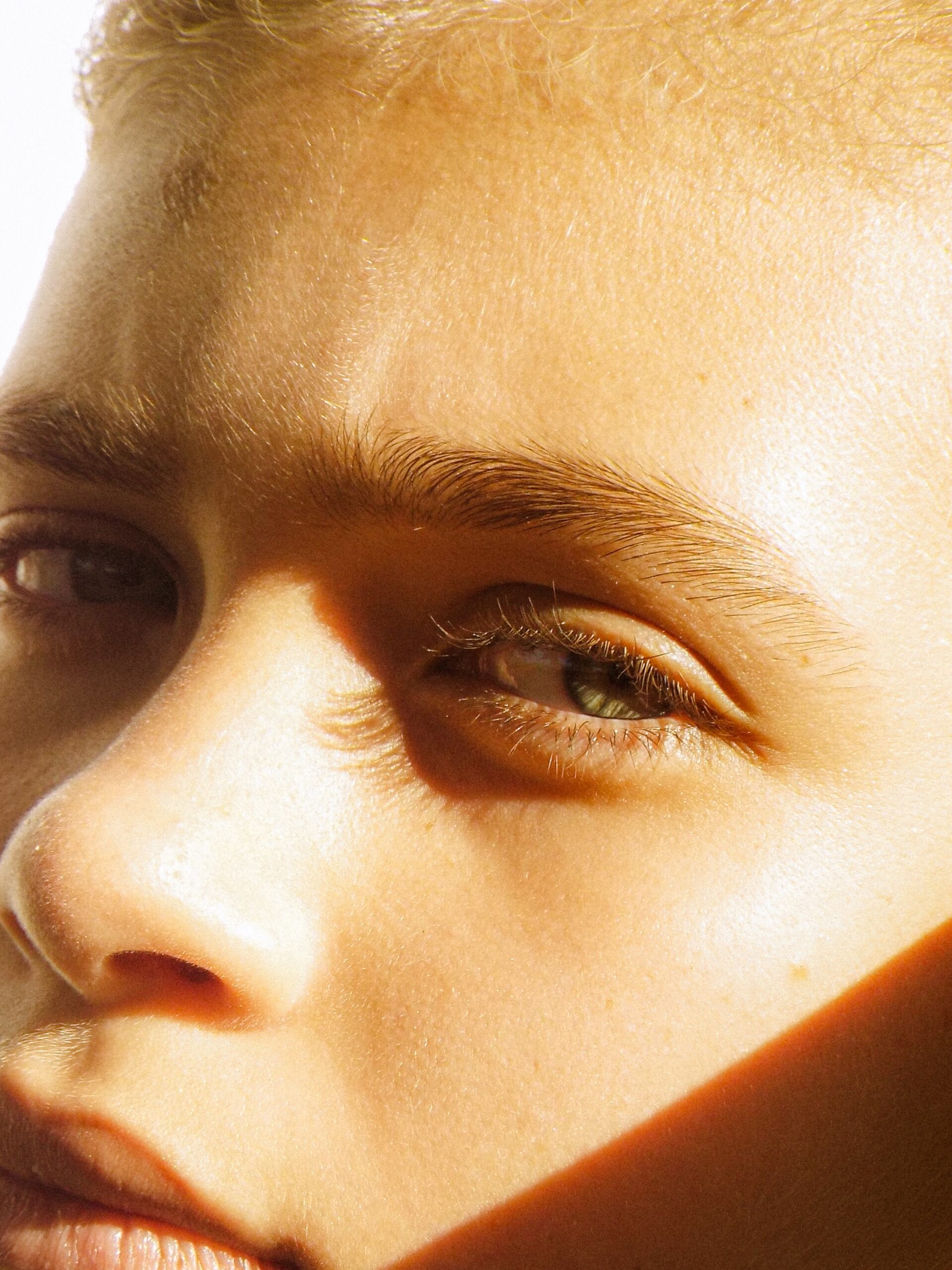
Golden Skin Effect with Adobe Photoshop
Adobe Photoshop is a powerful tool that allows users to transform and enhance images in ways never thought possible. One of the most popular and sought-after effects is the Golden Skin Effect, which can easily be achieved with Photoshop. By making use of various techniques, including blurring, colour shifts, and top-notch layer masking tools, you can achieve stunning results that will make your photos look as though they have been touched by the sun’s golden rays.
Introduction: Adobe Photoshop
Adobe Photoshop is a powerful graphics editing software used by photographers, designers, and professionals alike to create stunning images for any medium. With its intuitive user interface and a vast array of features, Adobe Photoshop can be used to produce highly creative digital works of art. From manipulating photos and images to creating complex designs, Adobe Photoshop has become the go-to tool for many creatives around the world.
One of the most popular uses of Adobe Photoshop is creating attractive “golden skin” effects in photographs. This effect gives skin tones a warm, golden cast that can enhance any portrait or fashion shoot. Creating this look requires knowledge of colour correction tools and techniques within Adobe Photoshop – luckily there are plenty of online tutorials available that walk users through exactly how to achieve this look with ease!
What is a golden skin effect?
The golden skin effect is a popular Photoshop technique used to bring a warm and glowing look to portrait images. Using this effect, photographers can give their photos an airbrushed and slightly illuminated look, which is perfect for making the subject stand out from the crowd.
To achieve this effect, photographers typically use adjustment layers like Curves or colour Balance as well as colour overlays to add warmth and lighten shadows. This technique often requires experimenting with multiple blending modes in order to get the desired outcome. Users may also need to adjust opacity levels of each layer in order to make sure the colours blend together seamlessly.
The golden skin effect works best when used on portrait images that have already been edited. It can be applied subtly to enhance natural features or more dramatically if harsher lines are desired.
Enhancing skin tone with Photoshop
Using Adobe Photoshop to enhance skin tone can be done quickly and easily. To begin, open your image in Photoshop and select the Lasso Tool from the left-hand toolbar. With this tool, you can draw a selection around any areas of skin that you would like to edit. Once you have drawn a selection around your desired area, press ‘Ctrl + J’ to duplicate the selection onto its own layer. This will enable you to make changes without affecting other areas of the image.
Next, use curves or levels adjustment layers to increase brightness and contrast within the selected area of skin. You can also use hue/saturation adjustment layers to adjust colours like yellow or red tones in order make them appear more natural. Finally, if needed, you can use blur or noise reduction effects on low-resolution images for smoother results.
Adding the glow effect
Adobe Photoshop has a wide range of versatile tools that can be used to create stunning effects. One popular effect, the glow effect, adds a beautiful warm golden look to your photos. To create this effect in Adobe Photoshop, you’ll need to use the Curves tool and Hue/Saturation adjustment layers.
Begin by using the Curves tool to adjust the highlights and shadows of your image. This will give you an overall golden hue that serves as a nice base for the glow effect. After adjusting the curves, add a Hue/Saturation adjustment layer on top and turn up the saturation until it gives your photo an eye-catching golden look. To complete this effect, play around with different blending modes and opacity settings until you get just the right amount of luminosity in your photo.
Setting the right colour balance
Setting the right colour balance is an important step in creating the golden skin effect with Adobe Photoshop. Colour balance determines how colours are distributed throughout the image and can have a dramatic effect on the overall look. To ensure a successful result, it’s important to adjust different colour channels to achieve the desired effect.
The first step is to select “Image > Adjustments > Colour Balance” from the menu bar at the top of Adobe Photoshop. This brings up a window where you can adjust each colour channel individually by dragging sliders from left to right. In order to create a golden skin tone, you need to increase both red and yellow hues while decreasing cyan and blue tones. The exact changes will depend on your preferences but start by increasing reds by approximately 20 percent and yellows by 10-15 percent before adjusting blue and cyan accordingly.
Adjusting exposure levels
Adjusting exposure levels is a key element of achieving the golden skin effect in Adobe Photoshop. The goal is to bring out the warmth of a person’s skin tone and illuminate their face in an attractive, yet natural-looking way. To do this, you will need to adjust the image’s brightness and contrast through its exposure levels.
Start by opening your image in Adobe Camera Raw and selecting “Basic” from the menu on the left side of your screen. From here, you can begin adjusting your exposure levels by increasing or decreasing Brightness or Contrast as desired. You can also increase Clarity to add definition to facial features like eyebrows and cheekbones. Additionally, adjust Highlights and Shadows accordingly to make sure that the entire face is evenly lit with no harsh shadows or overly bright areas.
Master creative effects with Photoshop
Photoshop is one of the most powerful photo editing programmes on the market, allowing users to create everything from subtle edits to dramatic transformations. Photoshop provides a wide range of creative tools that can help you master effects quickly and easily. With Photoshop, you can apply realistic-looking textures, enhance colours and tones, and create eye-catching special effects for your images.
For example, by using layer styles in combination with blend modes and other filters, it’s possible to achieve a golden skin effect with just a few clicks. This warm glow adds an extra dimension to portrait photography and gives your images an air of sophistication. To get started creating this look yourself, begin by adding a hue/saturation adjustment layer onto your image. From there you can adjust the saturation of the red hues until you achieve the desired effect.
Mix media in mesmerising ways
Mix media is a form of art that combines a variety of different types of mediums to produce an engaging and captivating effect. An artist who works with mix media has the ability to take disparate elements such as fabric, paint, paper, photography and even digital images and blend them together in mesmerising ways.
Adobe Photoshop is one of the most powerful tools available for creating mix media pieces by combining multiple photos and graphics into a single composition. With Photoshop’s features, you can create everything from abstract collages to realistic montages in vivid colours and textures. The “Golden Skin Effect” tutorial shows one example of how Adobe Photoshop can be used to transform digital images into something truly unique.
Leverage layers to maximise outputs
Leveraging layers to maximise outputs is a great way to make the most of Adobe Photoshop tools. With layers, users can make changes to an image without having to worry about ruining its original look. This helps them experiment more and make the desired changes with ease.
For example, when creating the ‘Golden Skin Effect’, Photoshop’s layers will allow users to adjust the colour palette, brightness levels and other elements of their images multiple times until they achieve their goal. With each layer they create, they can see how those changes affect their image in real time – allowing them to further refine it until they get exactly what they want. Additionally, any mistakes made when working on a layer won’t carry over onto other layers; thus eliminating any potential risks associated with editing an image too much.
Creative Photoshop tricks
Photoshop is a powerful programme for digital art, and it offers plenty of creative tricks to help you make the most out of your images. Here are some of the best Photoshop tricks for creating a stunning Golden Skin Effect.
The first trick is to use adjustment layers like Curves to add contrast. You can create larger contrast between light and dark areas for an impressive look. To do this, drag the curve up and down in places where you want more or less contrast. Additionally, playing with the colour Balance tool can help give your image that golden hue by increasing saturation in yellows and oranges as well as adding warmth to shadows, mid-tones, and highlights.
Another neat trick is using layer masks on mask layers filled with gradients or textures to create interesting lens flares or lighting effects on your image.
A beginner’s guide to mastering Photoshop
The golden skin effect is a popular look for portrait photography, but it can be difficult to master with Adobe Photoshop. To help beginners get started, this guide provides an introduction to the basics of creating the effect.
First, start by selecting the image you would like to edit and open it in Adobe Photoshop. To create a warm golden tone for your subject’s skin, use the Colour Balance tool found in Image > Adjustments > Colour Balance. Experiment with different settings until you have achieved your desired warmth level. You may also want to adjust the brightness or contrast of your image with the Levels or Curves tools located in Image > Adjustments respectively.
Next, use Layer Masking techniques to apply selective adjustments only on areas such as facial features and skin tones that require highlighting and enhancing. To add more warmth and softness to your image, you may want to experiment with using the Dodge tool located in Tools Brush. Lightly paint over areas such as the subject’s hair, skin and eyes. This will help create a softer and warmer look for these features.
Essential Photoshop tools for beginners
Adobe Photoshop is an invaluable tool for creating stunning visual effects. Before mastering complex techniques, though, it is important to become familiar with the essential tools available in the programme. For beginners, there are a few fundamental tools that should be mastered before attempting more advanced work.
The Brush Tool is essential for painting and editing images. It can be used to alter colours, apply textures, and make changes to specific areas of an image. The Eraser Tool allows users to delete pixels from their design. This tool can be used to clean up edges or remove unwanted elements from an image. The Clone Stamp Tool can also come in handy when working with photos; this tool copies pixel information from one area of an image onto another, so if you want to duplicate a certain element or smooth out imperfections in your artwork then this tool will prove useful.
Tips & tricks for Photoshop editing
Photoshop editing can be a great way to give your photos a unique look, and the Golden Skin Effect is one of the most popular options. Here are some tips & tricks for getting started with Photoshop editing for this effect:
Start by selecting your photo and opening it in Adobe Photoshop. Once opened, create a new layer and move it above the original layer. Make sure you select “Soft Light” from drop-down menu next to blending mode option. You may also want to adjust the opacity setting to achieve the desired result.
To add texture, try using filters such as Gaussian Blur or Surface Blur with settings between 3-5 pixels radius which will help make the image look more natural and less artificial. You can also use Liquify tool to adjust specific areas of your photo if needed.
How to use layers in Photoshop
Using layers in Adobe Photoshop is an effective way to create the golden skin effect. The layer feature allows you to blend and combine different elements together while keeping each one intact, creating a unique look. To use layers, start by choosing the photo that you want to edit and open it in Photoshop. Next, select the ‘Layer’ tab from the menu bar at the top of your screen. Once you have clicked on this tab, click on ‘Create New Layer’ and a new blank layer will appear in your workspace.
You can now add textures, colours or other elements as desired onto this new layer by using tools such as pencils, brushes or selection tools. When working with layers it is important to remember to keep all of them organised and labelled so that they don’t become too confusing later down the line.
Creative projects with Adobe Photoshop
Adobe Photoshop is a powerful image editing programme that offers a wide range of creative possibilities. From creating stunning digital artwork to manipulating photographs, the possibilities are endless with Adobe Photoshop. One exciting project that can be created with this programme is the Golden Skin Effect. This effect involves taking portrait photographs and making subtle alterations or additions to create an ethereal, glowing look on the subject’s skin.
The process for achieving this effect starts by selecting your portrait photograph and making any necessary adjustments to it using basic image editing techniques such as adjusting contrast and colour balance or adding shadows and highlights. The next step is to add a layer mask which will allow you to selectively apply effects only where desired.
Best resources to learn Adobe Photoshop
Adobe Photoshop is one of the most popular image editing software programmes available today, and many people want to learn how to use it. Fortunately, Blue Sky Graphics Online Design School offers some of the best resources for learning Adobe Photoshop. The school offers courses specifically designed to teach beginners how to use the software tools and create stunning visuals. Students can learn a wide range of techniques such as creating special effects, colour correction, photo manipulation, and more.
Blue Sky Graphics also provides project-based lessons that enable students to apply their new skills in real-world projects. These projects are organised into modules that build on each other so that students gain a comprehensive understanding of Adobe Photoshop with each completed module. Plus, the school’s instructors are experienced professionals who are able to provide feedback and guidance throughout each course as needed.
Common mistakes to avoid in Photoshop
Creating the perfect golden skin effect in Photoshop requires attention to detail and a lot of practice. However, it’s easy to make mistakes or overlook important steps along the way. To ensure you get the best possible results, here are some common pitfalls that should be avoided.
First, it’s essential to create detailed layers for each step of the process. Not only does this help keep your project organised, but it also allows you to go back and adjust anything that didn’t quite turn out as expected. Additionally, when working with sensitive colours like gold tones, subtle changes can have a big impact on the final result so making regular adjustments during editing is key.
Another mistake often made by inexperienced users is failing to use blending modes correctly. In many cases, they’ll simply use the default setting (Normal). However, this can lead to dull, washed out results. Instead, use a combination of blending modes and layer opacity settings to create unique looks. Finally, don’t forget to save your work!
Defining Photoshop
Photoshop is a raster-based graphics editing programme developed and published by Adobe Systems. It has been around since 1988, and remains the industry standard for photo editing and design work. Photoshop allows users to manipulate existing images, create new ones from scratch, or combine elements of multiple images together.
It also enables users to retouch photos and make graphic designs with vector-based shapes, text, 3D objects, gradients, brushes and filters. Photoshop offers an array of tools that allow users to adjust brightness/contrast levels; add layers; adjust colour tone/saturation; apply effects (such as blurring); clone areas of an image; draw vector shapes; stitch panoramas together; remove unwanted items in a picture (e.g. red eye effect); and add text captions to images. In addition, users can add pre-made filters or create their own using Photoshop’s customisation tools.
Benefits: Image editing and enhancing
The modern age of digital photography has enabled photographers to easily edit and enhance their images. Image editing and enhancing software such as Adobe Photoshop have made it possible for individuals to create beautiful photographic effects with just a few clicks. One particular effect that is popular in digital photography is the “Golden Skin Effect”, which adds a golden glow to skin tones in portraits and wedding pictures.
The benefits of image editing and enhancing are numerous; not only can photographers quickly make adjustments to contrast, colour, brightness, saturation, etc., they can also add unique effects like the Golden Skin Effect. This effect gives photos an air of sophistication and elegance that would otherwise be difficult or impossible to achieve without photo manipulation software. Additionally, by utilising various tools within Photoshop such as curves adjustment layers, selective colouring adjustments layers, etc.
Design capabilities
The design capabilities of Adobe Photoshop are endless. With tools like adjustable brushes, advanced retouching options and powerful layering techniques, users can easily create a masterpiece with just a few clicks. Photoshop also makes photo editing easier by allowing users to make precise adjustments to their images without having to completely redraw them. The software also enables users to manipulate multiple layers and add effects such as shadows and textured elements.
Adobe Photoshop also offers a variety of features that allow designers to create unique designs with the Golden Skin Effect. This effect is achieved by blending two images together, which can be done manually or with the help of special tools in Photoshop such as gradient maps or blending modes. Additionally, designers can adjust colour balance and contrast levels for an even more dramatic look. Finally, they can utilise filters like blurs and sharpening for further refinement of their work.
Creative cloud features
Adobe Creative Cloud is a suite of tools and services that provide creative professionals with access to the latest updates and features in Adobe software. This includes features such as 3D printing, photography, motion graphics, video editing, web design and development, as well as other digital media options. With Creative Cloud’s online sharing feature, users can easily collaborate on projects from any location and across multiple devices. Additionally, Creative Cloud makes it easy for users to stay organised by providing them with cloud-based storage space for their files.
Creative Cloud also offers a variety of applications that allow users to create stunning visuals for their projects. Photoshop is one of the most popular Creative Cloud applications and is used widely by photographers to edit photos and create beautiful effects like the golden skin effect featured in this article.
Join Blue Sky Graphics online school today to better understand Adobe Photoshop.









