

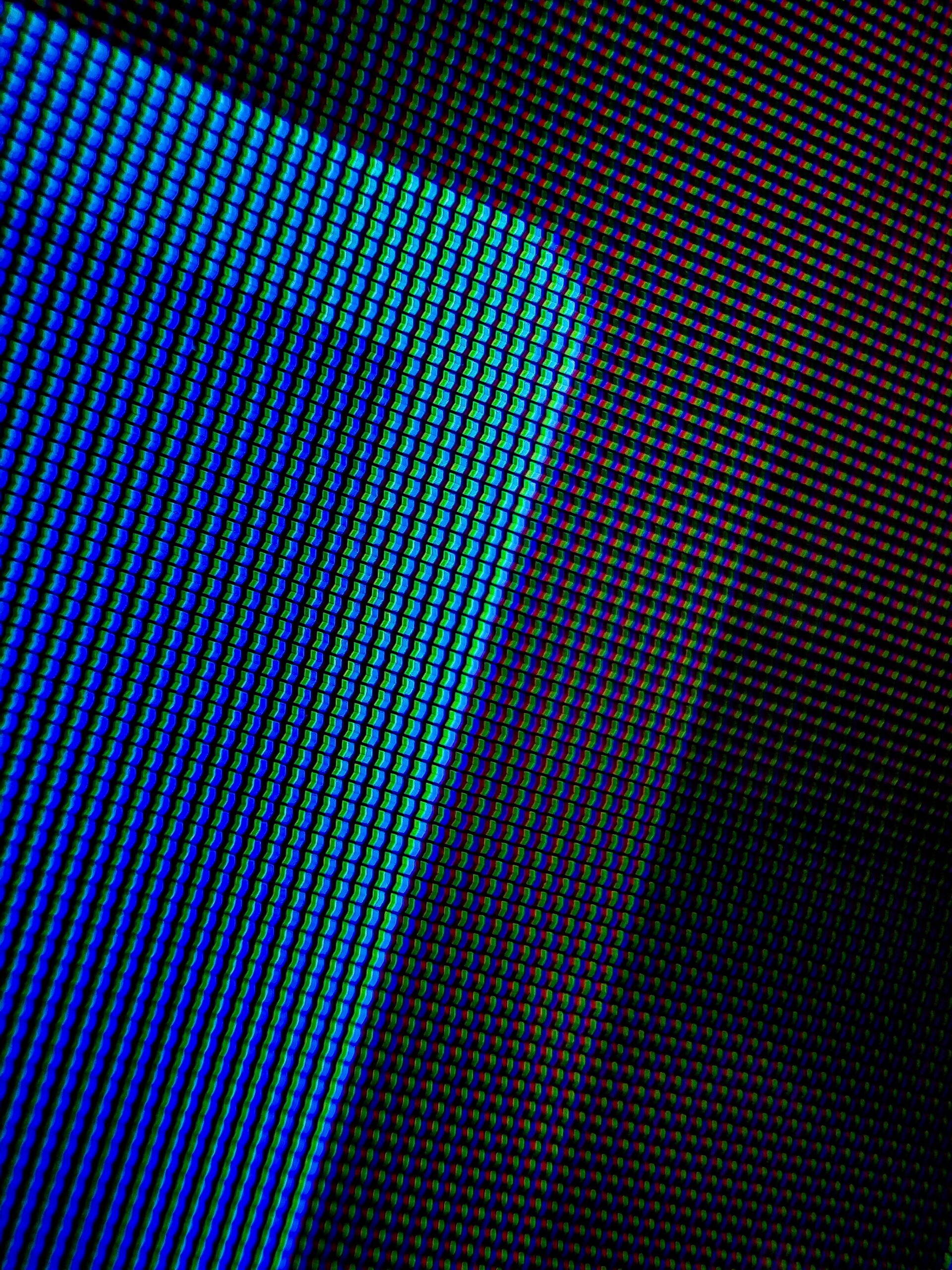
Dot Portrait Tutorial – Adobe Photoshop
In this tutorial, you will learn how to create a dot portrait in Adobe Photoshop. This type of portrait is made up of dots of varying sizes and colours. The first step is to choose a photo that you want to use. Next, you will need to create a new layer for the dots. On this layer, you will use the brush tool to create dots of different colours. You can also use the eraser tool to remove any unwanted dots. Once you are satisfied with your dot portrait, you can save it as a PNG or JPG file.
Introduction: What is a dot portrait?
A dot portrait is a type of digital image that is created by using thousands of small dots to form a larger image. The dots are usually arranged in a grid-like pattern, and each dot can be a different colour. Dot portraits can be used to create detailed images of people, animals, landscapes, or anything else you can imagine.
To create a dot portrait, you will need an image editing programme like Adobe Photoshop. Begin by creating a new document with a white background. Then, use the “Pencil” tool to draw your subject matter. Once you have drawn your subject, go to the “Edit” menu and select “Fill Path.” In the dialog box that appears, choose “White” for the fill colour and click “OK.
How to create a dot portrait in Photoshop
Start by creating a new document in Photoshop. The first thing you’ll need to do is to add your subject’s photo to the canvas. You can either paste it in or use the ‘Place’ command. Once your photo is on the canvas, go to Image > Adjustments > Desaturate. This will turn your image into black and white, which is ideal for a dot portrait.
Next, you’ll need to create a new layer. To do this, go to Layer > New > Layer. A dialogue box will appear – make sure the ‘Normal’ option is selected and click ‘OK’. Now you can start adding your dots! Using the Brush tool (B), start painting over your subject’s photo with a white colour.
Step 1: Choose an image
When creating a dot portrait, the first step is to choose an image. This can be either a photo of yourself or someone else. If you’re using a photo of someone else, make sure you have their permission before proceeding.
Once you have your image, open it in Photoshop and create a new layer. On this new layer, use the pencil tool to draw a series of dots. The number of dots will depend on the size of your image; for a smaller image, you’ll need fewer dots, while a larger image will require more.
As you’re placing the dots, keep in mind that they should be placed closer together near the edges of the subject’s face and further apart in the middle. Once you’re happy with the placement of your dots, go ahead and save your work!
Step 2: Duplicate the layer
Duplicate the layer by selecting Layer > Duplicate Layer from the menu. This will create an identical copy of the original layer on top of it. You can then move this new layer around to position it however you like. To do this, simply click and drag on the layer in the Layers panel.
Step 3: Desaturate the top layer
To desaturate the top layer, go to Image > Adjustments > Desaturate. This will remove all the colour from the image, leaving it black and white.
Step 4: Adjust the levels
In this step, you will use the levels adjustment tool to make your image pop. First, open your image in Photoshop. Then, go to Image > Adjustments > Levels. In the levels window, you will see a graph with a black line in the middle. This line represents the light and dark values in your image. To adjust the levels, simply move the sliders under the graph until you are happy with the results.
Step 5: Add a black and white gradient map
In the fifth and final step of this tutorial, we’ll be adding a black and white gradient map to our image. This will help create a more striking and impactful portrait.
To add a gradient map, go to Layer > New Adjustment Layer > Gradient Map. Then, choose a black and white gradient from the drop-down menu. You can experiment with different gradients to see what looks best with your image.
Once you’re happy with your gradient map, go to Layer > New Adjustment Layer > Levels and adjust the levels until you’re satisfied with the look of your image. And that’s it! You’ve now created a beautiful dot portrait using Adobe Photoshop.
5 Tips for a successful graphic design portfolio
When it comes to creating a strong graphic design portfolio, there are certain elements that you should always keep in mind. By following these five tips, you can be sure that your portfolio will stand out and showcase your talent and skills in the best possible light.
- Start with a strong foundation. When it comes to your portfolio, first impressions really do matter. Make sure that your opening images are eye-catching and representative of your overall style. First impressions count for a lot, so make sure you give them your best shot.
- Showcase a variety of work. As a graphic designer, you likely have a diverse skill set that can be applied to various projects and industries. When putting together your portfolio, make sure to include examples of different kinds of work that you’ve done in order to show off the full range of your abilities.
- Use high-quality images. If you don t have a lot of money to spend on new photography, you may want to consider hiring a freelancer or using stock photography services like Shutterstock and iStock Photo. If you do plan on using your own photos, make sure they re of the highest quality.
- Showcase your personality. Even if you re applying for a job that isn’t in your field of expertise, it’s important to demonstrate your personality and passion. Your portfolio should reflect who you are and what makes you an interesting candidate.
- Keep it simple. Don’t get too fancy with your designs.
3 Tricks to make your photos look professional using Adobe Photoshop
When it comes to making your photos look professional, Adobe Photoshop is the gold standard. Here are three tricks that will help you take your photos to the next level using this powerful software:
- Use layers to create depth and interest.
- Experiment with different filters and effects.
- Pay attention to the details.
By following these simple tips, you can quickly turn any photo into a stunning work of art that is sure to impress everyone who sees it. So go ahead and give them a try next time you’re looking to make your photos pop!
How to get hired as a graphic designer
There are a few key things you can do to increase your chances of being hired as a graphic designer. Firstly, make sure your portfolio is up-to-date and showcases your best work. Secondly, stay up-to-date on new trends and technologies in the field. And lastly, don’t be afraid to network – reach out to other designers and let them know you’re looking for work. With a little effort, you’ll be on your way to landing your dream job in no time.
5 Tips for better Photoshop graphics
When it comes to creating graphics in Photoshop, there are a few key things to keep in mind in order to get the best results. Here are five tips to help you create better Photoshop graphics:
- Start with a high-quality image. The better the quality of the image you start with, the better your final graphic will be. Use a high-resolution image for best results.
- Use layers. Layers allow you to make changes to your image without affecting the rest of the image. This is especially helpful when working with complex graphics.
- Be mindful of your colour choices. Colours can have a big impact on the overall look of your graphic, so choose wisely! Consider using complementary colours for a more visually appealing result.
- Add texture for interest. Textures can add depth and realism to your graphic.
- Create a background for your graphic. This is especially important if the graphic features people or objects in front of a plain background.
7 Creative graphic design ideas
- Create a portrait using dots. This can be done by printing out a photo of your subject, or by drawing one freehand. Next, start adding dots of different colours to create a unique and interesting effect.
- Use different shaped dots to create a portrait. This can give your work an abstract feel, and add another level of interest to the piece.
- Try making a dot portrait with only two colours. This can be a challenge, but it can also lead to some beautiful and unexpected results.
- Make your dot portrait three-dimensional by adding shadows and highlights. This will take your work to the next level and really make it pop!
- Play around with different dot sizes to create varying levels of detail in your portrait.
- Give your portrait a sense of movement by varying the shapes and sizes of your dots.
- Make a dot portrait using one or two colours, and a limited colour palette throughout the piece.
5 Amazing Adobe Photoshop effects
Adobe Photoshop is an amazing programme with a ton of features and effects. In this article, we will be discussing 5 of the amazing Adobe Photoshop effects.
The first effect is the dot portrait effect. To create this effect, simply open up a photo in Photoshop and go to Filter > Pixelate > Mosaic. Adjust the cell size until you have a nice grid of dots. Next, go to Layer > New Adjustment Layer > Invert. This will invert the colours of your image and create a cool negative effect.
The second effect is the comic book effect. This can be achieved by going to Filter > Artistic > Comic Book. Again, play around with the settings until you get your desired results.
The third effect is the pencil sketch effect. This is a great way to turn any photo into a work of art. To achieve this effect, go to Filter > Artistic > Water colour. You can adjust the brush settings and size until you get your desired results.
The fourth effect is the newspaper effect. To create this effect, go to Filter > Blur > Radial Blur. You can adjust the blurriness of the image to your liking.
The last effect is the black and white effect. To create this, go to Filter > Adjustments Desaturate. This will remove all of the colour from your image.
What is a graphic design portfolio?
A portfolio is a collection of an artist’s or designer’s best work that demonstrates their skills, abilities, and style. A good portfolio should show off a range of skills and be tailored to the artist’s or designer’s strengths.
Graphic design portfolios typically contain both printed and digital pieces. Print pieces may include magazines, newspapers, flyers, posters, business cards, and other marketing materials. Digital pieces may include website designs, app designs, logos, and other types of branding collateral.
An effective graphic design portfolio will give potential clients or employers a good sense of the artist’s or designer’s skill set and style. It should be well-organised and easy to navigate, with clear descriptions of each piece.
What are the best tips for creating a successful graphic design portfolio?
When it comes to creating a successful graphic design portfolio, there are a few key things you’ll want to keep in mind. First, focus on quality over quantity – it’s better to have a small number of strong pieces than a large number of weaker ones. Second, make sure your portfolio is well-rounded, featuring a variety of different types of designs and demonstrating your versatility as a designer. And lastly, don’t forget to keep your portfolio up-to-date with your latest and greatest work.
With those tips in mind, here are a few more specific pointers to help you create a portfolio that will wow potential clients and employers:
- Start with your strongest pieces. As we mentioned before, quality is more important than quantity when it comes to portfolios. So, start off by including only your very best work.
- Include a variety of different types of projects and styles. A potential employer or client will want to see that you are capable of doing many different types of work. But, don t include so much that the portfolio becomes overwhelming to look through.
- Be consistent with your style. If you’ve done a lot of work in a similar style, don t include all of those projects in one portfolio. Instead, choose 2 or 3 that best represent your brand and what you do best.
What are some common mistakes people make when creating a graphic design portfolio?
When creating a graphic design portfolio, one of the most common mistakes is not having a clear focus. Your portfolio should be a reflection of your style and taste, as well as an accurate representation of your skills and experience. Without a clear focus, your portfolio will likely be full of random pieces that don’t really showcase anything about you as an artist.
Another mistake is not keeping your portfolio up-to-date. As your skills and experience grow, so should your portfolio. If you have any new or recent work that you’re particularly proud of, make sure to add it to your portfolio so that prospective employers can see your latest and greatest work.
Finally, another mistake people make when creating a graphic design portfolio is not paying attention to the details.
What should be included in a graphic design portfolio?
When it comes to graphic design, portfolios are everything. Your portfolio is your chance to show off your skills and abilities to potential employers, clients, or collaborators. So, what should you include in your graphic design portfolio? Here are a few suggestions:
First and foremost, your portfolio should showcase your best work. It’s not about quantity, it’s about quality. Curate your portfolio carefully and only include your very best pieces.
In terms of specific pieces, make sure to include a variety of different types of work. This could include print pieces, digital designs, web design work, illustrations, logos, branding work, etc. Basically, anything that shows off your range as a designer.
It’s also important to include some written content along with your designs.
How can I make my photos look professional when using Adobe Photoshop?
When it comes to making your photos look professional, Adobe Photoshop is the gold standard. With its wide range of features and tools, Photoshop has everything you need to take your photos to the next level. Here are a few tips on how to make your photos look professional using Adobe Photoshop:
- Use layers to create depth and interest.
- Adjust the levels and curves to get the perfect exposure.
- Use the clone stamp tool to remove any imperfections.
- Add a vignette for a polished look.
- Export your photo as a high-resolution JPEG for print or as a PNG for web use.
With these simple tips, you can take your photos from amateur to professional in no time at all!
Adobe Photoshop is changing the way we see graphic design
Adobe Photoshop has been a game-changer for the graphic design industry since its inception in 1988. This powerful image-editing software has allowed designers to create amazing works of art that was once impossible. Today, Photoshop is changing the way we see graphic design by making it more accessible to everyone.
No longer is graphic design only for those with years of experience and an extensive knowledge of complex software. With Photoshop, anyone can create stunning designs with just a few clicks. This ease of use has made Photoshop one of the most popular image-editing software programmes on the market today.
As more people discover the potential of this programme, we are sure to see even more amazing designs that will change the way we think about graphic design.
Adobe Photoshop is the new standard for graphic design
Adobe Photoshop is the new standard for graphic design. With its ability to create stunning graphics and photos, Photoshop has become the go-to programme for many designers. While it may seem daunting at first, Photoshop is actually quite easy to use once you get the hang of it.
Adobe Photoshop: Tricks and techniques
Adobe Photoshop is a widely used programme for crafting digital images. There are many tricks and techniques that can be employed to create interesting effects. One such trick is the ‘dot portrait’ technique, which can be used to create a striking and unique image.
To create a dot portrait, start by creating a new layer in Photoshop. Then, using a black or dark-coloured brush, paint a series of dots on the layer. The size and spacing of the dots will vary depending on the effect you’re going for. Once you’re happy with the placement of the dots, go to Filter > Blur > Gaussian Blur and apply a blur to the layer. The amount of blur will also vary depending on the desired effect.
Once you’ve applied the blur, your dot portrait is complete!
The main features of Adobe Photoshop
Adobe Photoshop is a widely used software for crafting digital images. The software has many features, some of the most popular being:
– Layers: Layers are used to separate different parts of an image, much like how physical photographs are often divided into multiple layers. This allows for more complex editing, as well as the ability to delete or move around parts of the image without affecting other sections.
– Selection Tools: There are a variety of selection tools available in Photoshop, each with their own specific function. The most commonly used is the marquee tool, which can be used to select rectangular or elliptical areas of an image.
– Filters: Filters are a quick and easy way to change the overall look of an image. Common filters include blurring, sharpening, and changing the colour balance.
Get in touch with Blue Sky Graphics online graphic design school to learn how to create beautiful graphics with Adobe Photoshop! Blue Sky Graphics is an online graphic design school that offers a variety of courses to help you learn how to create beautiful graphics.
The school offers both beginner and advanced level courses, so you can find the right course for your needs. In addition, Blue Sky Graphics offers a variety of other resources, such as tutorials, templates, and tips, to help you create amazing graphics.









