

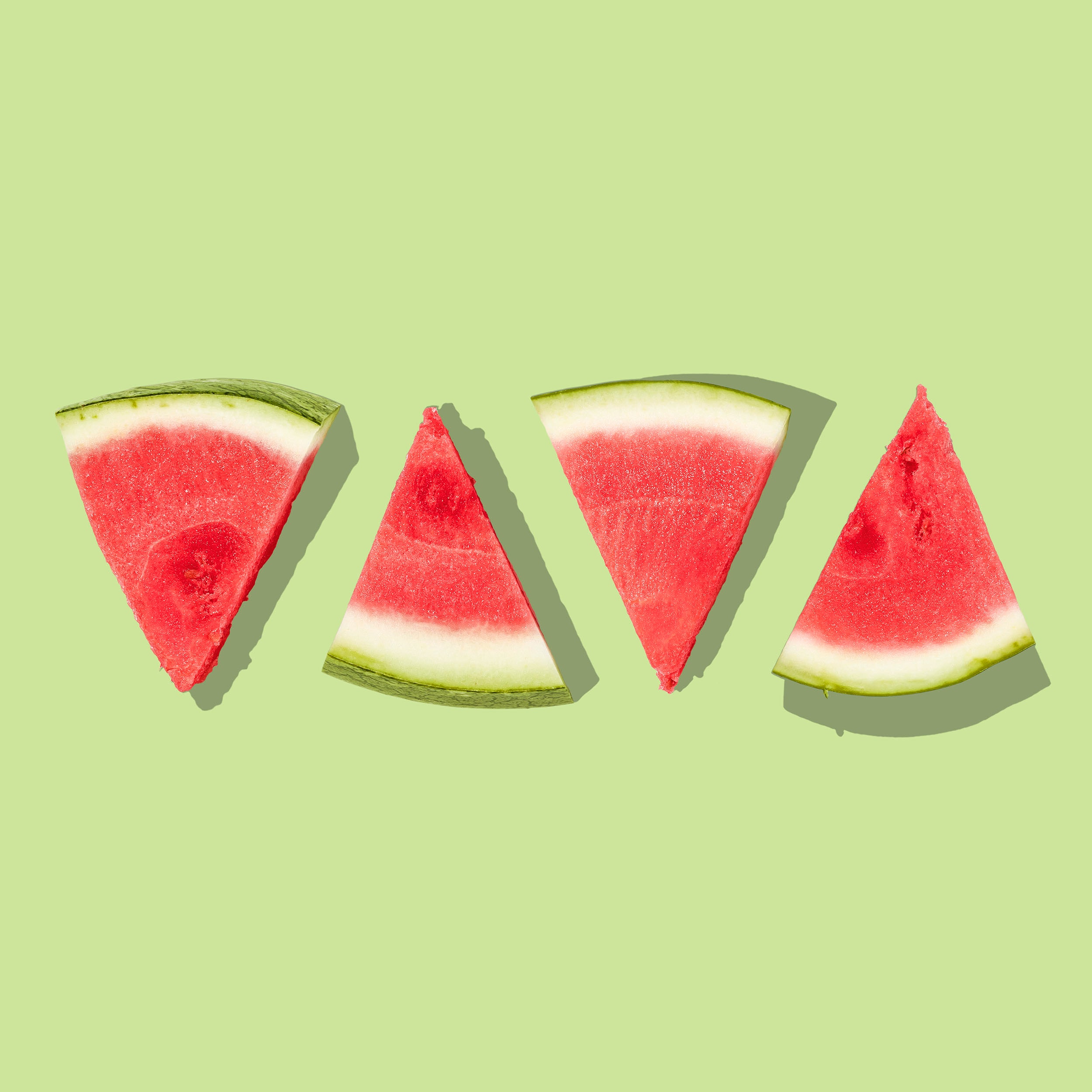
3D Watermelon Tutorial – Adobe Illustrator
A 3D watermelon may seem like a daunting task, but with Adobe Illustrator, it’s easy! This tutorial will show you how to create a realistic-looking 3D watermelon in just a few steps. You’ll need to have some basic knowledge of Adobe Illustrator to follow along, but even if you’re a beginner, you should be able to recreate this fruit with ease. Let’s get started!
Introduction: Creating 3D designs on Adobe Illustrator
Adobe Illustrator is a widely used programme for creating vector graphics. It can be used for both 2D and 3D design. In this tutorial, we will focus on creating a 3D watermelon design.
We will start by creating a basic watermelon shape using the Ellipse tool. Then, we will add some volume to the watermelon by adding a 3D effect. Finally, we will add some realistic details, such as shading and highlights.
By following this tutorial, you will learn how to create a simple 3D watermelon design in Adobe Illustrator.
Step one: Sketch your watermelon
In this section, we will be discussing the first step of how to sketch a watermelon in Adobe Illustrator. To start, open up a new file in Adobe Illustrator and use the Rectangle Tool (M) to draw a long rectangle. This will be the main body of the watermelon. Next, use the Ellipse Tool (L) to draw two small circles near the top of the rectangle. These will be the seeds of the watermelon.
Finally, use the Pencil Tool (N) to draw some lines around the edge of the watermelon to give it some dimension and texture. And that’s it! You now have a basic sketch of a watermelon that you can further refine and add colour to.
Step two: Create the 3D effect
Now that the basic drawing is complete, it’s time to add some dimension with a gradient. Select the Gradient tool from the left toolbar and drag a line from one end of the watermelon to the other. Make sure the line is perpendicular to the watermelon’s edge. Next, select both the watermelon and the gradient line and go to Object > Clipping Mask > Make (Command + 7). This will create a mask so that only the portion of the gradient inside of the watermelon shape is visible.
To create more depth, we’ll add another layer on top of everything and draw some shadows. First, make a copy of all your current layers by selecting them and going to Edit > Duplicate (Command + D). Next, change this new layer’s colour mode to Multiply in the Transparency panel (Window > Transparency).
Step three: Add shading and highlights
After you have your basic watermelon shape, it’s time to add some shading and highlights. With the help of the Gradient Tool (G), add a radial gradient going from a light pink to a dark pink. Next, use the Eraser Tool (E) to erase some of the darker shading on the edges of the watermelon, giving it a more realistic look. Finally, add some white highlights with the Pencil Tool (P).
Step four: Finish up your masterpiece!
After you’ve added all of your 3D details, it’s time to finish up your masterpiece! Here are a few final tips to make sure your watermelon is looking its best:
- Make sure all of your shading is consistent. If you used Gradient Meshes for some of your shading, double check that the colours are blended together smoothly.
- Once you’re happy with how your watermelon looks, flatten all of the layers into one by going to Layer > Flatten Image. This will make it easier to save and print your design.
- To give your watermelon a realistic sheen, add a gradient overlay layer style by going to Layer > Layer Style > Gradient Overlay. Use a light pink colourfor the top half and a dark pink colour for the bottom half.
3D design with Adobe Illustrator
Adobe Illustrator is a powerful design tool that can be used to create amazing 3D designs. In this tutorial, we will show you how to create a realistic 3D watermelon using Adobe Illustrator.
First, we will start by creating a basic watermelon shape using the Ellipse Tool. Then, we will add some dimension to the watermelon by adding a few highlights and shadows. Finally, we will add some texture to the watermelon by using the Scatter Brush Tool.
By following these simple steps, you will be able to create your own realistic 3D watermelon in no time!
The benefits of graphic design
Graphic design is a field that encompasses many different specialities, including web design, branding, animation, and more. While each of these areas has its own unique benefits, there are some general advantages that come with pursuing a career in graphic design.
For starters, graphic designers are in high demand. Companies of all sizes need designers to create compelling visuals that capture attention and communicate messages effectively. This means that there are plenty of job opportunities available for those with the skills and training necessary to succeed in the field.
In addition to being in high demand, graphic designers also have the opportunity to be creative and expressive in their work. They can use their talents to bring ideas and concepts to life, telling stories and making art that can be enjoyed by others. This is one of the most rewarding aspects of the job for many designers.
The history and future of 3D design
In the early days of 3D design, artists were limited to using 2D tools to create their work. This process was time-consuming and often resulted in less-than-satisfactory results. However, with the advent of 3D software, designers are now able to create stunning 3D designs with relative ease.
3D design is still in its infancy, but it has already come a long way in a short amount of time. With the continued development of 3D software and hardware, we can only imagine what the future of 3D design will hold. We may see even more realistic and lifelike designs, or perhaps designers will start experimenting with even more abstract and fantastical creations. Whatever the future holds, one thing is for sure – 3D design is here to stay.
5 Amazing Adobe Illustrator tutorials
Adobe Illustrator is a powerful design programme that allows users to create amazing graphics. In this article, we will showcase five amazing Adobe Illustrator tutorials that will help you create stunning 3D designs.
The first tutorial is a step-by-step guide on how to create a 3D watermelon. This tutorial walks you through the process of creating a realistic looking watermelon using Illustrator’s 3D tools.
The second tutorial shows you how to create a 3D cityscape. This tutorial uses Illustrator’s 3D tools to create a detailed cityscape that includes skyscrapers, buildings, and roads.
The third tutorial demonstrates how to create a 3D planet. This tutorial uses Illustrator’s 3D tools to create a realistic looking planet with oceans, landmasses, and clouds.
The fourth tutorial demonstrates how to create a 3D explosion. This tutorial uses Illustrator’s 3D tools to create an explosion that looks like it could be out of a Hollywood action movie.
The final tutorial shows you how to create a 3D cupcake.
9 Graphic design tips to take your work to the next level
There is no one “right” way to become a better graphic designer. However, there are certain principles and techniques that can help you elevate your work and take it to the next level. Here are 9 tips to help you do just that:
1) Use a grid system.
Designing with a grid in mind will help you create cleaner, more balanced compositions. It will also make it easier for you to align elements within your design.
2) Make use of white space.
White space doesn’t have to be white—it can be any colour or background. By incorporating more white space into your designs, you can create a sense of calm and orderliness.
3) Use typography effectively.
Pay attention to the hierarchy of your text and use different fonts and sizes to emphasize certain elements.
4) Choose colours carefully.
Keep your colours simple and make sure they re appropriate for the message you want to convey.
5) Don t be afraid of negative space.
Negative space can be a very powerful design element. By using negative space and leaving it untouched, you can draw attention to the positive elements of your design.
6) Use visual weight effectively.
Visual weight is an important concept in graphic design.
7) Use the rule of thirds.
The rule of thirds is a simple, time-tested compositional guideline that can be applied to all kinds of visual art, including graphic design.
8) Use grids effectively.
Grids are an excellent way to achieve balance and harmony in your designs.
9) Use space effectively.
Space can be a very powerful design element. By using space and leaving it untouched, you can draw attention to the positive elements of your design.
What is Adobe Illustrator?
Adobe Illustrator is a vector-based drawing programme that allows users to create complex illustrations for use in print and digital media. The software provides a wide range of tools for creating both detailed and simple graphics, and offers a flexible workflow that can be adapted to suit any project.
Illustrator is often used for creating logos, illustrations, and infographics, as it offers a high degree of control over the final image. The software is also popular with designers who need to create complex vector shapes or manipulate photographs.
What are the benefits of graphic design?
Graphic design can provide a variety of benefits to businesses and individuals, including an increased ability to communicate ideas visually, the ability to create a unique and recognisable brand identity, and the ability to increase sales and customer engagement.
For businesses, a well-designed logo or website can be the difference between attracting new customers and being lost in the sea of competition. A graphic designer can help you create a professional and eye-catching visual identity that will make your business stand out from the rest.
An experienced graphic designer can also help you create marketing materials that are more likely to generate sales and engage customers. Whether you’re designing a new website, creating an advertising campaign, or developing packaging for a new product, a graphic designer can help you achieve your goals.
Additionally, graphic design can help make the most of your company’s marketing campaign. A graphic designer can create custom promotional materials that will help you get your message out to as many people as possible.
Discover the many uses and possibilities of Adobe Illustrator
Adobe Illustrator is a powerful design tool that can be used for a variety of projects. From simple illustrations to complex 3D designs, Adobe Illustrator has the tools you need to bring your ideas to life.
One of the great things about Adobe Illustrator is its versatility. Whether you’re a seasoned graphic designer or just getting started, you can use Illustrator to create anything from logos and business cards to detailed illustrations and infographics. And with the recent release of Adobe Creative Cloud, you can now access all of your Adobe apps from one convenient location.
If you’re looking for some inspiration, check out this 3D watermelon tutorial from Envato Tuts+. With just a few clicks, you can transform a simple illustration into a realistic 3D rendering. So what are you waiting for? Get creative with Adobe Illustrator today!
The best tools for Adobe Illustrator
Adobe Illustrator is a powerful vector drawing programme that can be used to create illustrations, logos, and other graphics. There are a variety of tools available in Illustrator, and each has its own unique purpose. In this article, we will discuss the best tools for Adobe Illustrator.
The pen tool is one of the most versatile tools in Illustrator. It can be used to create both straight and curved lines, and can also be used to create custom shapes. The pen tool is essential for anyone who wants to create precise illustrations or graphics.
The Type Tool is another essential tool for Adobe Illustrator. It allows you to add text to your illustrations and graphics. You can change the font, size, colour, and other properties of your text using the Type Tool.
The Shape Builder Tool is a great tool for creating complex shapes.
Assuming you want a 3D watermelon tutorial:
There are a few different ways to create a 3D watermelon in Adobe Illustrator. One way is to use the Revolve tool. To do this, you’ll need to create a path that’s the shape of half a watermelon. Then, select the path and go to Effect > 3D > Revolve. This will give you a basic 3D watermelon shape.
If you want to add more realism to your watermelon, you can use the Extrude & Bevel tool. First, create a path that’s the shape of a slice of watermelon. Then, select the path and go to Effect > 3D > Extrude & Bevel. This will give you a slice of watermelon with depth and shadows.
Tips and tricks for Adobe Illustrator beginners
If you’re new to Adobe Illustrator, these tips and tricks will help you get started on your journey to becoming a design pro.
- Get to know the workspace. Familiarise yourself with the toolbar, artboard, and panels so you can navigate the software with ease.
- Use the pen tool. The pen tool is one of the most versatile tools in Illustrator and is essential for creating precise paths and shapes. Practice using it to get comfortable with its capabilities.
- Experiment with colour. colour can be used to add depth and dimension to your designs, so don’t be afraid to experiment with different hues and shades.
- Utilise shortcuts. Shortcuts will help you work faster and more efficiently in Illustrator, so learn as many as you can.
- Practice, practice, practice!
Amazing 3D possibilities with Adobe Illustrator
Adobe Illustrator is capable of some pretty amazing things – including creating 3D images. This tutorial will show you how to create a realistic 3D watermelon using nothing more than the software.
The first step is to create a basic watermelon shape. You can do this by drawing a circle and then adding a triangle on top for the stem. Next, use the 3D Revolve effect to turn your 2D image into a 3D object.
Now it’s time to add some shading and shadows to give your watermelon some depth and realism. First, use the gradient tool to add a light and dark shade of green to your watermelon. Then, create a new layer and draw some curved lines coming off of your watermelon. Set this layer’s blending mode to “multiply” and you’ll see your shadow appear.
How to use Adobe Illustrator for graphic design
Adobe Illustrator is a powerful vector graphic design tool that can be used to create amazing 3D graphics. In this tutorial, we will show you how to use Adobe Illustrator to create a 3D watermelon graphic.
First, you will need to launch Adobe Illustrator and create a new document. Then, you will need to draw a basic watermelon shape using the Ellipse Tool (L). Once you have created the basic shape, you will need to duplicate it and then reflect it over the horizontal axis.
Next, you will need to add some dimension to the watermelon by creating a small shadow underneath it. To do this, you will need to use the Pen Tool (P) to draw a curved line underneath the watermelon.
3D design is the future
3D design is the future of creative expression. With the help of programmes like Adobe Illustrator, anyone can bring their imagination to life in three dimensions. This watermelon tutorial is just one example of what’s possible with 3D design.
In the past, creating something in three dimensions was a complicated and time-consuming process. But with today’s technology, it’s easy to create impressive 3D designs with just a few clicks.
3D design is perfect for anyone who wants to add a bit of extra dimension to their artwork. And with more and more people getting access to powerful 3D software, we can only imagine the incredible designs that will be created in the years to come.
Top tips for Adobe Illustrator
There are a few key things to keep in mind when using Adobe Illustrator to create 3D illustrations.
First, use the Pen tool to draw your basic shape. Then, use the Extrude & Bevel tool to give it depth and dimension. Next, add colour and shading with the help of the various tools in the programme. Finally, add any finishing touches like highlights or shadows.
Here are a few more tips to keep in mind:
– Use different colours for different parts of your illustration to make it more realistic.
– Experiment with different lighting effects to create different moods.
– Pay attention to the details and take your time perfecting your work.
3D printing with Adobe Illustrator
Adobe Illustrator is a powerful design tool that can be used for a variety of creative projects, including 3D printing. In this tutorial, we’ll show you how to create a 3D watermelon design using Illustrator’s 3D revolve tool.
To begin, open a new document in Illustrator and draw a basic watermelon shape. Next, select the Revolve tool from the 3D menu. Click on your watermelon shape to select it, then click and drag to create a revolve around the centre point of your shape. Experiment with different angles until you have a watermelon that looks realistic.
Once you’re happy with your 3D watermelon, go to File > Export > Export For 3D Printing. Choose your desired file format and settings, then click Export.
The various Adobe Illustrator tools and what they can do
There are a variety of tools available in Adobe Illustrator that can be used to create different effects. The 3D tool can be used to create a 3D watermelon, as shown in the tutorial. The pen tool can be used to create detailed lines and shapes, while the brush tool can be used to create softer edges. The gradient tool can be used to add colour and shading to an image, and the eraser tool can be used to remove unwanted parts of an image.
Possibilities with Adobe Illustrator
Adobe Illustrator is a powerful design tool that can be used to create amazing graphics. In this tutorial, we will show you how to use Adobe Illustrator to create a 3D watermelon.
First, you will need to create a new document in Adobe Illustrator. Select the Rectangle Tool from the toolbar and draw a rectangle on your canvas. Next, select the Gradient Tool from the toolbar and apply a gradient to your rectangle.
Now that you have your gradient applied, you can begin adding details to your watermelon. Use the Ellipse Tool to create small circles for the seeds. You can also use the Pencil Tool to add any other details that you want.
Once you are satisfied with your design, you can select the 3D Revolve option from the Effects menu.
6 Tips and tricks for mastering Adobe Illustrator
Adobe Illustrator is a powerful design tool that can be used to create amazing graphics and illustrations. If you’re new to Illustrator, or just looking to improve your skills, here are six tips and tricks that will help you master the software.
- Get to know the pen tool. The pen tool is one of the most important tools in Illustrator, and mastering it will allow you to create any shape or line you can imagine. Practice using the pen tool to create simple shapes, then move on to more complex ones.
- Learn how to use layers. Layers are a great way to organiseyour work, and they can also be used to create interesting effects. Experiment with different layer styles and opacity settings to see what you can come up with.
- Use the Pathfinder panel wisely. The Pathfinder panel allows you to combine shapes, divide shapes and create compound paths. Take the time to learn what each option does and how it affects your work.
- Learn how to use effects and styles. Effects and styles allow you to change the look of an object with just a few clicks. Most effects have multiple options, so experiment with different settings to see what you can create.
- Learn how to make selections. Selections allow you to remove, add and modify certain areas of your work. You can also use selections to mask out certain areas so they are not affected by a layer style or filter.
- Practice! Practice makes perfect. The more you practice, the better you will get. Use the tools that I have covered in this tutorial to create your own original artwork!
Create stunning 3D images with Adobe Illustrator
Adobe Illustrator is capable of creating some stunning 3D images. In this tutorial, we will be using it to create a 3D watermelon.
First, we need to create a basic watermelon shape. We will do this by creating a long oval shape and then adding two smaller oval shapes for the ends. Once we have our basic watermelon shape, we can begin to add some volume to it.
To do this, we will first select our watermelon shape and then go to the Effect menu and choose 3D > Revolve. This will bring up a dialogue box where we can adjust the settings for our 3D effect. We want to set the Axis of Rotation to vertical so that our watermelon will rotate around a vertical axis.
Graphic design tips to up your game
When it comes to Graphic Design, there are always new tips and tricks to help you up your game. Here are a few recent tips to help you step up your design game:
- Use 3D tools to add depth and dimension to your designs. In Illustrator, the 3D tool can be used to create realistic looking watermelons.
- Experiment with different colour schemes. Instead of using the traditional red and green colours for a watermelon, try using blues and purples for a more unique look.
- Pay attention to details. When creating 3D objects, be sure to add shadows and highlights to give the illusion of realism.
By following these simple tips, you can create amazing graphic designs that will wow your clients and stand out from the competition.
Get started with graphic design:
Graphic design is the process of creating visual content to communicate messages. Designers work with a variety of different mediums, including photographs, illustrations, and typography, to create a piece that is aesthetically pleasing and communicates the intended message.
There are a few basic principles that all designers should know before getting started. These include understanding hierarchy, working with negative space, and using colour effectively. By understanding and utilising these principles, you can create strong visual designs that will engage your audience.
If you’re interested in getting started with graphic design, there are a few things you’ll need. First, you’ll need access to some design software. Adobe Photoshop and Illustrator are two industry-standard programmes that will allow you to create stunning visuals. You’ll also need a basic understanding of design principles and an eye for aesthetics.
Tricks for getting the most out of Adobe Illustrator
Adobe Illustrator is a powerful tool for creating vector graphics. Here are some tips and tricks for getting the most out of it:
- Use the Pen Tool to draw precise shapes and curves. This is the most important tool for creating vector graphics in Illustrator.
- Use the Shape Builder Tool to easily create complex shapes by combining and editing simpler shapes.
- Use Live Trace to convert bitmap images into vector graphics. This can be handy for importing photos or illustrations from other sources.
- Experiment with different stroke widths to create interesting effects. You can also use dashed lines and change the cap and join options to create different looks.
- To add texture to your vectors, use the Paintbrush Tool or the Pencil Tool to hand-draw lines or scribbles over your shapes.
Considering a career in graphic design? Here’s what you need to know
If you’re considering a career in graphic design, there are a few things you should know. First, it’s important to have a strong foundation in the basics of design. This means having a good understanding of colour theory, composition, and typography. Second, it’s helpful to be proficient in industry-standard software like Adobe Photoshop and Illustrator.
Third, it’s important to be able to think outside the box and come up with original ideas that will set you apart from other designers. Finally, it’s helpful to have a strong portfolio that showcases your best work. If you can check all of these boxes, then you’re well on your way to having a successful career in graphic design!
3D graphics with Adobe Illustrator
Adobe Illustrator is a vector graphics editor that can be used to create 3D graphics. In this tutorial, we will use Adobe Illustrator to create a 3D watermelon.
To begin, open Adobe Illustrator and create a new document. Then, draw a watermelon using the pen tool. To make the watermelon three-dimensional, we will need to add some depth to it. To do this, select the watermelon and go to Effect > 3D > Revolve.
In the Revolve dialog box, choose the Front view and set the Extrude Depth to 120 px. Then click OK. Your watermelon should now appear three-dimensional.
To add some finishing touches, you can add shadows and highlights. To do this, select the watermelon and go to Effect > Blur > Gaussian Blur.
The benefits of graphic design
Graphic design is a critical tool for businesses of all sizes. By working with a professional graphic designer, businesses can create a unique and recognizable brand identity that will help them stand out from the competition.
A well-designed logo, for example, can be an important asset for a company. It can be used on everything from business cards and letterhead to website design and advertising materials. A good logo will communicate the company’s values and what it stands for, helping to attract customers and build loyalty.
Graphic design can also be used to create effective marketing and advertising materials. A well-designed ad or flyer can grab attention and make people want to learn more about a product or service. And eye-catching packaging can make people more likely to buy a product off the shelf.
The importance of graphic design in today’s modern world
Graphic design is more important than ever in today’s modern world. A good graphic designer can help a company to stand out from the competition and attract new customers. Graphic design can also be used to create a strong brand identity that will last for years to come.
In the past, graphic designers were mainly concerned with creating attractive designs for print media such as newspapers, magazines, and billboards. However, with the rise of digital media, graphic designers now have a wider range of platforms to work with. They can create designs for websites, apps, and even video games.
Graphic design is important for businesses because it can help them to communicate their messages clearly and effectively. It can also make their products and services more visually appealing, which can increase sales. Good graphic design can even help to build trust and credibility with potential customers.
The best software for graphic design
There are many software options for graphic design, but Adobe Illustrator is widely considered the best. It offers an extensive toolset that allows designers to create detailed and complex graphics. The software is also constantly being updated with new features and improvements.
For those just starting out in graphic design, Photoshop may be a better option. It’s less expensive and easier to learn than Illustrator. However, it doesn’t have as many features and isn’t as well suited for complex graphics.
Adobe InDesign is another popular option, especially for those who need to design print materials such as magazines and newspapers. It s a great choice for those who need to collaborate with other designers because it allows multiple people to work on the same project at the same time.
The possibilities of Adobe Illustrator
Adobe Illustrator is a versatile programme that can be used for a variety of purposes. With its wide range of tools and features, it’s perfect for anyone who wants to create graphics, illustrations, or even 3D models.
One of the great things about Adobe Illustrator is that it’s relatively easy to use. Even if you’re not a graphic designer or artist, you can still create professional-looking designs with this programme. And if you are a graphic designer or artist, then you can really unleash your creativity with Adobe Illustrator.
Another plus of Adobe Illustrator is that it’s compatible with other Adobe programmes like Photoshop and InDesign. This means that you can easily transfer your designs from one programme to another and create cohesive projects.
Adobe Illustrator vs Adobe Photoshop
Adobe Illustrator is vector based while Adobe Photoshop is pixel based. This means that when you resize an image in Illustrator, it doesn’t lose quality because the software uses mathematical equations to redraw the image. Photoshop, on the other hand, uses a grid of pixels that gets resized when you change the dimensions of an image. So if you make an image larger in Photoshop, it will look blocky because the software has to guess what colour pixels should go where.
Illustrator also has more tools for creating shapes and illustrations from scratch than Photoshop. And because it’s vector based, you can easily create scalable graphics for things like logos and icons. Photoshop is better for editing photos and working with images that have complex details like hair. You can select specific areas of an image and edit just those parts without affecting the rest of the photo.
Learn how to create stunning graphics with Blue Sky Graphics online design course today!









